---
title: "Define workflow tasks"
id: "define-workflow-tasks"
project: "EHR User Guide"
url: "https://help.cloud5.com.au/articles/ehr-user-guide/define-workflow-tasks"
updated: 2026-10-19T00:53:15Z
---
# Define workflow tasks
Define the approval steps (tasks) needed to process a request.
To define workflow tasks:
1. Go to Administration > Workflow > Workflow Tasks.
2. At the Workflow Tasks summary screen, click **Find Now** to see a list of existing tasks.
3. Click **New**.
4. At the Workflow Tasks detail screen, complete the fields using the following table as a guide.
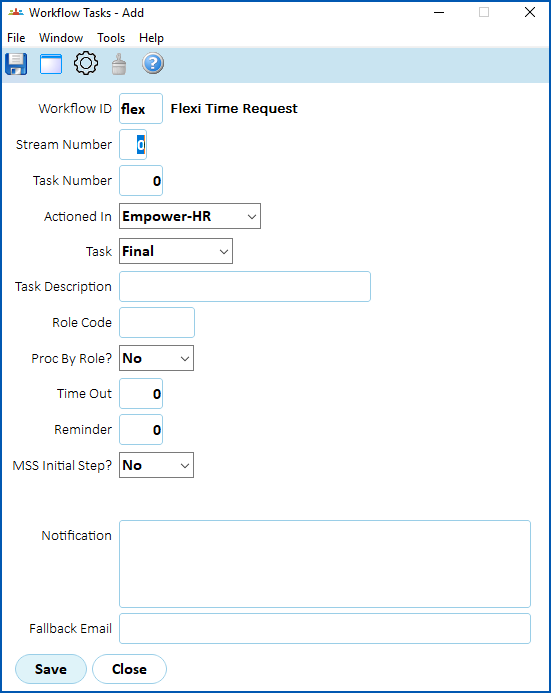
|  | Some fields are only available for a particular workflow. |
| --- | --- |
| **At this field...** | **Do this...** |
| --- | --- |
| Workflow ID | Enter the workflow ID if you know it, *or*
Click **Window**, find and double-click the ID to add it to the field. |
| Stream Number | Enter the number of the workflow stream if the workflow has multiple streams, for example, enter **1** or else leave the default of **0**. |
| Task Number | Enter a number for the task, that is, its position in the ascending sequence of workplace tasks, for example, **10**. |
| Actioned In | Select the location from the dropdown list, for example, **Self Service**. |
| Task | Select the type of task from the dropdown list, for example, **Manager** or **Final**. |
| Task Description | Enter a description for the task, for example, **Manager approval**. |
| Role Code | Click **Window**, find and double-click the role code to add it to the field. For example, **manager**. |
| Proc by Role? | Select:
- Yes to allow anyone assigned to the workflow role to process the request, or
- No to send the request to an individual
|
| Time Out
Reminder | These fields are only required if you're using time out functionality. |
| MSS Initial Step? | Select **Yes** if you want this task to be the starting approval step when used from Manager Self Service (MSS).
|  | Requests created by the automatic leave without pay job also start at this task, unless the [alwt installation option](/articles/ehr-user-guide/what-you-need-to-set-up-staff-absence-calendar/a/h2_425793240 "Click to open the page in a new window at the 'Set installation options' section") is set to y. If it is, they start at the first task in the workflow. |
| --- | --- | |
| Fallback Email | This field is only required if you're using time out functionality. |
1. Click **Save**.
2. Repeat this procedures, starting with step 3, until you've created all the workflow tasks you need.
| Next topic
[Web services](/articles/ehr-user-guide/web-services) |
| --- |
© 2023 Fusion5. All rights reserved.