---
title: "Define workflow roles"
id: "define-workflow-roles"
project: "EHR User Guide"
url: "https://help.cloud5.com.au/articles/ehr-user-guide/define-workflow-roles"
updated: 2026-10-19T00:53:15Z
---
# Define workflow roles
When setting up an approval workflow, you first define the types of workflow roles you need and then add people to them. It’s simply determining who does what.
For example, you might set up a role of Manager and then assign all the relevant people who are managers.
To define the workflow roles:
1. Go to Administration > Workflow > Role Codes.
2. At the Role Codes summary screen, click **Find Now** to see a list of existing role codes.
3. Click **New** to create a new role.
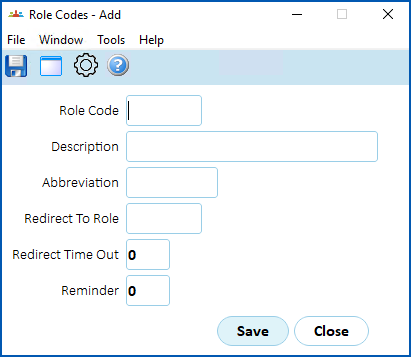
4. At the Role Codes detail screen, complete the fields using the following table as a guide.
| **At this field...** | **Do this...** |
| --- | --- |
| Role Code | Enter a code for the role (up to 8 characters) |
| Description | Enter a description for the role (up to 30 characters) |
| Abbreviation | Enter a meaningful abbreviation of the role description(up to 10 characters) |
| Redirect To Role
Redirect Time Out
Reminder | These fields are only required if you're using time out functionality. |
1. Click **Save**.
2. Repeat this procedure, starting at step 3, until you've created all the workflow roles you need.
|  | To view the history of role codes, at the **Roles Codes** summary screen, go to **Window** > **History** and then do a search. |
| --- | --- |
| Next topic
[Add people to workflow roles](/articles/ehr-user-guide/add-people-to-workflow-roles) |
| --- |
© 2023 Fusion5. All rights reserved.