When defining a form template field, selecting e (Table) as the Data Type allows you to enter SQL statements for EmpowerHR to run and then display the results in a table on the form. You can use SQL to return multiple rows and columns. EmpowerHR does not save the SQL results with the form, but runs the SQL each time the form is loaded. See SQL for self service forms in the EHR Technical User Guide  for examples of SQL statements and tags.
If you don't have access to the EHR Technical User Guide, you can log an iHelp request and we will provide login credentials to you.
You also need to define the title and length for each field returned by the SQL.
To define the title and length for fields returned by SQL:
- Go to the Form Fields Definition screen.
- Select the row containing the table field, and then click Next Level.
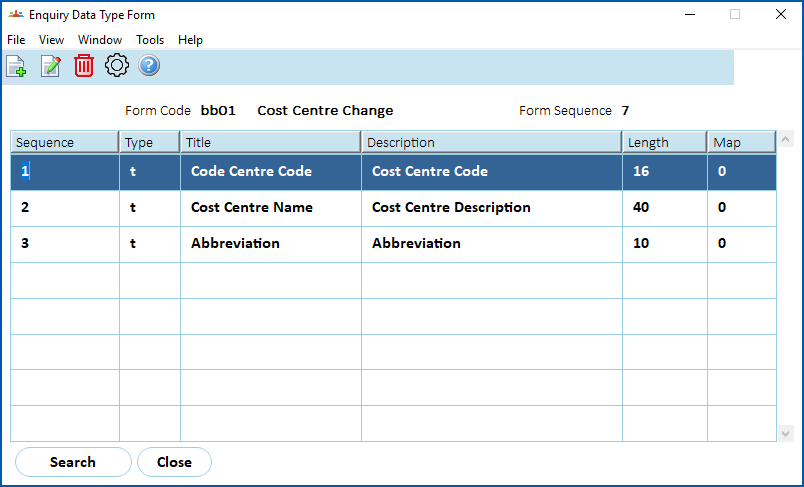
- EmpowerHR displays the Enquiry Data Type Form summary screen.
- Click New.
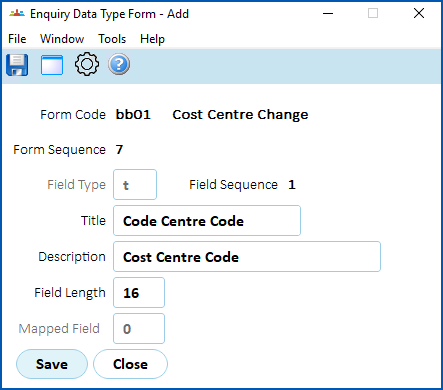
- EmpowerHR displays the Enquiry Data Type Form details screen.
- At:
- Title, enter a title for the table column to be displayed
- Field Length, enter the number of characters for the length of the field

|
The field sequence maps to the field position in the SQL statement. For example, field sequence 1 maps to the first field, field sequence 2 maps to the second field (and so on) in the SQL statement. |
- Click Save.
- Repeat this procedure, starting at step 4, until you have defined all the required fields.
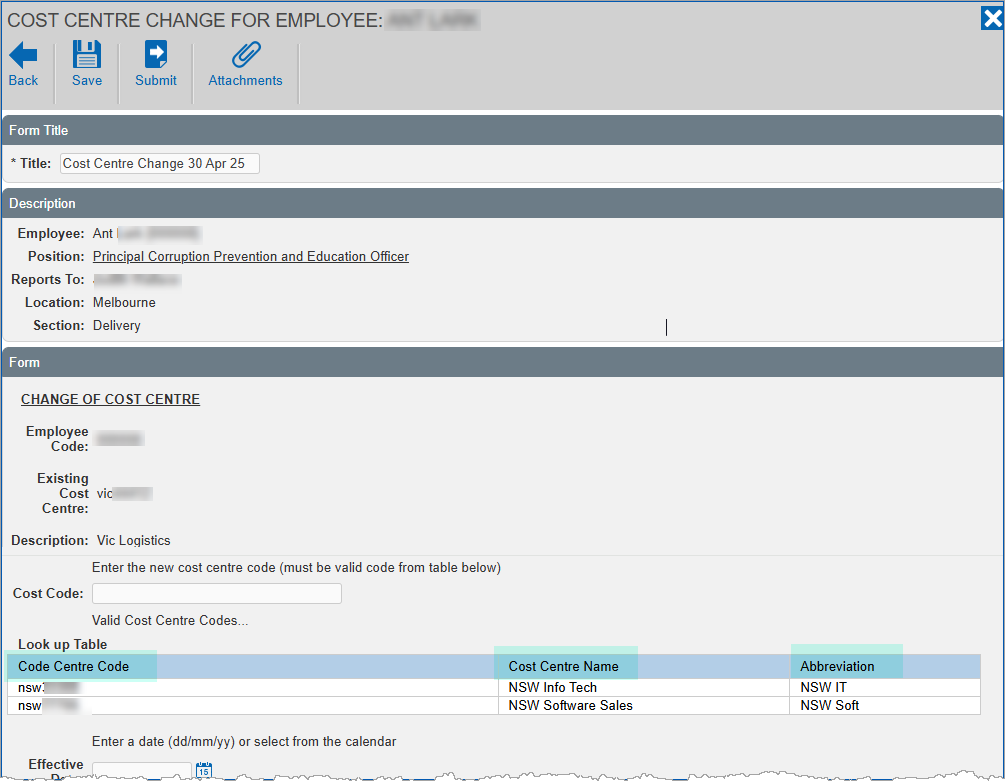
Here is an example of how EmpowerHR displays the table in self service.
© 2023 Fusion5. All rights reserved.