---
title: "Customise info and help messages"
id: "customise-info-and-help-messages"
project: "EHR User Guide"
url: "https://help.cloud5.com.au/articles/ehr-user-guide/customise-info-and-help-messages"
updated: 2026-10-19T00:54:16Z
---
# Customise info and help messages
You can customise the:
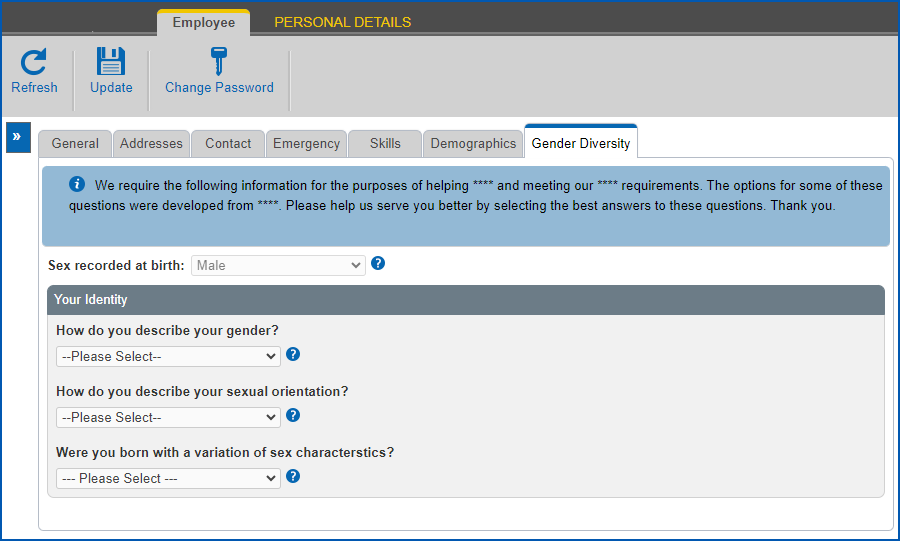
* **Information** message at the top of the **Gender Diversity** tab in self service by configuring the property
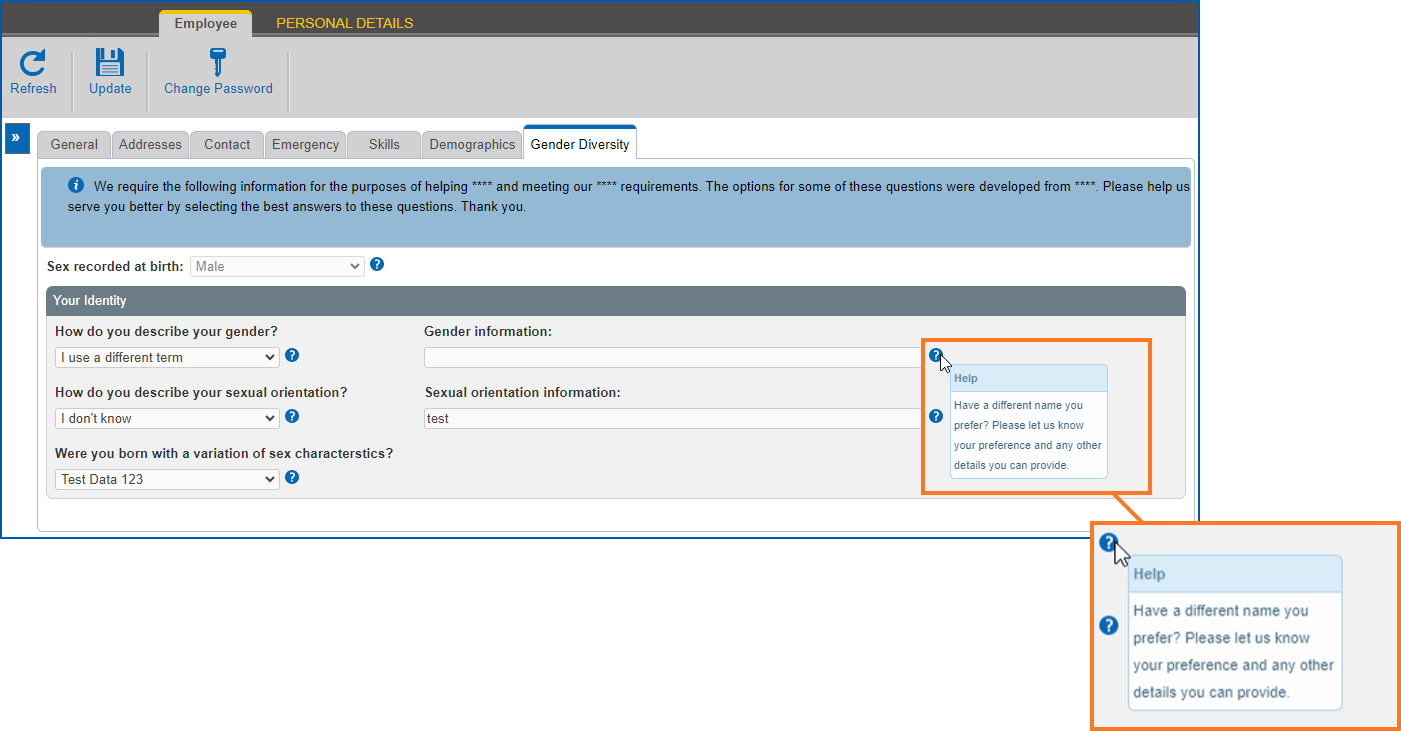
* **Help** on the **Gender Diversity** fields in self service using screen painting
## Customise the information message 
To customise the information message at the top of the **Gender Diversity** tab:
1. In **Admin**, go to **Administration**> **Configuration** > **All Configuration**.
2. At the **All Configuration** screen, expand the **Self Service** > **Modules** list of properties, and then click **Personnel Section**.
3. At the **Properties** pane, scroll down and locate the property called **personnel.tabs.genderDiversity.information.msg**
4. Type in the message you want to display.
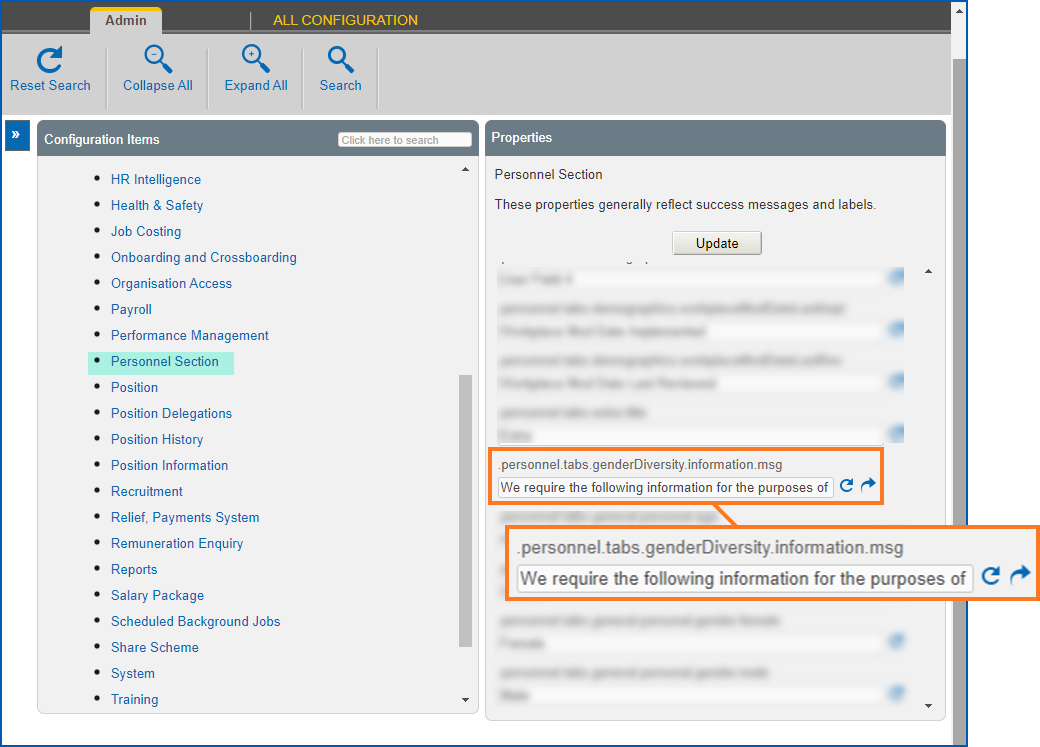
1. Click **Update** to save your entries. Now, the information message you created displays on the **Gender Diversity** tab.
###
## Customise help 
To customise help on gender diversity fields:
1. In **Admin**, go to **Administration**> **Screen Management**>**Screen Painting**.
2. At **Screen Painting**, expand the **Self Service** list of screens, locate**Change Personal Details**, and then click **Change**.
3. At **Screen Painting - Personal Details**, scroll down and locate the group of **Gender Diversity** fields.
4. In the **Help** column, enter the help text you want for the field (up to a maximum of 300 characters).

1. Repeat step 4 to customise help on any or all of the remaining fields.
2. Click **Update**. Now, the help text you created is available when you hover over the **Help** icon on each field.
| Next topic
[Add and update gender diversity information](/articles/ehr-user-guide/add-and-update-gender-diversity-information) |
| --- |
© 2023 Fusion5. All rights reserved.