---
title: "Create leave elements for flexi leave"
id: "create-leave-elements-for-flexi-leave"
project: "EHR User Guide"
url: "https://help.cloud5.com.au/articles/ehr-user-guide/create-leave-elements-for-flexi-leave"
updated: 2026-10-19T00:53:16Z
---
# Create leave elements for flexi leave
You need to create leave elements for:
* flexi credit leave
* flexi banked leave
To create a new leave element:
1. Go to **Control Tables**> **Leave**> **Leave Element Codes** **.**
2. At the **Leave Element Codes** ****summary screen, click **Find Now** to see a list of existing leave element codes.
3. Click **New**.
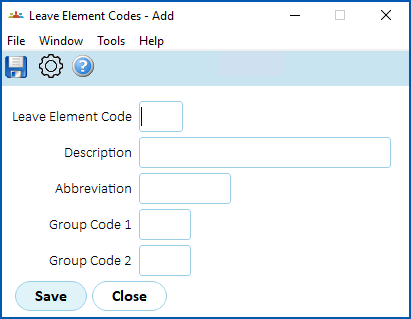
4. At the **Leave Element Codes**detail screen, complete the fields using the following table as a guide.
| **At this field...** | **Do this...** |
| --- | --- |
| Leave Element Code | Enter the code for the leave element, While you can make up your own code, we recommend you use the following codes. For:
- flexi credit leave, enter fxcr
- flexi banked leave, enter fxbn
|  | The leave element codes link to the installation settings, Using these recommended standard codes can help when seeking support. |
| --- | --- | |
| Description | Enter a descriptive name for the leave element (up to 30 characters), for example, **Flexi Banked Leave** |
| Abbreviation | Enter a meaningful abbreviation of the leave element (up to 10 characters), for example, **Flexi Bank** |
| Group Code 1 - Group Code 2 | N/A |
1. Click **Save**.
2. At the **Leave Element Codes** summary screen, the new element is added to the top of the list. Click **Next Level**.
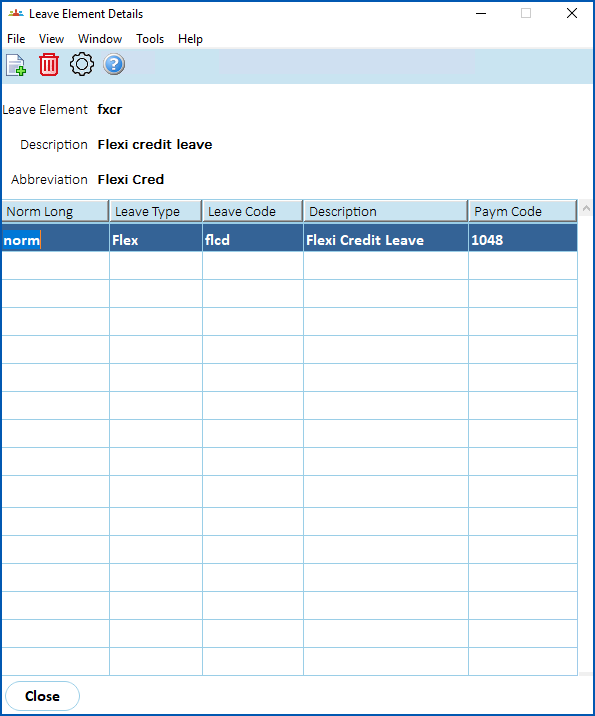
3. The **Leave Element Details** screen displays.
1. Repeat this procedure, starting from step 3, to set up the second, remaining leave element.
| Next topic
[Allocate flexi leave rules to employees](/articles/ehr-user-guide/allocate-flexi-leave-rules-to-employees) |
| --- |
© 2023 Fusion5. All rights reserved.