To create/copy or update/delete a template in MSS:
- Go to Administration > Security > Templates.
- The Templates catalogue displays.
- To:
- create a new template, click Add. Go to step 4.
- copy an existing template, at the row containing the template, click Actions and then select Copy Template from the menu. Go to step 4.
- update an existing template's details, at the row containing the template, click
 Action and then select Edit from the menu. Go to step 4.
- update an existing template's security access (to nominate the screens users on the template will have access to), go to step 6.
- delete an existing template, at the row containing the template, click Actions and then select Delete from the menu. At the Template details screen, click Delete and EmpowerHR deletes the template. No further action is required.
- At the Template details screen, complete or update the template fields.
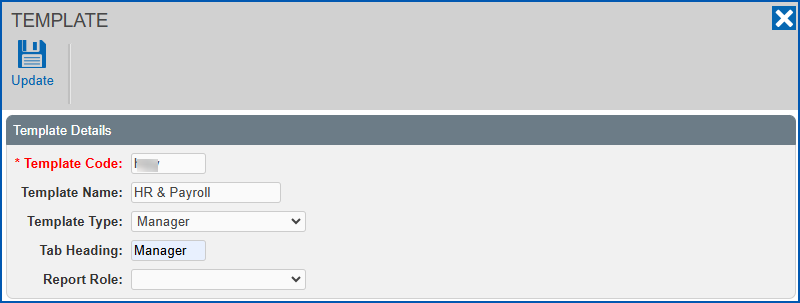
- Click Save if saving your entries for a new template, or Update if saving changes for an existing template. EmpowerHR displays the new/updated template in the Templates catalogue.
- At the row containing the template, click Actions and then select Access from the menu.
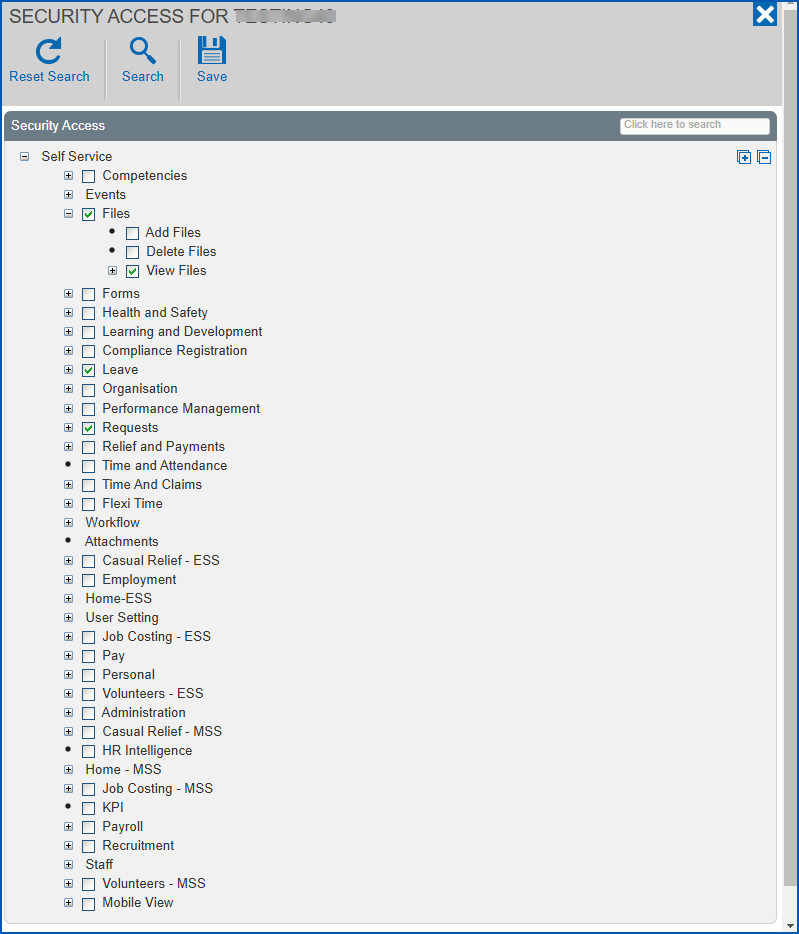
- EmpowerHR displays the Security Access for... details screen with the self service menu (tree) structure.
- Expand the groups of menu items (or use Search) to find the menu item you require.
- To:
- grant access, select the checkbox next to the menu item
- remove access, clear the checkbox next to the menu item

|
When you select or clear a checkbox next to a main menu item, EmpowerHR applies your selection to all sub-menus for that item. Alternatively, expand the main menu item and only select/clear the sub-menus you want to grant or revoke access to. |
- Click Save.
© 2023 Fusion5. All rights reserved.