---
title: "Create and submit a time & claims request"
id: "create-and-submit-a-time-claims-request"
project: "EHR User Guide"
url: "https://help.cloud5.com.au/articles/ehr-user-guide/create-and-submit-a-time-claims-request"
updated: 2026-10-19T00:53:42Z
---
# Create and submit a time & claims request
## Time and claims catalogue
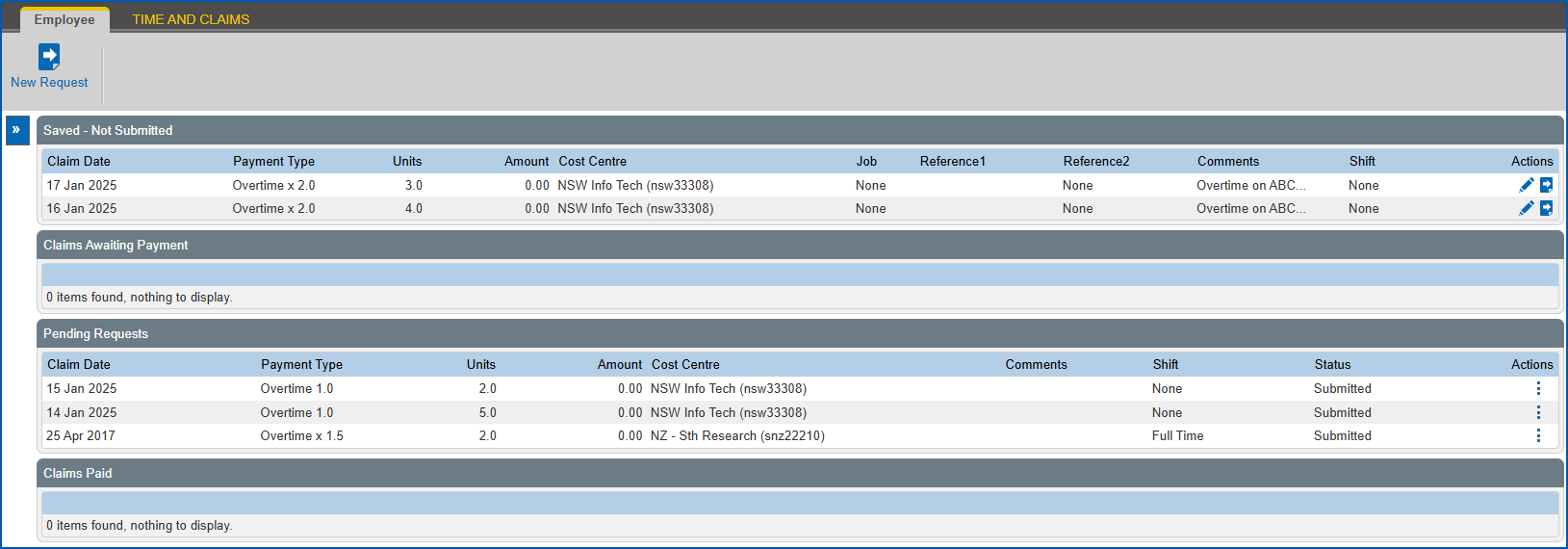
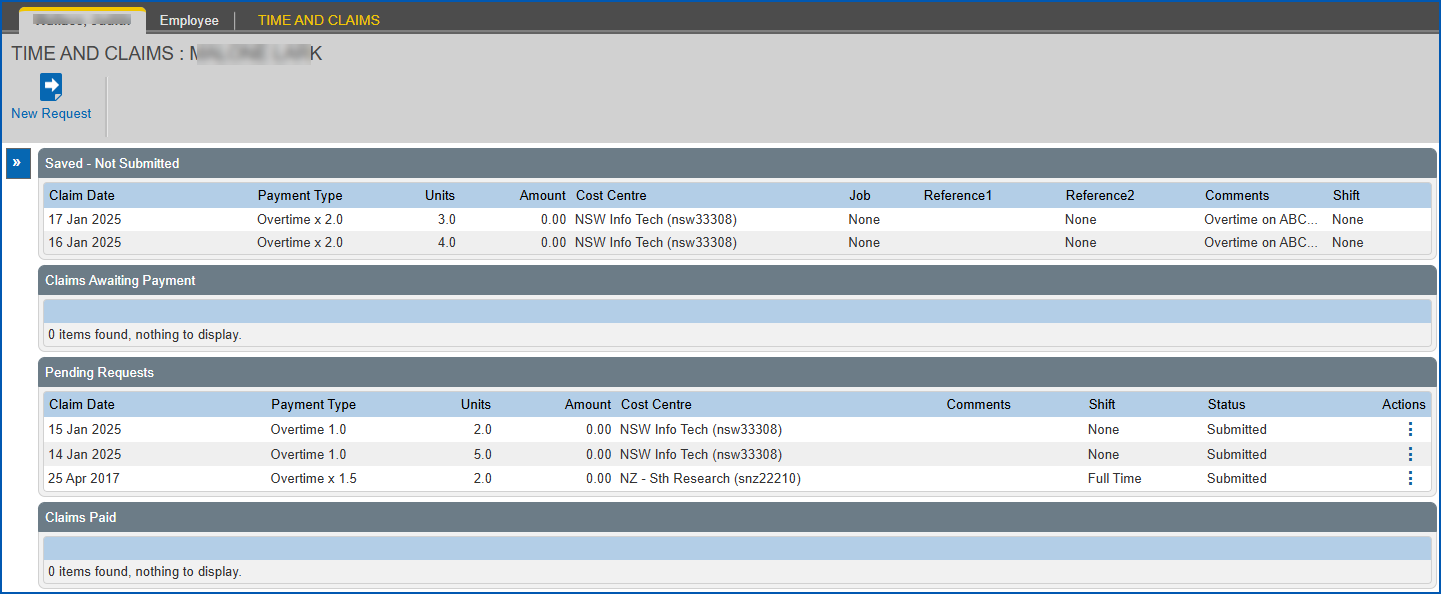
Whether you are an employee using ESS , or a manager working in MSS , a Time and Claims catalogue is available where you create and view payment requests and their status.
ESS = Employee Self ServiceMSS = Manager Self Service
### Time and claims catalogue in ESS
Here's an example of the Time and Claims catalogue in ESS, located at **Requests** > **Time and Claims**.
### Time and claims catalogue in MSS
Here's an example of the Time and Claims catalogue in MSS. You access this catalogue by first selecting an employee from **Staff Management** and then clicking **Requests** > **Time and Claims**.
## Can I create a time and claims payment request?
* As an employee, you can create your own time and claims payment requests in ESS.
* As a manager, you can create a time and claims payment request (on your employee's behalf) in MSS.
## Create a time and claims payment request 
|  | If you are a manager creating a request on behalf of an employee, you must first go to **Staff Management**, search for and select the employee. |
| --- | --- |
To create a time and claims payment request:
1. Go to **Requests**> **Time and Claims**.
2. At the **Time and Claims**catalogue, click **N****ew Request**.
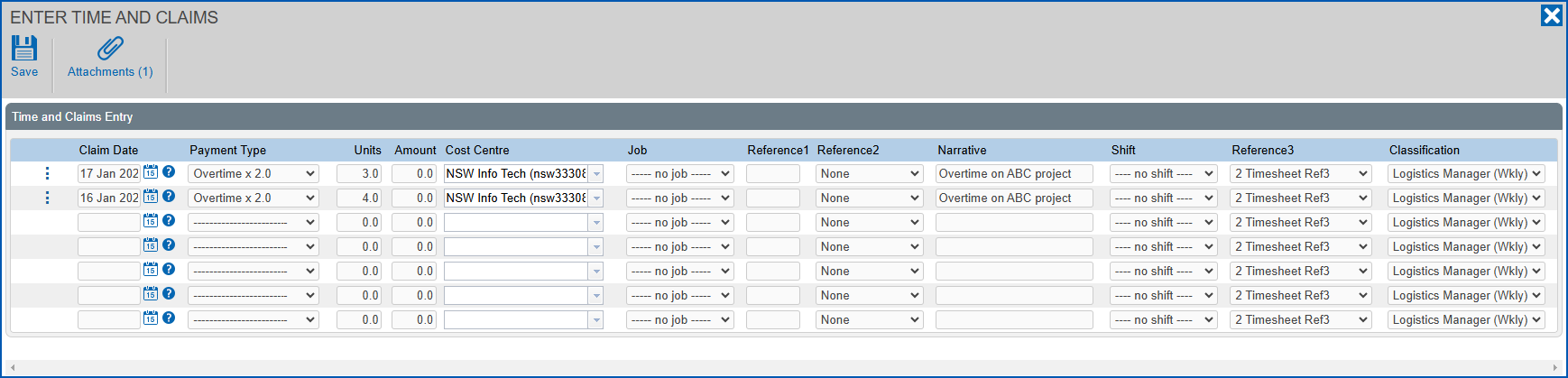
3. At the **Enter Time and Claims** screen, complete the fields using the following table as a guide.
|  | The following table provides general guidance. You'll find the purpose and names of some fields, and how they behave, depends on how they've been set up to suit your organisation. |
| --- | --- |
| **At this field...** | **Do this...** |
| --- | --- |
| Claim Date | Click **Date Lookup** and select a date for the claim. It must be a date that falls within an open pay period. |
| Payment Type | Select the payment type from the dropdown list. |
| Units | Enter the number of hours you are claiming. |
| Amount | EmpowerHR calculates the amount. Depending on how this field is set up in your organisation (via screen painting), you may be able to edit this field. |
| Cost Centre | Select a cost centre from the dropdown list. |
| Job | Select a job from the dropdown list. |
| Reference1 | Enter a reference, if needed. This is a free text field. Whatever you enter here appears on the pay data entry record. |
| Reference2 | Select a pay data entry ref2 code from the dropdown list. |
| Narrative | Enter comments, if you want. |
| Shift | Select a shift from the dropdown list. |
| Reference3 | Select a reference from the dropdown list. |
| Classification | Select a classification from the dropdown list. |
|  | To delete an item (row) from a request, click **Actions** and then select **Delete** from the menu. |
| --- | --- |
1. If you:
1. want to attach documents to the request, click **Attachments**, attach the files and click **Confirm**. Go to step 5.
2. don't want to attach documents to the request, then go to step 5.
2. Click **Save**.
3. Close the **Enter Time and Claims** screen.
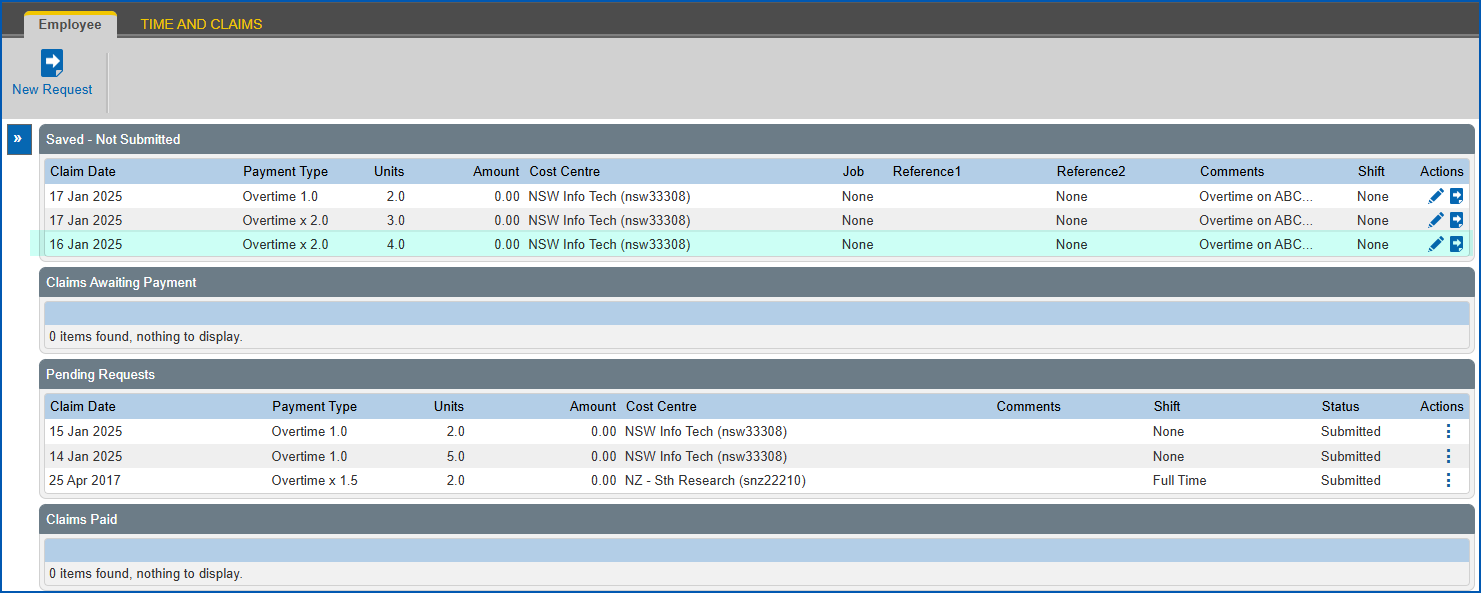
4. At the **Time and Claims** catalogue, your saved request appears in the **Saved - Not Submitted** list.
## Submit a time and claims payment request for approval
|  | If you are a manager who created a request on behalf of an employee, you cannot submit the request. The employee must submit the request. |
| --- | --- |
When you are ready to submit a request for approval:
1. Go to **Requests**> **Time and Claims**.
2. EmpowerHR displays the **Time and Claims**catalogue.
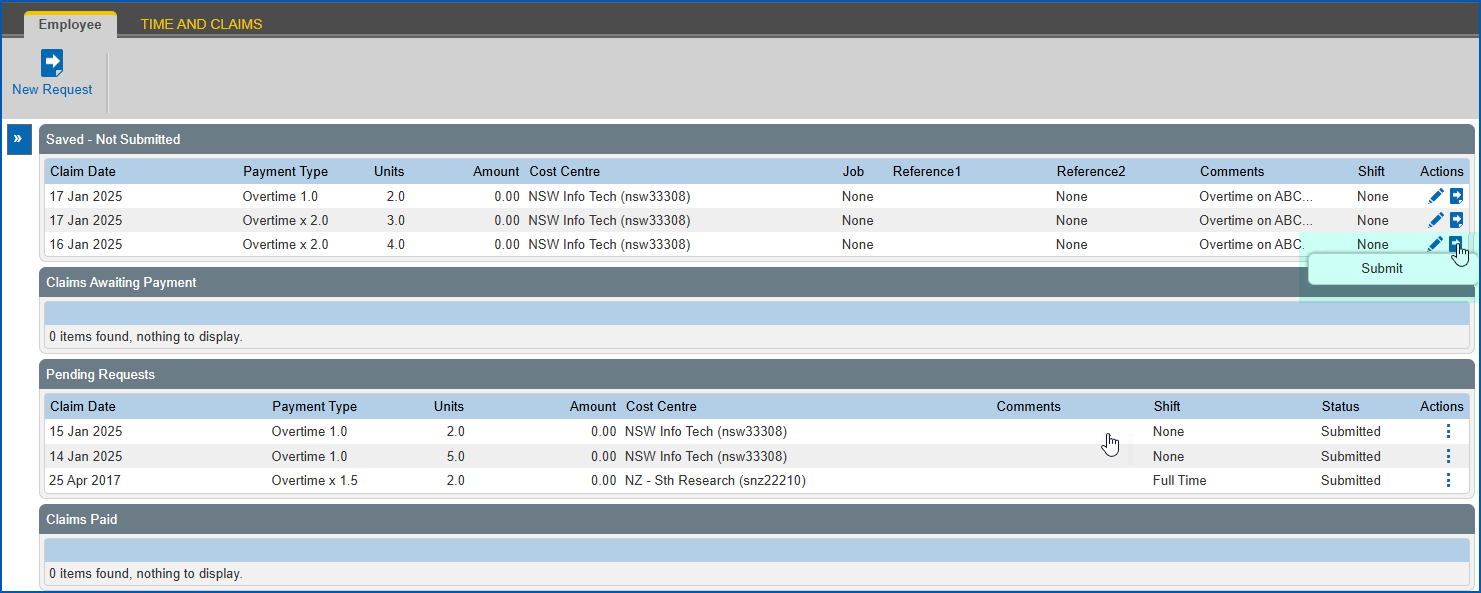
3. In the **Saved - Not Submitted** list, at any request row, click **Submit**.
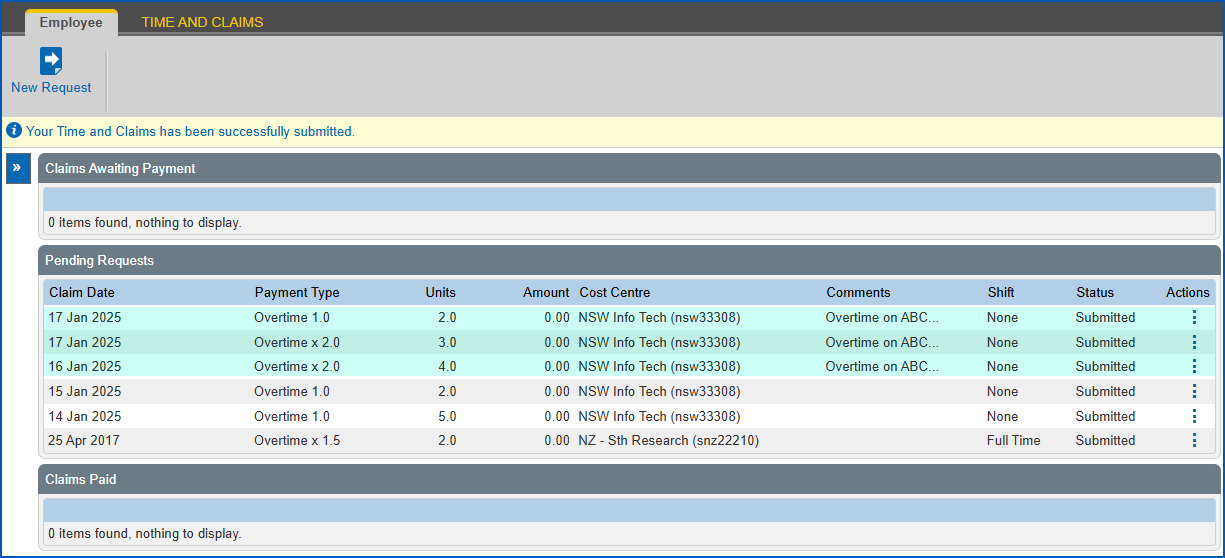
|  | It doesn't matter which request row you choose to submit as EmpowerHR submits every item in your **Save - Not Submitted** list. In the following example, we select **Submit** on the third item and all three claim items are then submitted. |
| --- | --- |
1. At the **Workflow :: Addressee** dialog box, in **Comments**, add a message if you want.
2. Click **Send To** to submit your request for approval.
3. Your request appears in the **Pending Requests** list on the **Time and Claims**catalogue ready to be actioned by an approver.
## 
| Next topic
[Action a time & claims request](/articles/ehr-user-guide/action-a-time-claims-request) |
| --- |
© 2023 Fusion5. All rights reserved.