---
title: "Create a position-based form"
id: "create-a-position-based-form"
project: "EHR User Guide"
url: "https://help.cloud5.com.au/articles/ehr-user-guide/create-a-position-based-form"
updated: 2026-10-19T00:53:44Z
---
# Create a position\-based form
## Configure the installation option for position-based forms
By default, EmpowerHR allows a manager to create position-based form types on behalf of all positions they have hierarchical access to, including vacant, abolished, and redundant positions. This is controlled by the installation option called **(smpf) allow creation and access of position type forms from staff management**. If you prefer to switch off this feature, use the following procedure.
To disallow the **(smpf) allow creation and access of position type forms from staff managemen**t installation option:
1. Go to **Administration**> **Configuration**> **All Configuration**.
2. At **Configuration Items**, expand **Self Service**, and then****expand **Forms**.
3. Click **(smpf) allow creation and access of 'position' type forms from staff management**.
4. At **Choice**, click **n** (no).
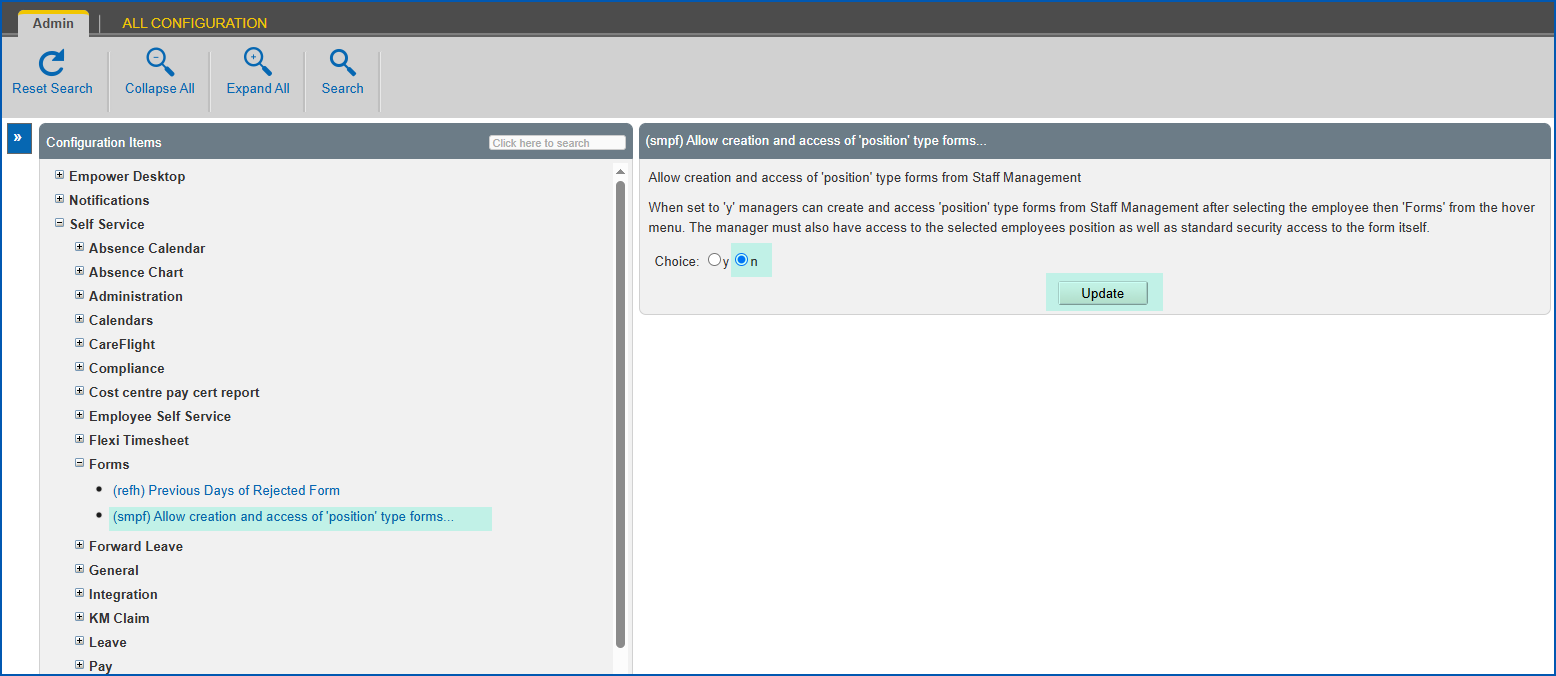
1. Click **Update**.
## Create a manager-initiated position form
As a manager, you can create a manager-initiated position type form from the Position Management screen.
To create a position-based form for your employees:
1. Go to **Organisation** > **Position Management**.
2. EmpowerHR displays the **Position Management** screen.
3. At **Search Filter**, complete the fields according to the type of search criteria you want to apply, and click the **Include Redundant or Abolished** if you want to include these positions in the search.
4. Click **Search** to see the results.
5. On the row containing the position you want to create the form for, click **Actions** and then select **Forms**from the menu.
6. EmpowerHR displays the **Forms for Position...** screen.
7. Click **Create New Form**.
8. At the **Create New Form for Position...** screen, select the **Form Type** from the dropdown list.
|  | The dropdown list shows only the position-based form templates relating to the selected position. |
| --- | --- |
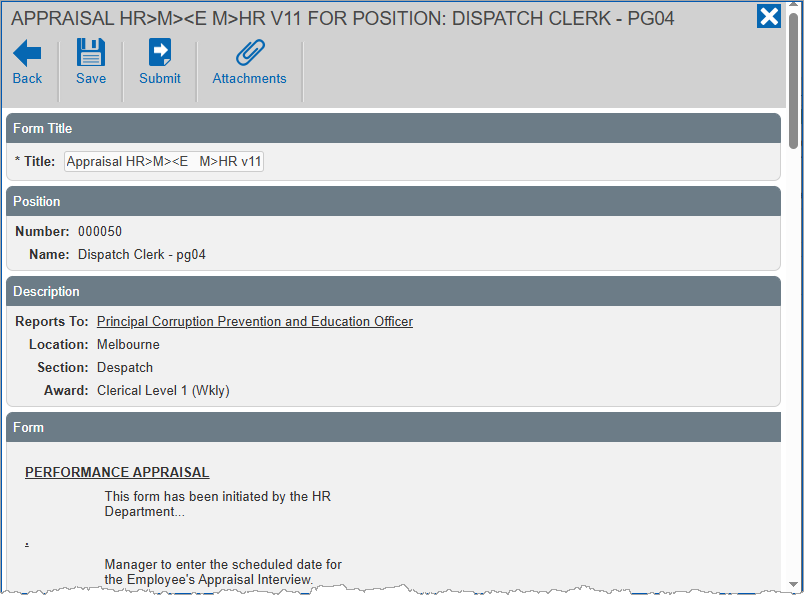
1. Click **Continue**. EmpowerHR displays the form details screen.
2. At the form details screen, complete the fields.
3. If you:
1. want to attach documents to the form, click **Attachments**, attach the files, and then click **Confirm**. Go to step 12.
2. don't want to attach documents to the form, then go to step 12.
4. At the form details screen, to
1. save your entries, click **Save**, *or*
2. save your entries and also start the workflow process, click **Submit**. (Alternatively, you can choose to save the form now and then submit it later, if you prefer.)
1. Close the form details screen.
2. EmpowerHR displays the **Forms for Position...** screen with the form listed.
| Next topic
[Web services](/articles/ehr-user-guide/web-services) |
| --- |
© 2023 Fusion5. All rights reserved.