To create a payment code:
- Go to Tasks > Payroll > Payment Codes.
- At the Payment Codes summary screen, click Find Now to see a list of existing payment codes.
- Click New.
- At the Payment Codes detail screen, select Payment.
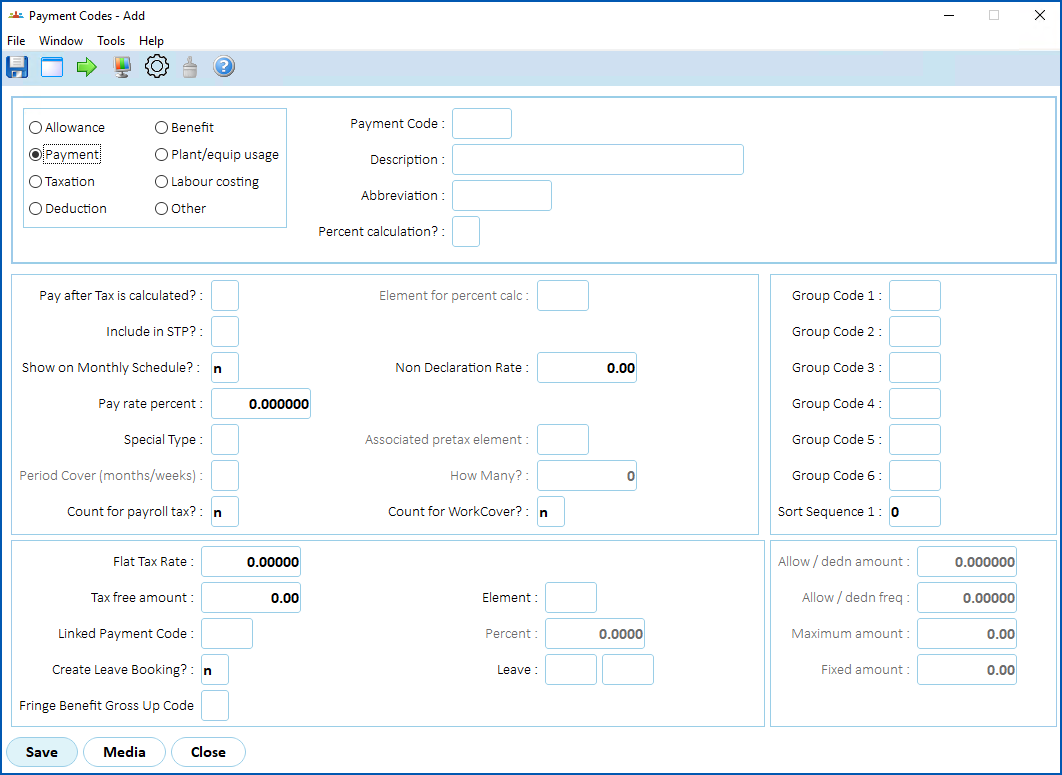
- Complete the fields. As a minimum, here are the ones you need to complete to create a payment code to use when adding flexi leave rules.
| At this field... | Do this... |
|---|---|
| Payment Code | Enter the payment code, for example, 1048 |
| Description | Enter a descriptive name for the payment code (up to 30 characters), for example, Flexi Leave. |
| Abbreviation | Enter a meaningful abbreviation of the leave name (up to 10 characters), for example FlexiLV |
| Pay after Tax is calculated? | Enter n (no). |
Include in STP? | Enter y (yes), and then:
|
| Pay rate percent | Enter 100 so this payment code can be used when creating the flexi leave rules |
- Click Save to save the payment code and, if prompted, add the payment code to elements.
© 2023 Fusion5. All rights reserved.