---
title: "Create a manager-initiated form"
id: "create-a-manager-initiated-form"
project: "EHR User Guide"
url: "https://help.cloud5.com.au/articles/ehr-user-guide/create-a-manager-initiated-form"
updated: 2026-10-19T00:53:25Z
---
# Create a manager\-initiated form
###
## Return MSS-initiated form requests to employee
###
EmpowerHR offers an option to allow a manager to create and return a form request to their employee for their confirmation/completion. If you switch this feature on (workflow settings), when the manager completes the form details, they click the **Return** button to direct the form request to the employee rather than the next step in the workflow (submit). The form request appears in the employee's Forms catalogue as a pending request, ready for them to edit and forward for approval.
|  | This feature applies only to Employee type forms. |
| --- | --- |
To switch on this feature:
1. Go to **Administration** > **Workflow** > **Workflow Settings**.
2. EmpowerHR displays the **Workflow Settings** summary screen.
3. Select the row containing the setting you want to change, and click **Next Level**.
4. At the **Workflow Settings - change** (detail) screen, in:
1. **Allow Return to Employee on Manager Initiation**, select **Yes** from the dropdown list, *and*
2. set whether the employee must forward the request back to the initiating manager, or a different manager, for approval
1. Click **Save**.
## Create a manager-initiated employee form
As a manager, you can create a manager-initiated employee type form from the Staff Management screen in two ways:
* create a form for a single employee
* create a form for a number of employees (bulk form)
### Create a form for a single employee
To create a form on behalf of a single employee:
1. Click **Staff Management**.
2. EmpowerHR displays the **Staff Management** screen.
3. At **Search Filter**, complete the fields according to the type of search criteria you want to apply, and then click **Search** to see the results.
4. At the row containing the employee you want to create the form for, click **Actions** and then select **Forms** from the menu.
5. At the **Forms for...**screen, click **Create New Form**.
6. At the **Create New Form for...** screen, select the **Form Type** from the dropdown list.
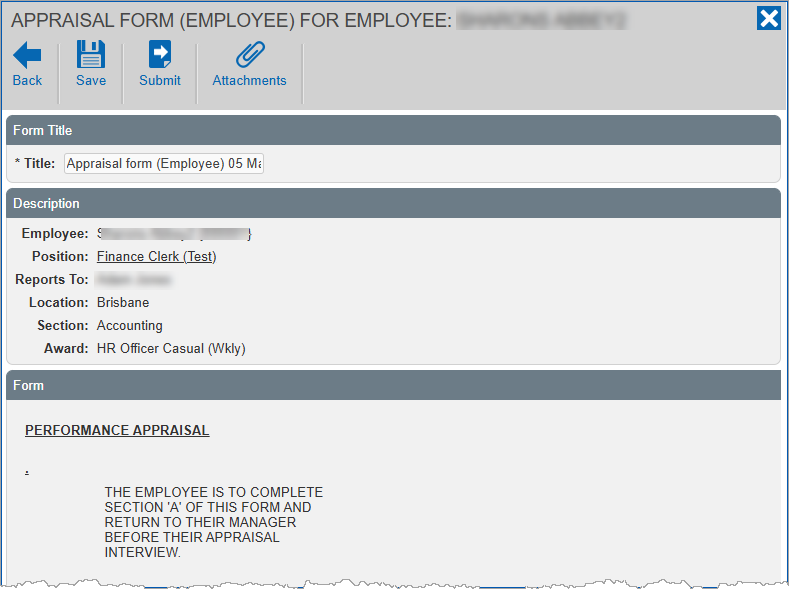
7. Click **Continue**. EmpowerHR displays the form details screen.
8. At the form details screen, complete the fields.
9. If you:
1. want to attach documents to the form, click **Attachments**, attach the files, and then click **Confirm**. Go to step 10.
2. don't want to attach documents to the form, then go to step 10.
10. At the form details screen, to
1. save your entries, click **Save**, *or*
2. save your entries and also start the workflow process, click **Submit**. (Alternatively, you can choose to save the form now and then submit it later, if you prefer.)
1. Close the form details screen.
2. The form displays in the relevant list on the **Forms for...**screen.
### Create a form for multiple employees
To create a form on behalf of multiple employees:
1. Click **Staff Management**.
2. EmpowerHR displays the **Staff Management** screen.
3. At **Search Filter**, complete the fields according to the type of search criteria you want to apply, and then click **Search** to see the results.
4. Click **Bulk Forms**.
5. EmpowerHR displays the **Create New Form** screen, showing the total number of selected employees. In the following example, there are 16 employees selected.
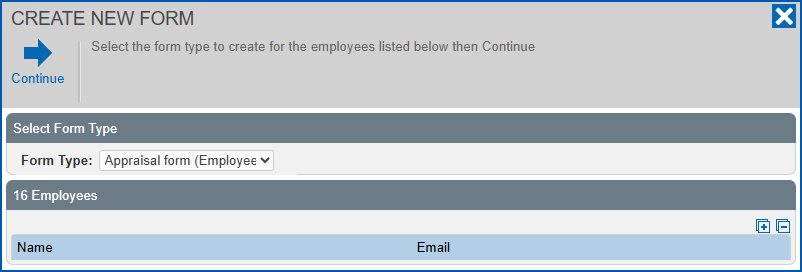
|  | If you want to see the list of employees, click **Expand**. |
| --- | --- |
1. Select the **Form Type** from the dropdown list.
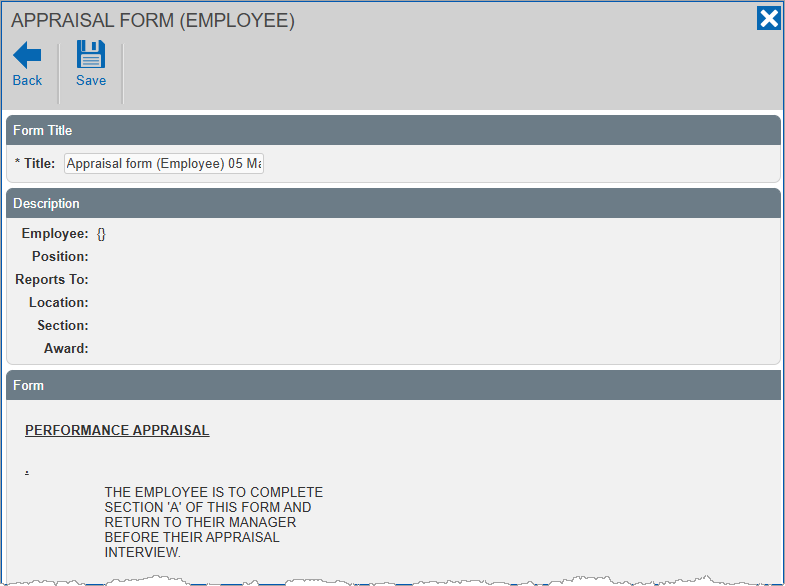
2. Click **Continue**. EmpowerHR displays the form details screen.
3. At the form details screen, complete the fields, and then click **Save** to save your entries.
##
| Next topic
[Web services](/articles/ehr-user-guide/web-services) |
| --- |
© 2023 Fusion5. All rights reserved.