---
title: "Cost centre change request configuration"
id: "cost-centre-change-request-configuration"
project: "EHR User Guide"
url: "https://help.cloud5.com.au/articles/ehr-user-guide/cost-centre-change-request-configuration"
updated: 2026-10-19T00:52:41Z
---
# Cost centre change request configuration
If your organisation wants to use self service cost centre change requests, you must:
* create a movement reason
* add transaction rules
* set up the approval workflow
* display the menu item
## Create the position movement reason
Determine the position movement reason you want to create and use for cost centre change requests.
See [create movement reasons](/articles/ehr-user-guide/create-movement-reasons) for how to create the reason code.
## Add transaction rules
Add the transaction rules for the position movement reason code you created.
See [create and update transaction rules](/articles/ehr-user-guide/create-and-update-transaction-rules) for instructions.
## Set up approval workflow
The **movt** (position movement) workflow automates the request approval process. Use the following instructions to set up the workflow for cost centre change requests.
|  | If you need more information about EmpowerHR workflows, see [design workflow](/articles/ehr-user-guide/design-workflow). |
| --- | --- |
### Add movement reason to workflow setting
To add the movement reason you created to the workflow setting:
1. Go to **Administration** > **Workflow** > **Workflow Settings**.
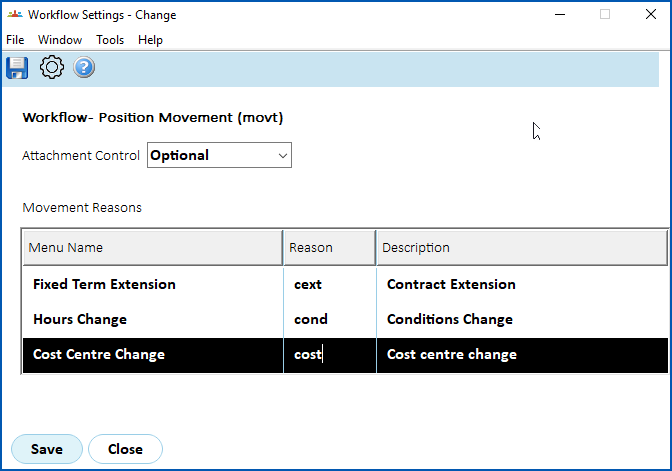
2. At the **Workflow Settings** summary screen, click the workflow called **movt Position Movement**, and then click **Next Level**.
3. At the **Workflow Settings** detail screen, on the row containing **Cost Centre Change**, enter the position movement reason you created in the **Reason** column, and then press **Tab**.
1. Click **Save**.
### Define workflow element (cost centre change request)
To define a workflow element:
1. Go to Administration > Workflow > Workflow Elements.
2. At the Workflow Elements summary screen, click **Find Now**to see a list of existing elements.
3. Click **New**.
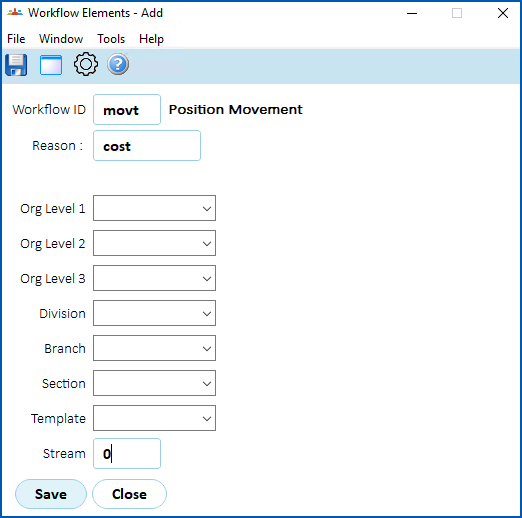
4. At the Workflow Elements detail screen, in the **Workflow ID** field, enter **movt**.
5. Press **Tab**. The **Reason** field displays.
6. In the **Reason** field, enter the position movement reason you created and added to the workflow setting (for example, **cost**).
1. Click **Save**.
### Define workflow tasks
Set up the workflow tasks to suit your requirements.
See [define workflow tasks](/articles/ehr-user-guide/define-workflow-tasks) for instructions.
## Display the menu item
Make the cost code change request available to employees and managers.
To make the request available:
1. Go to **Administration** > **Security** > **Templates**.
2. The **Templates**catalogue displays.
3. At the row containing the template you want to update, click **Actions** and then select **Access** from the menu.
4. EmpowerHR displays the **Security Access for...** details screen with the self service menu (tree) structure.
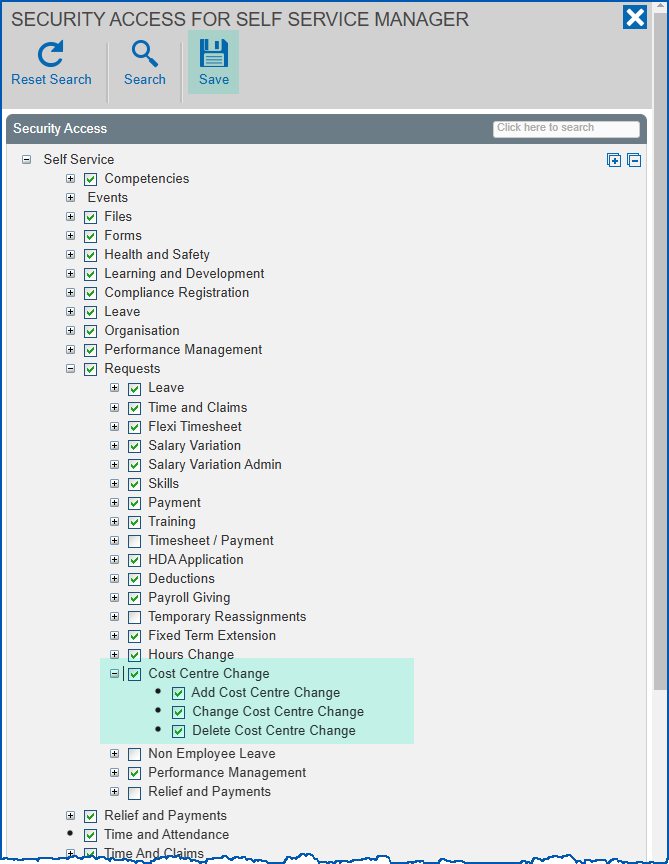
5. Expand **Self Service**, and then expand **Requests**.
6. Grant access by selecting the checkbox next to **Cost Centre Change**.
1. Click **Save**.
2. Repeat this procedure, starting at step 3, until you have updated any other relevant templates.
| Next topic
[Payslip display configuration](/articles/ehr-user-guide/payslip-display-configuration) |
| --- |
© 2023 Fusion5. All rights reserved.