---
title: "Change, reverse, delete a LSL booking"
id: "change-reverse-delete-a-lsl-booking"
project: "EHR User Guide"
url: "https://help.cloud5.com.au/articles/ehr-user-guide/change-reverse-delete-a-lsl-booking"
updated: 2026-10-19T00:53:06Z
---
# Change, reverse, delete a LSL booking
Once a LSL booking is made, you can change, reverse, delete (or [re-book](/articles/ehr-user-guide/make-a-lsl-booking)) it if necessary.
Here's a description of which action to take and when - often it depends on whether the LSL booking has been paid/partially paid or not paid at the time.
| | 
**LSL booking is not yet paid** | 
**LSL booking has been paid/partially paid** |
| --- | --- | --- |
| **Change?** | 
- You can change dates or other fields on the original booking. This action reverses the original booking and creates a third booking with the new data - all in one action
| 
- You can't change the LSL booking but you can reverse it
|
| **Reverse?** | 
Reversal isn't required as:
- the LSL booking hasn't been linked to pay
- no pay record remains so there's no need to retain a leave record
| 
Reversal:
- deactivates the original LSL booking
- creates another identical (and inactive) LSL booking to reverse the leave deduction
- adjusts pay records
|
| **Delete?** | 
This deletes the LSL leave record | 
- You can't delete the LSL booking but you can reverse it
|
## Change a LSL booking (days/weeks)
To change a LSL booking (days/weeks):
1. Go to **Tasks** > **Leave**> **Leave Bookings**>**Long Service Leave Bookings**.
2. At the **Long Service Leave Bookings** ****summary screen, find the employee whose leave booking you want to change.
3. Select a row and then click **Next Level**.
4. At the **Long Service Leave Bookings** detail screen, enter the details of the booking you want to change.
5. EmpowerHR displays the leave booking details and the following message.
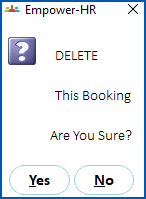
1. Click **No.**
2. EmpowerHR displays the following message.
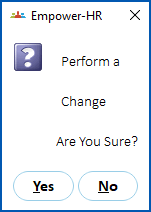
1. Click **Yes**.
2. EmpowerHR displays the following screen with the current open pay date as the default.
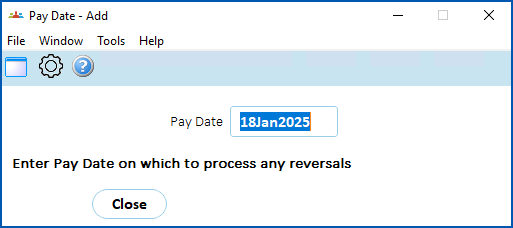
1. Enter the pay date for the pay you want EmpowerHR to adjust, or click **Window**, find and double-click the pay date to add it to the field.
2. Press **Tab**.
3. The following message displays.
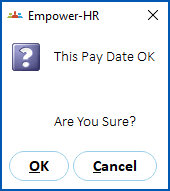
4. Click **OK**.
5. Make the changes to the booking details, and then click **Save**.
6. A message displays to let you know the booking is successfully changed.
7. Click **OK**. EmpowerHR:
* now contains three LSL records, two of which are inactive (the original and another reversing the original entries), plus one LSL record representing the changed booking (new data)
* makes a pay adjustment, varying the original LSL pay
## Change a LSL booking (hours)
To change a LSL booking (hours):
1. Go to **Tasks** > **Leave**> **Leave Bookings**>**LS Leave Hours Bookings**.
2. At the **LS Leave Hours Bookings** ****summary screen, find the employee whose leave booking you want to change.
3. Click **Open**.
4. At the **LS Leave Hours Bookings - Change** details screen, make your changes.
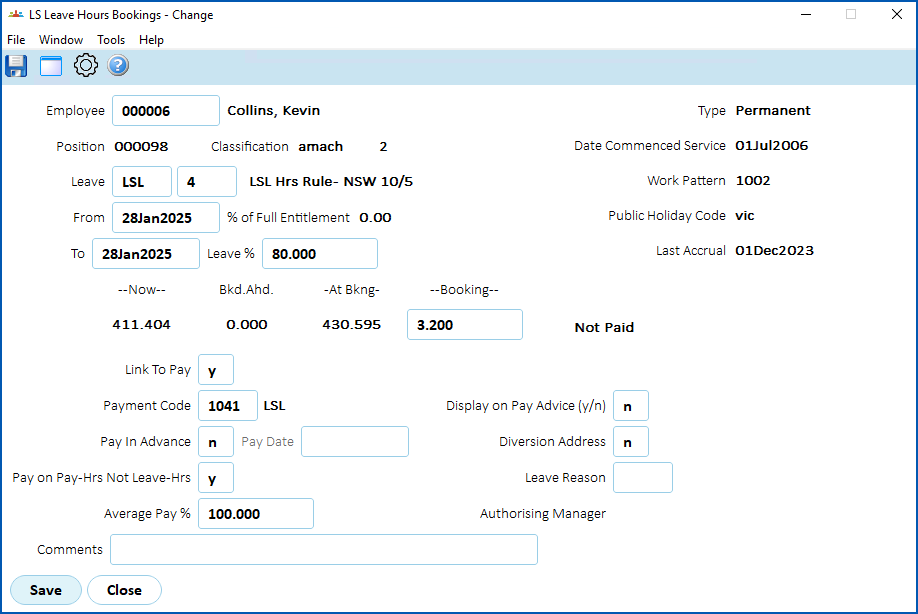
1. Click **Save**.
## Reverse a LSL booking (days/weeks)
To reverse a LSL booking (days/weeks):
1. Go to **Tasks**> **Leave**>**Leave Bookings** >**Long Service Leave Bookings**.
2. At the **Long Service Leave Bookings** ****summary screen, find the employee who has the booking.
3. Select a row and then click **Next Level**.
4. At the **Long Service Leave Bookings** detail screen, enter the details of the booking you want to reverse.
5. Press **Tab**. EmpowerHR displays the leave booking details and the following message.

1. Click **No**.
2. EmpowerHR displays the following message.

1. Click **Yes**.
2. EmpowerHR displays the following screen with the current open pay date as the default.
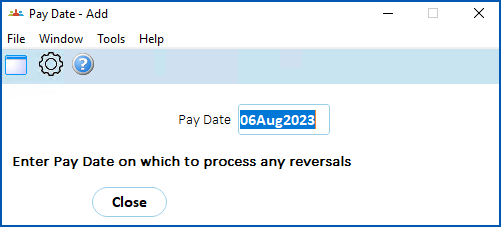
1. Enter the pay date for reversal of the original leave booking, or click **Window**, find and double-click the pay date to add it to the field.
2. Press **Tab**.
3. EmpowerHR asks if the pay date is OK.
4. Click **OK**.
5. Click **Save** to reverse the original booking.
6. A message displays to let you know the booking is successfully changed.
7. Click **OK**. EmpowerHR:
* now contains two inactive LSL records (the original and another reversing the original entries)
* makes a pay adjustment, reversing the original LSL pay
## Delete a LSL booking (days/weeks)
To delete a leave booking (days/weeks):
1. Go to **Tasks**> **Leave**>**Leave Bookings** >**Long Service Leave Bookings**.
2. At the **Long Service Leave Bookings** ****summary screen, find the employee who has the booking.
3. Select a row and then click **Next Level**.
4. At the **Employee Leave Bookings** detail screen, enter the details of the booking you want to delete.
5. EmpowerHR displays the following message.

1. Click **Yes**.
2. EmpowerHR displays the following message.
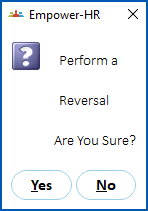
1. Click **No.**
2. Click **Save** to delete the booking.
3. A message displays to let you know the booking is successfully deleted.
4. Click **OK**. The leave record is not retained.
## Delete a LSL booking (hours)
To delete a LSL booking (hours):
1. Go to **Tasks** > **Leave**> **Leave Bookings**>**LS Leave Hours Bookings**.
2. At the **LS Leave Hours Bookings** ****summary screen, find the employee whose leave booking you want to delete.
3. Click **Delete**.
4. At the **LS Leave Hours Bookings - Change** details screen, click **Save**.
5. EmpowerHR displays the following message.

1. Click **Yes**.
2. The booking is deleted and EmpowerHR displays the **LS Leave Hours Bookings** ****summary screen. The booking is no longer listed there.
| Next topic
[LSL processes](/articles/ehr-user-guide/lsl-processes) |
| --- |
© 2023 Fusion5. All rights reserved.