---
title: "Cease a multiple employment"
id: "cease-a-multiple-employment"
project: "EHR User Guide"
url: "https://help.cloud5.com.au/articles/ehr-user-guide/cease-a-multiple-employment"
updated: 2026-10-19T00:53:28Z
---
# Cease a multiple employment
To cease a multiple employment, you record a new movement and include an **End Date**.
While we recommend your organisation creates a specific movement code for ceasing an employment, it's not compulsory. You can use an existing code instead, provided the transaction rule allows you to add an end date.
In the usual course of employee transactions, entering an **End Date** has serious implications for an employee as it ceases the employee's pay. It's best to use transaction rules to set the **End Date** field to Display Only for all movements except those you specifically design to cease pay.
To cease a multiple employment: 
1. Go to **T** **asks**> **Employees**> **Position Movement**> **Conditions Change**.
2. At the **Conditions Change**summary screen, in **Employee Code**:
1. enter the code if you know it, *or*
2. click **Window**, find and double-click the code to add it to the field
3. Press **Tab**. EmpowerHR displays all the employee's position movement records.
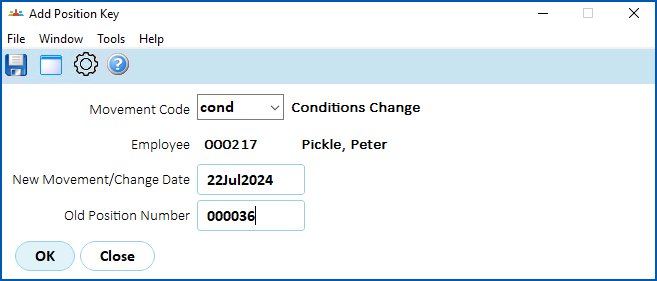
4. Click **New**. The **Add Position Key** screen displays. At:
1. **Movement Code**, select the conditions change code from the****dropdown list, and then press **Tab**.
2. **New Movement/Change Date field**, **** enter the date the change is to occur, and then press **Tab**.
5. EmpowerHR displays the employee's current position number in the **Old Position Number** field. Do not change this field!
1. Press **Tab**. The **Conditions Change**detail screen displays.
2. In the:
1. **End Date** field, enter the date to cease the employment
2. **Narrative**field, enter explanatory notes so anyone accessing the record can see at a glance why it was created. This is particularly important with a conditions change as it can be unclear exactly what was altered.
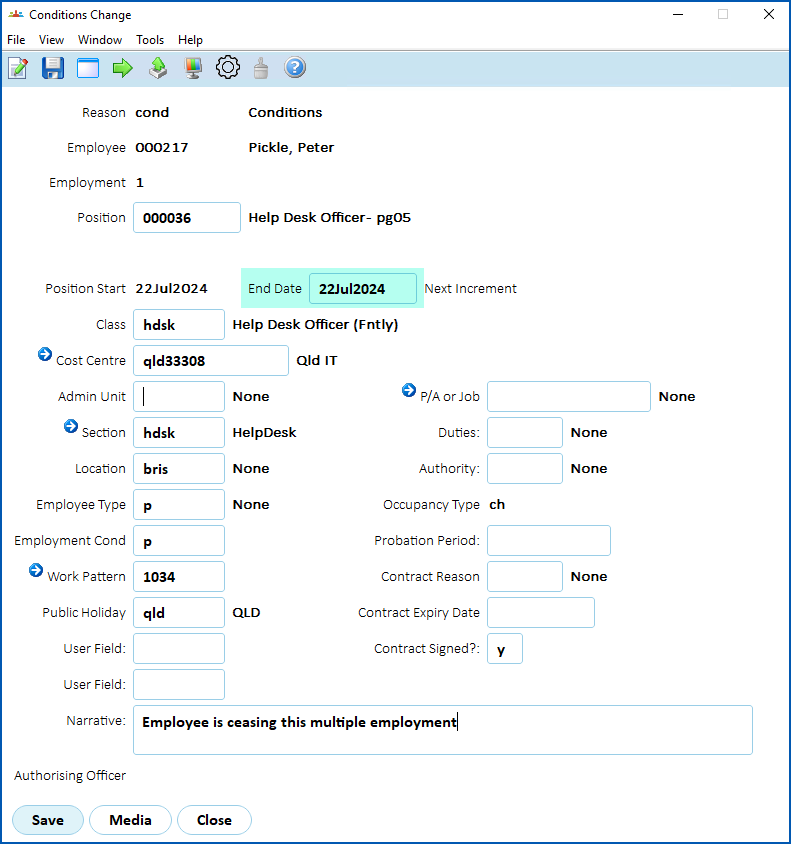
1. Click **Save**.
If after entering an **End Date**, the employee's employment is then later extended, you can enter a new movement from that end date****to continue and pay the employment - making sure to either leave the new employment **End Date** field blank or else enter a new end date.
Once you cease an employment, follow your organisation's policy to deal with any accrued leave. For example, if the policy is to transfer the leave to another employment, you can do this in EmpowerHR. First, you may need to run the accruals for the employee's ceasing leave types up to the end date (see [leave accrual processes](/articles/ehr-user-guide/leave-accrual-processes) to find out how). Then use the **Leave Transfers/Cancellations** screen to carry out the transfer (see [leave accruals and balances](/articles/ehr-user-guide/manage-leave-accruals-and-balances) for how).
What about terminations and multiple employments?
Terminations apply to employees, rather than employments. When you terminate an employee using the usual termination procedures, all the employee's current employments are terminated.
| Next topic
[Flexible working arrangements (FWA)](/articles/ehr-user-guide/flexible-working-arrangements) |
| --- |
© 2023 Fusion5. All rights reserved.