---
title: "Catholic educ check hrtscho1"
id: "catholic-educ-check-hrtscho1"
project: "EHR User Guide"
url: "https://help.cloud5.com.au/articles/ehr-user-guide/catholic-educ-check-hrtscho1"
updated: 2026-10-19T00:52:52Z
---
# Catholic educ check hrtscho1
This report provides a list of current employees with their Auto increment details entered in the HRTSCHO1 table.
To run the catholic educ check hrtscho1 report (**xsch008k**):
1. Go to **Background** **Jobs**>**School** > **Schools Reporting** > **Catholic Educ Check HRTSCHO1**.
2. At the **Catholic Educ Check HRTSCHO1**screen, click **Save**.
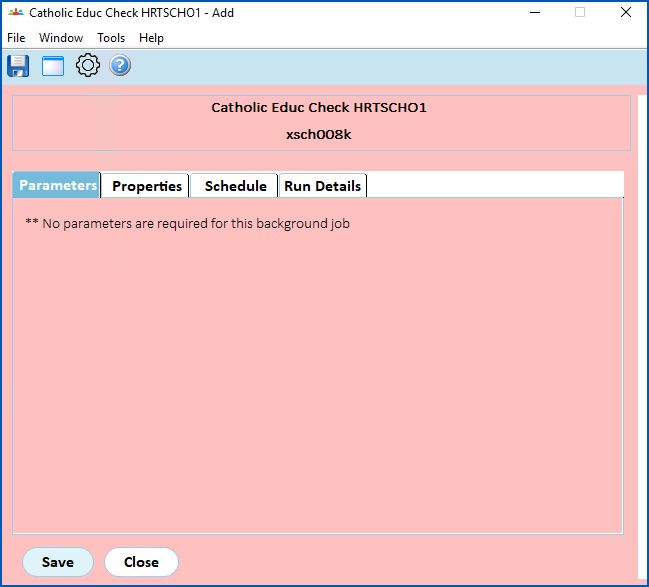
1. EmpowerHR runs the report.
2. Go to **Background Jobs**>**Requested Jobs**> **Requested Jobs**to see the report.
| Next topic
[Finance management](/articles/ehr-user-guide/finance-management) |
| --- |
© 2023 Fusion5. All rights reserved.