---
title: "Bulk upload employee additional data"
id: "bulk-upload-employee-additional-data"
project: "EHR User Guide"
url: "https://help.cloud5.com.au/articles/ehr-user-guide/bulk-upload-employee-additional-data"
updated: 2026-10-19T00:54:20Z
---
# Bulk upload employee additional data
###
You use EmpowerHR's **Take-on Empl Additional Data** screen to load employee additional data in bulk
## What file do I need to prepare?
You need to create a spreadsheet file (saved in **.xml** format) containing the required data.
|  | Remember to exclude column headings from the files. |
| --- | --- |
Here's the format to use. An asterisk (**\***) shows which data is mandatory. Remaining fields should reflect those your organisation has defined.
| **Column >** | **A\*** | **B\*** | **C\*** | **D** | **E** | **F** | **G** |
| --- | --- | --- | --- | --- | --- | --- | --- |
| | Employee Code | Sequence Number | Data Type Code | Data Field 1 | Data Field 2 | Data Field 3 | Data Field 4 |
| **Characters >** | 10 | 4 | 4 | 30 | 30 | 30 | 30 |
| | | | | Blank if not required. | Blank if not required. | Blank if not required. | Blank if not required. |
| Column > | **H** | **I** | **J** | **K** | **L** | **M** | **N** |
| --- | --- | --- | --- | --- | --- | --- | --- |
| | Data Field 5 | Data Field 6 | Data Field 7 | Data Field 8 | Data Field 9 | Data Field 10 | Highlight Flag |
| **Characters >** | 30 | 30 | 30 | 30 | 255 | 255 | 1 |
| | Blank if not required | Blank if not required | Blank if not required | Blank if not required | Blank if not required | Blank if not required | |
## Upload employee additional data in bulk
To upload employee additional data in bulk:
1. Go to **Tasks** > **Employees** > **Bulk Updates** > **Take-on Empl Additional Data**.
2. At **Take-on Empl Additional Data**, click **Window**, navigate to, and select the additional date **.xml** file to add the pathname to the **File Name** field.
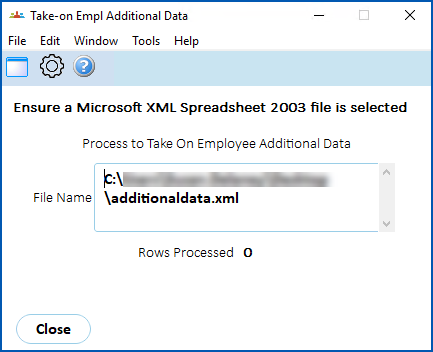
1. Click **Edit**, and then click **Process**.
2. When the upload is finished, EmpowerHR displays the **Additional Empl Take-on Errors** screen if any errors occurred during processing.
| Next topic
[Crossboard gender diversity data](/articles/ehr-user-guide/crossboard-gender-diversity-data) |
| --- |
© 2023 Fusion5. All rights reserved.