---
title: "Bulk upload compliance registrations"
id: "bulk-upload-compliance-registrations"
project: "EHR User Guide"
url: "https://help.cloud5.com.au/articles/ehr-user-guide/bulk-upload-compliance-registrations"
updated: 2026-10-19T00:54:06Z
---
# Bulk upload compliance registrations

* * *
EmpowerHR’s bulk upload wizard lets you upload employee compliance registrations in bulk.
You can only upload one registration type at a time, but there is no limit to the number of registrations or employees you can upload.
## What files do I need to prepare?
For each registration type, you need to create a separate tab-delimited file containing the required data.
### Before you start
Here’s what you need to know when creating the files:
* Don’t include column headings in your files.
* The **Message/Notes** data is optional, while all other data is mandatory.
* Use a valid EmpowerHR format for dates, for example:
* ddmmyy
* ddMmmyy
* ddMmmccyy
* You can’t upload attachments in a bulk upload.
* Once you upload registrations in bulk, EmpowerHR shows their status as **Ac** **tive**.
### Data requirements
###
Use the following tables as a guide when creating a file for each registration type. The numbers indicate how many columns you need to set up in each type of file.
#### NSW education standards authority accreditation
| **Column >** | **1** | **2** | **3** | **4** | **5** | **6** | **7** |
| --- | --- | --- | --- | --- | --- | --- | --- |
| | Employee code | Accreditation number | Accreditation level | Initial accreditation date | Valid to | Payment valid to | Notes |
| **Characters >** | 10 | 10 | | | | | |
| | | | One of five levels | Date | Future date | Future date | Free text |
#### Teacher quality institute registration
| **Column >** | **1** | **2** | **3** | **4** | **5** | **6** | **7** | **8** | **9** |
| --- | --- | --- | --- | --- | --- | --- | --- | --- | --- |
| | Employee code | Registration number | Registration level | Valid to | Additional Certificate | Valid from | Valid to | Payment date | Notes |
| **Characters >** | 10 | 10 | | | | | | | |
| | | | One of three levels | Future date | One of two levels | Date | Future date | Date | Free text |
#### Working with children check
| **Column >** | **1** | **2** | **3** | **4** |
| --- | --- | --- | --- | --- |
| | Employee code | Registration number | Valid to | Message |
| **Characters >** | 10 | 15 | | |
| | | | Future date | Free text |
#### Working with vulnerable people
| **Column >** | **1** | **2** | **3** | **4** |
| --- | --- | --- | --- | --- |
| | Employee code | Registration number | Valid to | Notes |
| **Characters >** | 10 | 10 | | |
| | | | Future date | Free text |
## Use the bulk upload wizard
To use the bulk upload wizard: 
1. Go to **Tasks** > **Compliance Management** > **Bulk Upload Wizard**.
1. At the **Bulk Upload Wizard**, select a **Registration** type from the dropdown list.
2. At **File Name**, click **Open File**, navigate to, and select your (tab-delimited) data file to add the pathname to the **File Name** field.
3. At the**Bulk Upload Wizard**, the name of the file you selected is added to the **Filename** field. For example:
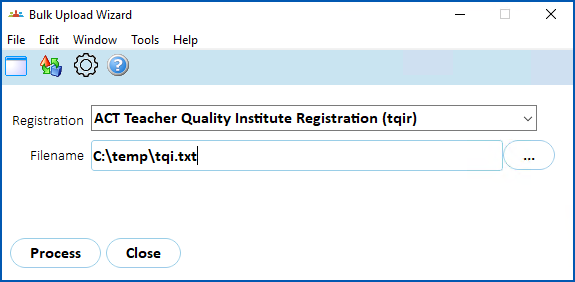
1. Click **Process** to upload the data.
2. If any data fails validation, the system displays an error log.
3. Repeat this procedure until you’ve completed a bulk upload of data for all registration types.
| Next topic
[Bulk upload school increment data](/articles/ehr-user-guide/bulk-upload-school-increment-data) |
| --- |
© 2023 Fusion5. All rights reserved.