---
title: "Bulk update date-effective regular transactions"
id: "bulk-update-date-effective-regular-transactions"
project: "EHR User Guide"
url: "https://help.cloud5.com.au/articles/ehr-user-guide/bulk-update-date-effective-regular-transactions"
updated: 2026-10-19T00:53:23Z
---
# Bulk update date\-effective regular transactions
EmpowerHR allows you to update regular transactions with an effective date, in bulk.
You must use an effective date that is the start date of a pay period for the payroll cycle (for example, weekly, fortnightly, monthly).
EmpowerHR automatically end-dates the current regular transaction record with the previous pay run's pay period end date.
|  | **When *not* to use the date effective method**
Do not use this method if you want EmpowerHR to calculate super payments made after 1 July 2024 at, for example, 11.5%, even where payments relate to a period before 1 July 2024. By just updating the percentage currently held on the regular transaction, EmpowerHR applies 11.5% super to all superable payments made in future pay runs. See [bulk update regular transactions](/articles/ehr-user-guide/bulk-update-regular-transactions) for instructions. |
| --- | --- |
To bulk update regular transactions with an effective date: 
1. Go to **Tasks** > **Employees** > **Bulk Updates** > **Date Effective Regular** **Trans**.
2. At the **Date Effective Regular Trans - Add** screen, complete the fields using the following table as a guide.
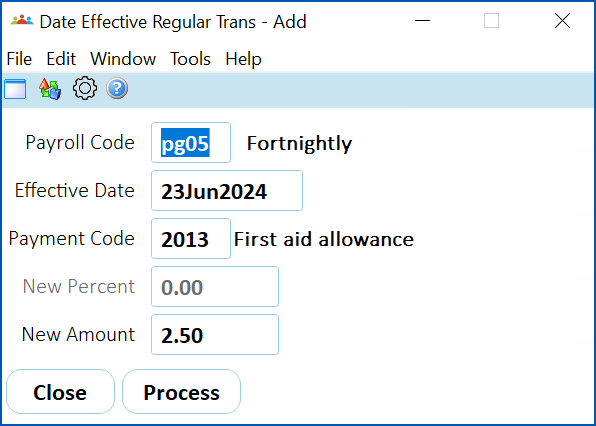
| **At this field...** | **Do this...** |
| --- | --- |
| Payroll Code | Click **Window**, find and double-click the code to add it to the field. |
| Effective Date | Click **Window**, find and double-click the payroll's period starting date to add it to the field.
|  | You must select an effective date in the current or future period. You cannot select a period start date for a finished payroll. |
| --- | --- | |
| Payment Code | Click **Window**, find and double-click the code to add it to the field.
|  | The payment code must have a payment type of **a**, **x**, or **d**. |
| --- | --- | |
| New Percent
New Amount | When you have selected a **Payment Code** and pressed **Tab**, EmpowerHR moves your cursor to either the **New Percent** or **New Amount** field.
This depends on how the **Percentage Calculation** field on the payment code is set. If it's set to:
- y (yes), EmpowerHR moves to the New Percent field where you enter the new percentage amount
- n (no), EmpowerHR moves to the New Amount field where you enter the new amount
|
1. Click **Process**. EmpowerHR updates all current records for the specified payment code on the employee's **Regular Transaction** screen, irrespective of the dollar amount or percentage.
| Next topic
[Bulk update external regular transactions](/articles/ehr-user-guide/bulk-update-external-regular-transactions) |
| --- |
© 2023 Fusion5. All rights reserved.