---
title: "Bulk upload leave bookings"
id: "bulk-leave-bookings"
project: "EHR User Guide"
url: "https://help.cloud5.com.au/articles/ehr-user-guide/bulk-leave-bookings"
updated: 2026-10-19T00:53:49Z
---
# Bulk upload leave bookings
## Make a bulk leave booking from an external system (different leave details)

Would you like to take advantage of EmpowerHR's feature for taking on leave bookings in bulk from an external system? Start a discussion now - contact us by logging an [iHelp request](https://infusion.fusion5.com/ "https://infusion.fusion5.com/").
* * *
### What file is required?
Your system (external to EmpowerHR) needs to create an **.xml** file containing the data.
|  | Remember to exclude column headings from the files. |
| --- | --- |
Here's the format to use:
| **Column >** | **A** | **B** | **C** | **D** | **E** | **F** | **G** | **H** |
| --- | --- | --- | --- | --- | --- | --- | --- | --- |
| | Employee Code | Employment | Leave Type | Leave Code | Leave Booking Date | Number of Hours | Reason | Comments |
| **Characters >** | 10 | 1 | 4 | 4 | | 10 | 4 | 50 |
| | | | | | ddmmyy | | | |
To make a bulk leave booking with different leave details:
1. Go to **Tasks** > **Leave** > **Leave TakeOn** > **Bulk** **Leave Booking Take-On**.
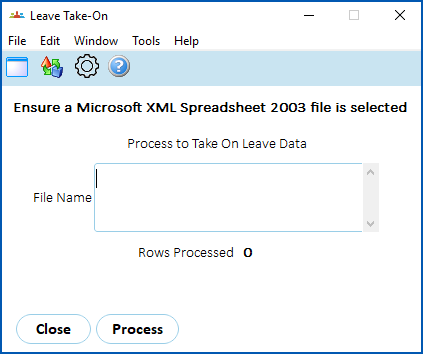
1. Click **Window** and select the file.
2. Click **Process**.
3. EmpowerHR loads and validates the data.
|  | If any data fails validation, the system displays an error log. |
| --- | --- |
1. Once the bulk leave booking is completed, you'll find the information in the following locations in EmpowerHR.
|  | **Tasks**>**Leave**>**Leave Bookings**>**Employee Leave Bookings**
**Enquiries**>**Leave** >**Leave** >**Employee Leave Browse** |
| --- | --- |
|  | **Employee Self Service**> **Leave Details** |
## Make a bulk leave booking (same leave details)

Would you like to take advantage this feature for applying leave bookings in bulk? Start a discussion now - contact us by logging an [iHelp request](https://infusion.fusion5.com/ "https://infusion.fusion5.com/").
* * *
To make a bulk leave booking with same leave details:
1. Go to **Tasks** > **Leave** > **Leave Bookings**> **Bulk** **Leave Bookings**.
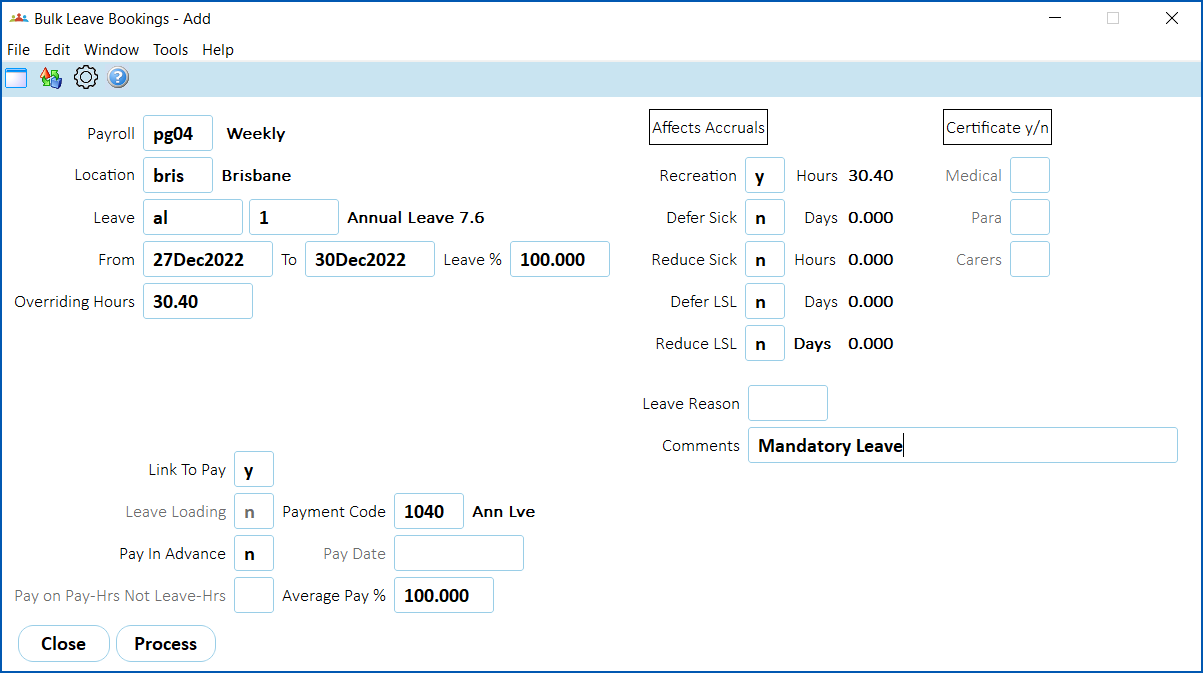
1. At the **Bulk Leave Bookings** details screen, make your selections and entries in the [bulk leave bookings fields](/articles/ehr-user-guide/bulk-leave-bookings-fields).
2. Click **Process**.
3. The **Identify Employees** screen displays, listing the employees to be booked.
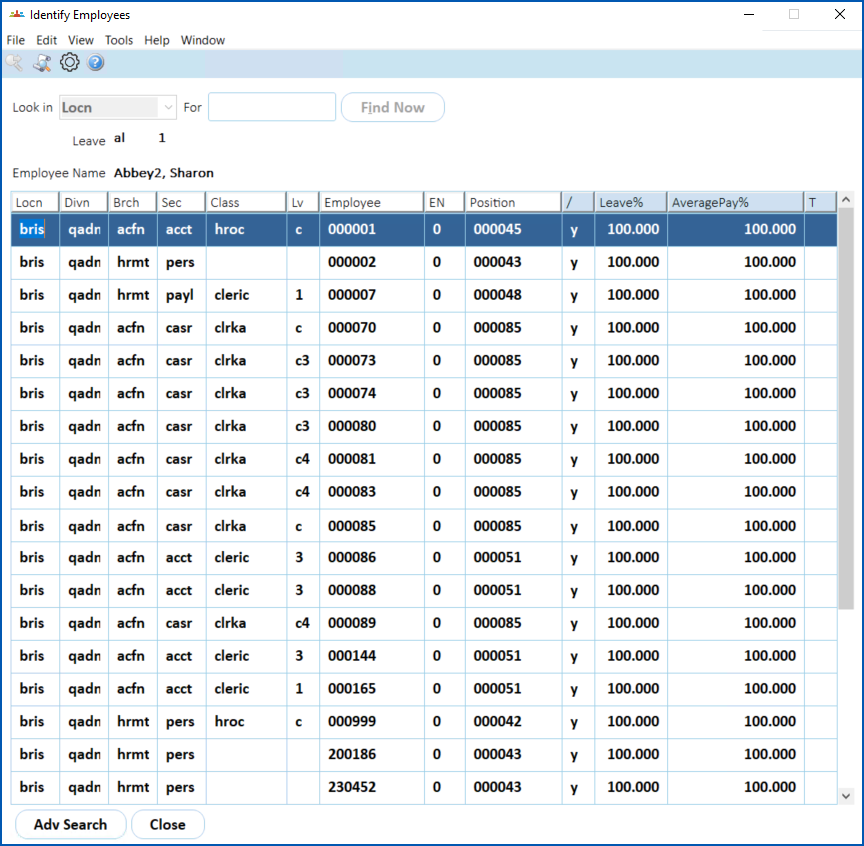
1. Check the list. If you want to exclude any employee, change **y** (yes) to **n** (no) in the **/** column on the row showing their details.
2. Click **Edit**> **Process**.
3. If the process:
1. finds any errors, go to step 8.
2. does *not* find any issues, go to step 11.
1. At **Error/Warning Messages**, click **Find Now** to list the errors/warnings.
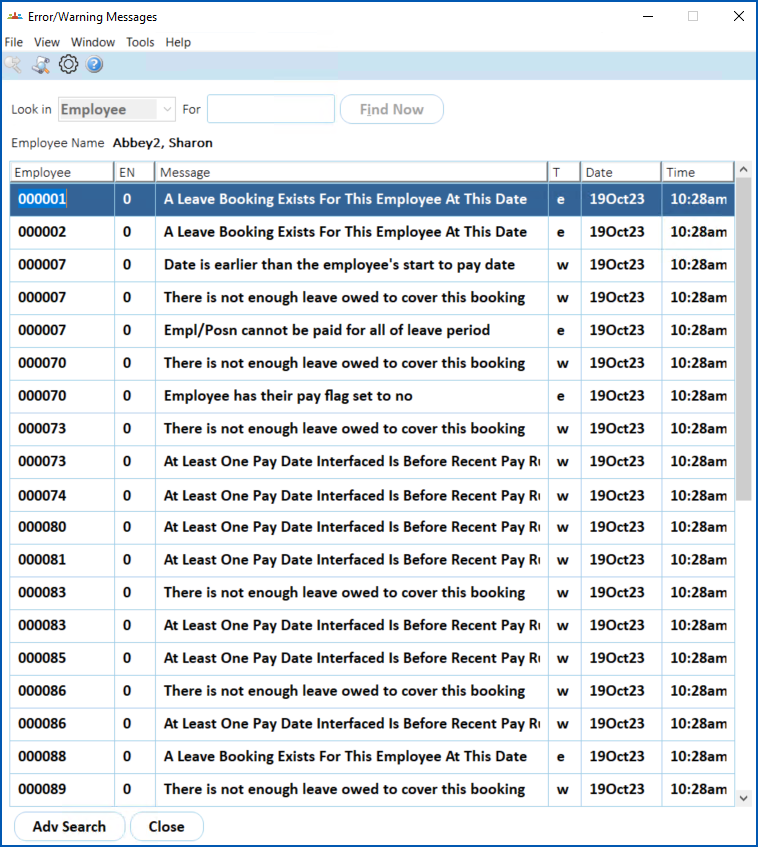
1. Check column **T**. It shows whether a warning (**w**) or error (**e**) has occurred.
2. If you decide the booking is still necessary for any of the employees listed, you need to make a leave booking for them individually. For instructions, see [make a leave booking](/articles/ehr-user-guide/make-a-leave-booking).
3. Click **Close**.
4. At **Identify Employees**, check column **T**. It shows the status of the booking for each employee after processing where:
1. **y** = successfully booked
2. **w** = warning
3. **e** = error
5. Click **Close**.
6. Now the bulk leave booking is completed, you'll find the information in the following locations in EmpowerHR.
|  | **Tasks**>**Leave**>**Leave Bookings**>**Employee Leave Bookings**
**Enquiries**>**Leave** >**Leave** >**Employee Leave Browse** |
| --- | --- |
|  | **Employee Self Service**> **Leave Details** |
| Next topic
[Bulk leave bookings fields](/articles/ehr-user-guide/bulk-leave-bookings-fields) |
| --- |
© 2023 Fusion5. All rights reserved.