---
title: "Assign workflow to compliance certificates"
id: "assign-workflow-to-compliance-certificates"
project: "EHR User Guide"
url: "https://help.cloud5.com.au/articles/ehr-user-guide/assign-workflow-to-compliance-certificates"
updated: 2026-10-19T00:53:32Z
---
# Assign workflow to compliance certificates
|  | Firstly, make sure you've set up compliance workflows for your organisation. To learn how, see [design workflow](/articles/ehr-user-guide/design-workflow). |
| --- | --- |
To assign workflow to compliance certificates:
1. Go to Administration > Workflow > Workflow Elements.
2. At the **Workflow Elements**summary screen, click **Find Now** to list existing workflow elements.
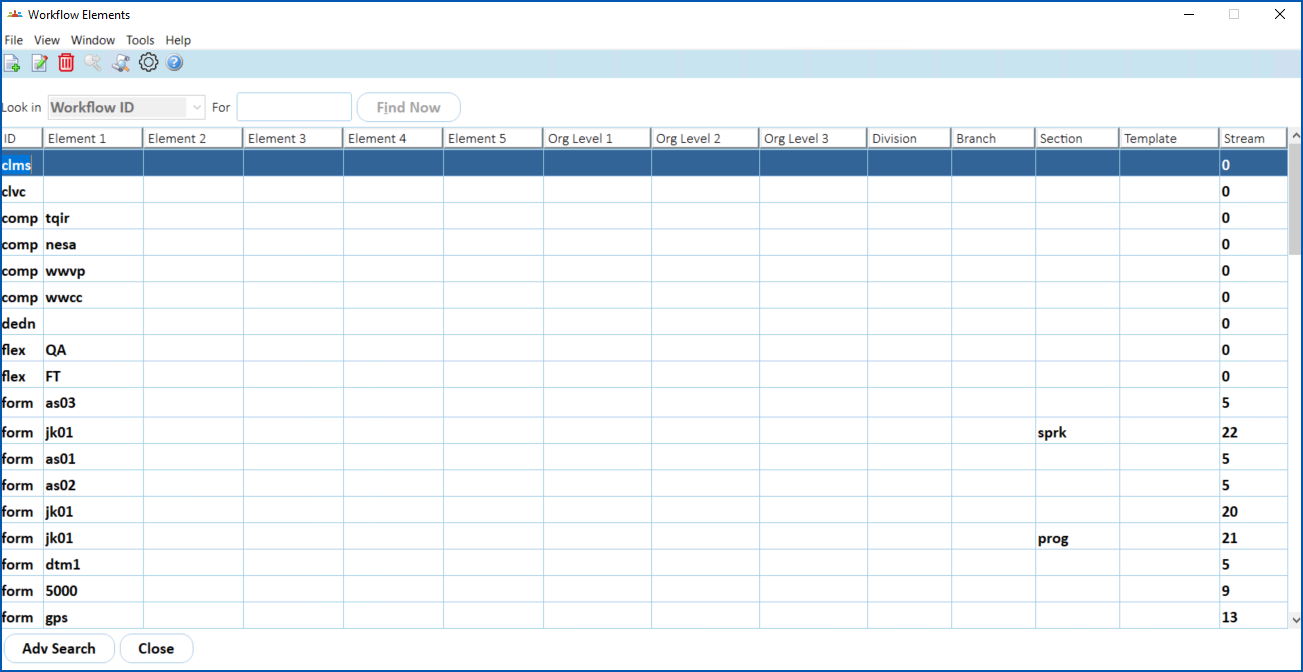
1. Click **New**. The Workflow Elements detail screen displays.
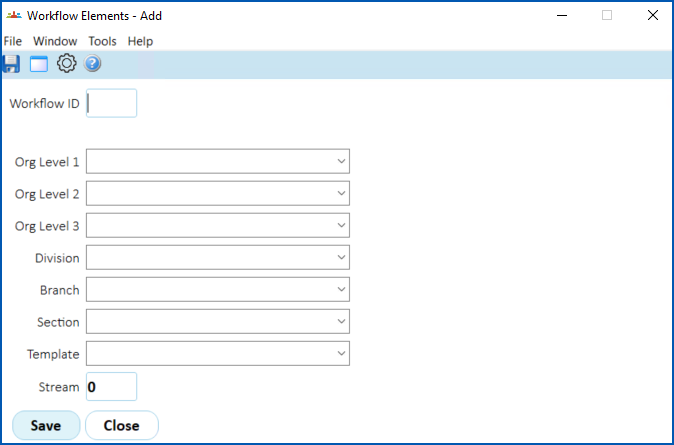
1. At the Workflow ID field, enter the workflow ID called **comp**
1. Press **Tab**. The Certificate Type field displays.
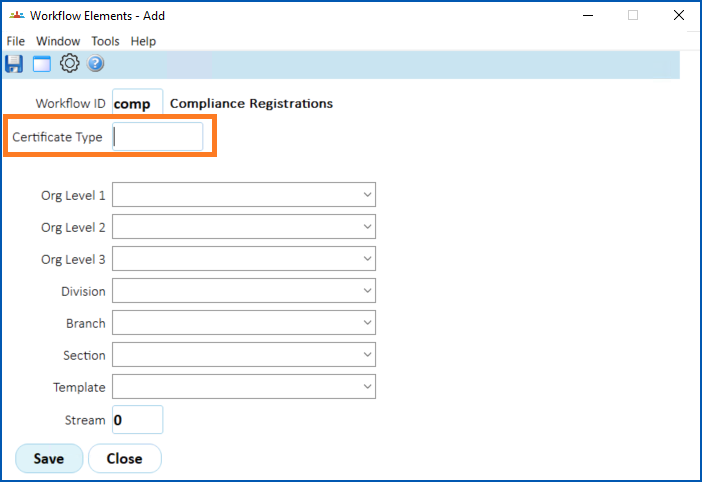
1. At the Certificate Type field, click **Window** to view a list of certificate types.
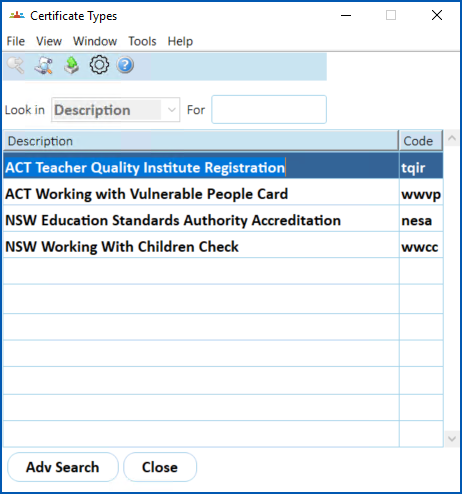
1. Select and double-click a certificate type to add it to the Workflow Elements detail screen.
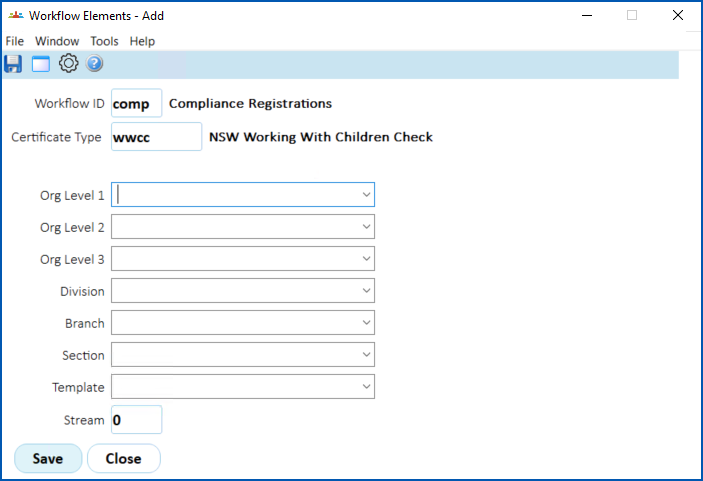
1. If the workflow applies to specific parts of the organisation, complete the relevant fields (**Org Level 1**,**** **Org Level** **2**, etc).
2. Enter the stream number in the Stream field.
3. Click **Save**.
4. Repeat this procedure, starting at step 3, until you’ve added all the certificates you need to all workflows (and, where a workflow has multiple streams, to all workflow streams).
| Next topic
[Manage notifications](/articles/ehr-user-guide/manage-notifications) |
| --- |
© 2023 Fusion5. All rights reserved.