---
title: "Assign users to account templates"
id: "assign-users-to-account-templates"
project: "EHR User Guide"
url: "https://help.cloud5.com.au/articles/ehr-user-guide/assign-users-to-account-templates"
updated: 2026-10-19T00:52:58Z
---
# Assign users to account templates
To assign a user to an account template: 
1. Go to **Administration**> **System Security**> **Operator Codes / Functions**.
2. At the **Operator Codes / Functions**summary screen, find and select the operator code you want to assign the template to.
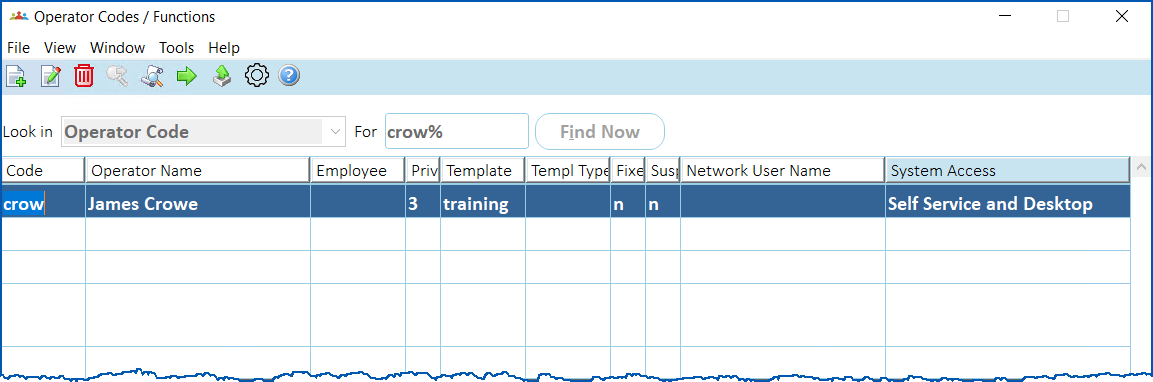
1. Click **Next Level**. The **Operator Codes / Functions** details window displays.
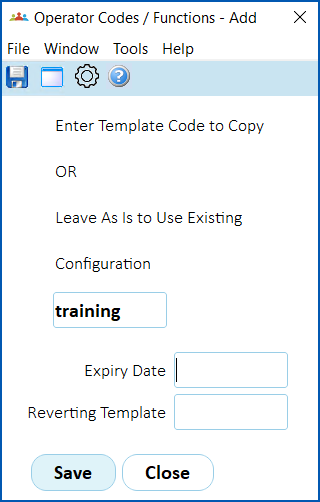
1. Enter the template code if you know it, or click **Window**, find and double-click the code to add it to the **Enter Template Code...** field.
2. If you are:
1. temporarily assigning the user to this template, enter an **Expiry Date** and, at the **Reverting Template** field, click **Window**. Find and double-click the template you want to assign to the user once the expiry date is reached. Go to step 6.
2. not temporarily assigning the user to this template, leave the **Expiry Date** and **Reverting Template** fields blank, and then go to step 6.
3. Click **Save**.
4. Click **Close**. The **Account Templates** (available modules) screen displays with the assigned user.
5. Click **Close.**
| Next topic
[Delete account templates](/articles/ehr-user-guide/delete-account-templates) |
| --- |
© 2023 Fusion5. All rights reserved.