---
title: "Assign positions to flexi time codes"
id: "assign-positions-to-flexi-time-codes"
project: "EHR User Guide"
url: "https://help.cloud5.com.au/articles/ehr-user-guide/assign-positions-to-flexi-time-codes"
updated: 2026-10-19T00:53:16Z
---
# Assign positions to flexi time codes
Calendars and settlement periods rely on flexi time codes.
Once flexi time codes are set up for your organisation, you can then assign positions to those codes.
|  | Typically, your administrator sets up flexi time codes. |
| --- | --- |
## Assign a position to a flexi time code
To assign a position to a flexi time code:
1. Go to Flexi Time > Administration > Assign Positions to Flexi Code.
2. At the Positions catalogue, go to the Search Filter and at:
1. Position, select a position from the dropdown list (as shown in the following example)
2. Section, select one or more sections, if you want to narrow your search to parts of your organisation
3. Location, select one or more locations, if you want to narrow your search by location
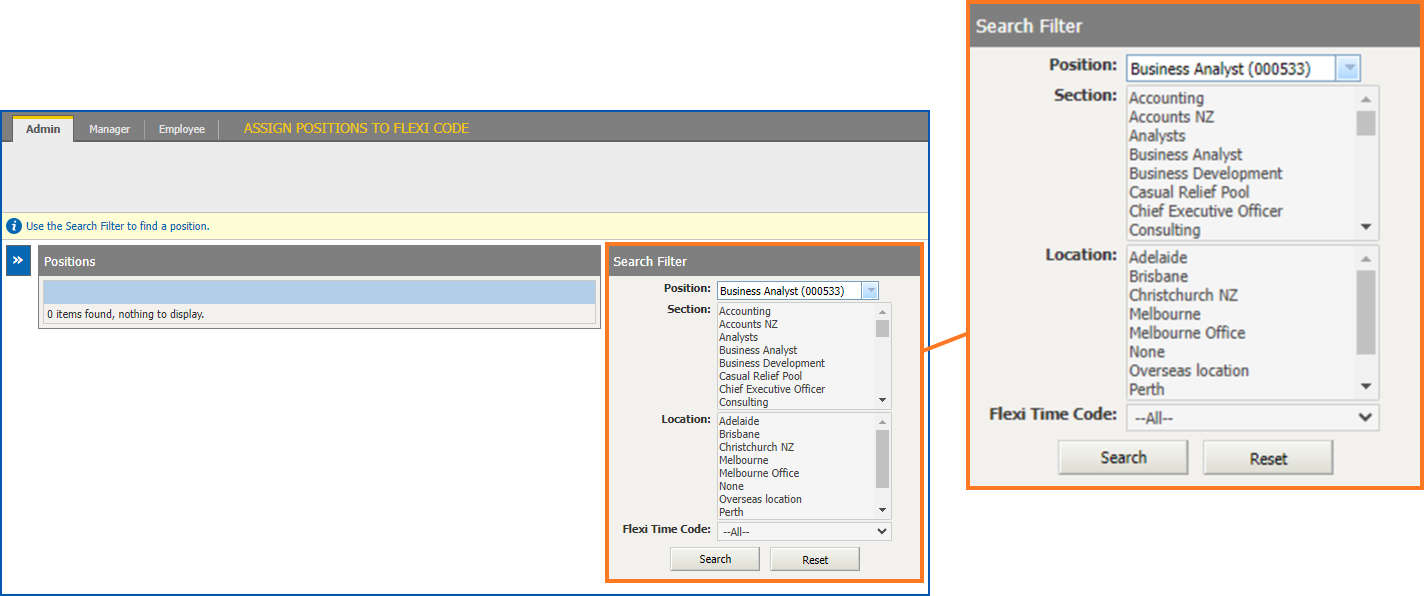
1. Click **Search**. A list of positions that match your search selections is displayed.
2. At the row showing the position you want to assign to a flexi time code, click **Actions** and then select **Edit** from the menu.

1. At **Position Flexi Time Code**, select a flexi time code from the dropdown list.
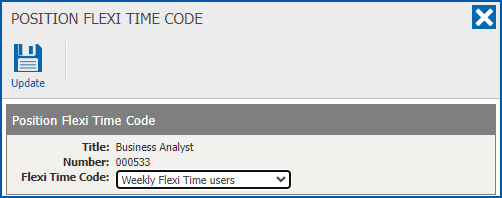
1. Click **Update**.
2. Repeat this procedure, starting at step 2, until you're satisfied all the positions have been assigned.
|  | When you want to do a new search, click the **Reset** button. |
| --- | --- |
## Change or remove a flexi time code assigned to a position
To change or remove a flexi time code assigned to a position:
1. Go to Flexi Time > Administration > Assign Positions to Flexi Code.
2. At the Positions catalogue, go to the **Search Filter**. You can search on:
1. Position by selecting a position from the dropdown list, *or*
2. **Flexi Time Codes** by selecting a code from the dropdown list if you want to find all positions assigned to that code
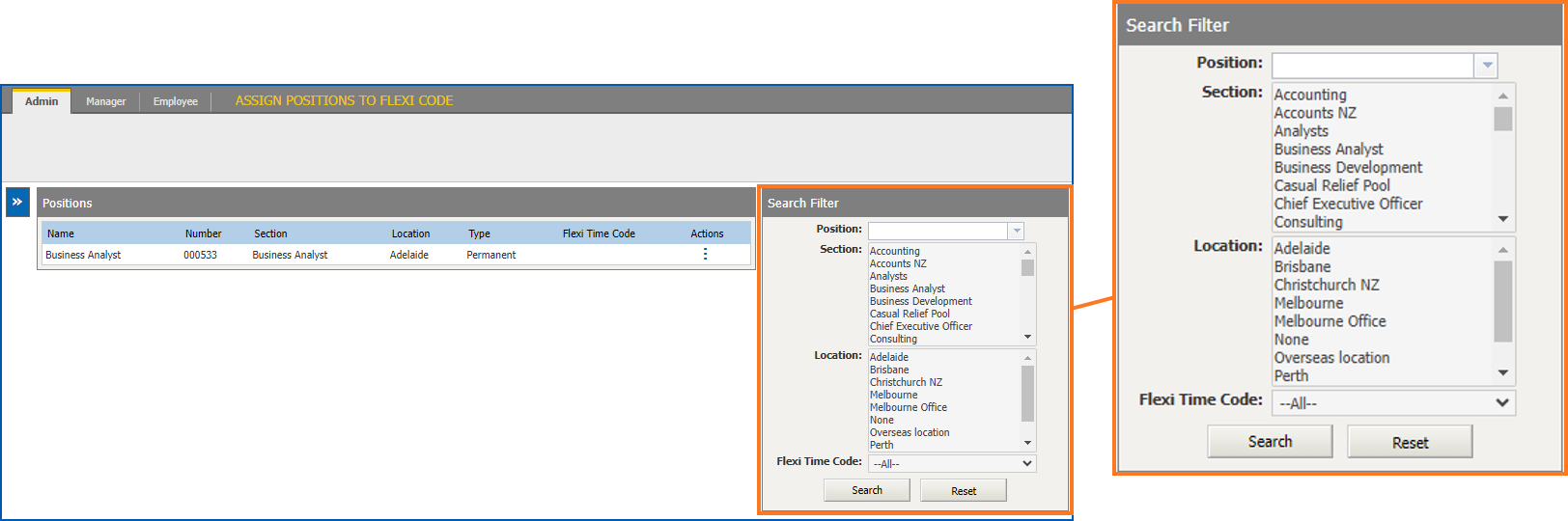
1. Click **Search**. A list of any positions that match your search selections is displayed.
2. Click the **Actions **(ellipsis) displayed next to the position you want to change or remove a flexi time code assigned to it, and then select **Edit**.

1. At **Position Flexi Time Code**, select:
1. a different flexi time code from the dropdown list, *or*
2. **None** from the dropdown list if you want to remove the assigned flexi time code altogether
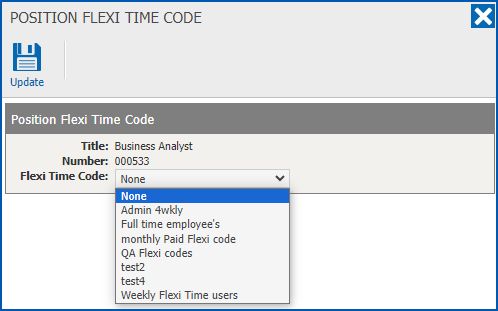
1. Click **Update**.
| Next topic
[Calendars and settlement periods](/articles/ehr-user-guide/calendars-and-settlement-periods) |
| --- |
© 2023 Fusion5. All rights reserved.