---
title: "Assign organisational access to users"
id: "assign-organisational-access-to-users"
project: "EHR User Guide"
url: "https://help.cloud5.com.au/articles/ehr-user-guide/assign-organisational-access-to-users"
updated: 2026-10-19T00:52:49Z
---
# Assign organisational access to users
The organisation structure set up in EmpowerHR helps you control which groups of employees a user can access.
Until you assign users organisational access, they won't be able to view any employees in the system. You can assign organisational access at the time of creating a new operator code or later, after the operator code is set up.
To assign organisational access to a user (operator): 
1. Go to **Administration**> **System Security**> **Operator Organisation Access**.
2. At the **Operator Organisation Access** ****summary screen, find and select an operator code, and then click **Open**.
3. The **Operator Organisation Access**detail screen displays.
4. At the **Allow Global Access** field, enter:
1. **y** (yes) to grant the user access to every employee. When you select **y** (yes), all remaining fields appear greyed out (unavailable). Go to step 6.
2. **n** (no) to restrict the user's access to one of six available organisational levels (groups of users). Go to step 5.
5. At the field for the organisational level you require, click **Window** to display a list of codes to choose from, find and double-click a code to add it to the field. In the following example, the user is restricted to employees in the Head Office Accounting section.
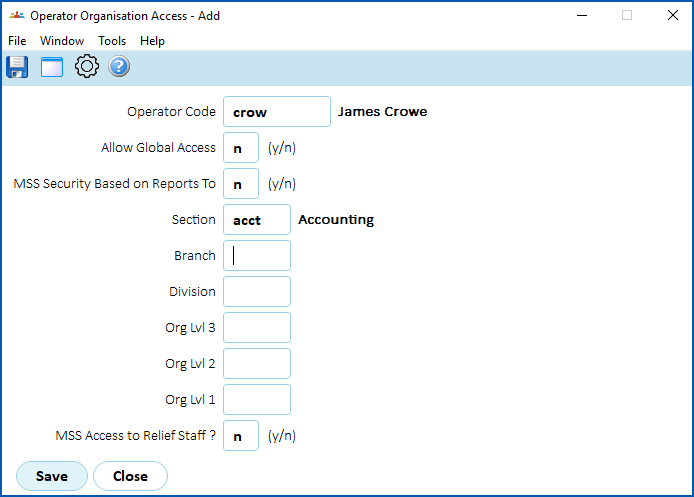
1. Click **Save**.
| Next topic
[Delete operator codes](/articles/ehr-user-guide/delete-operator-codes) |
| --- |
© 2023 Fusion5. All rights reserved.