The program manager of each personal development (training) course is responsible for approving:
- an employee's attendance at the course
- funding for casual relief from a centrally managed funding source (cost centre)
You can approve funding either via the:
- Course Booking screen - EmpowerHR recognises a course which is funded centrally and automatically displays the Funding Approval screen where you can enter the number of approved shifts and expiry date, or
- Funding Approval screen - see the following procedure for details
To approve funding:
- Go to Tasks > Casual Relief > Funding Approval.
- EmpowerHR displays the Funding Approval summary screen.
- Click New.
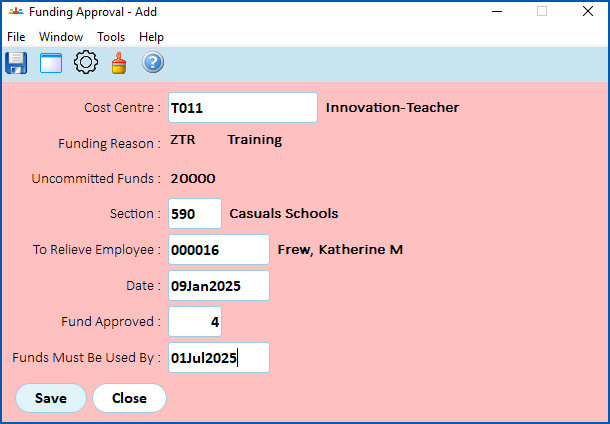
- EmpowerHR displays the Funding Approval (add) detail screen.
- Complete the fields using the following table as a guide.
| In this field... | Do this... | ||
|---|---|---|---|
Cost Centre | Enter the cost centre code if you know it, or Click Window, find and double-click the code to add it to the field. | ||
Funding Reason | Nothing. EmpowerHR populates this field after you select the Cost Centre code. | ||
Uncommitted Funds | Nothing. EmpowerHR populates this field after you select the Cost Centre code. | ||
Section | Click Window, find and double-click the section code to add it to the field. | ||
To Relieve Employee | Enter the employee code of the employee being relieved, if you know it, or Click Window, find and double-click the code to add it to the field. | ||
Date | Enter the start date for the funding. | ||
Fund Approved | Enter the number of shifts that can be used. | ||
Funds Must Be Used By | Enter an expiry date, that is, the date by which the funds must be used.
|

- Click Save.
© 2023 Fusion5. All rights reserved.