---
title: "Apply leave loading to leave rules"
id: "apply-leave-loading-to-leave-rules"
project: "EHR User Guide"
url: "https://help.cloud5.com.au/articles/ehr-user-guide/apply-leave-loading-to-leave-rules"
updated: 2026-10-19T00:53:06Z
---
# Apply leave loading to leave rules
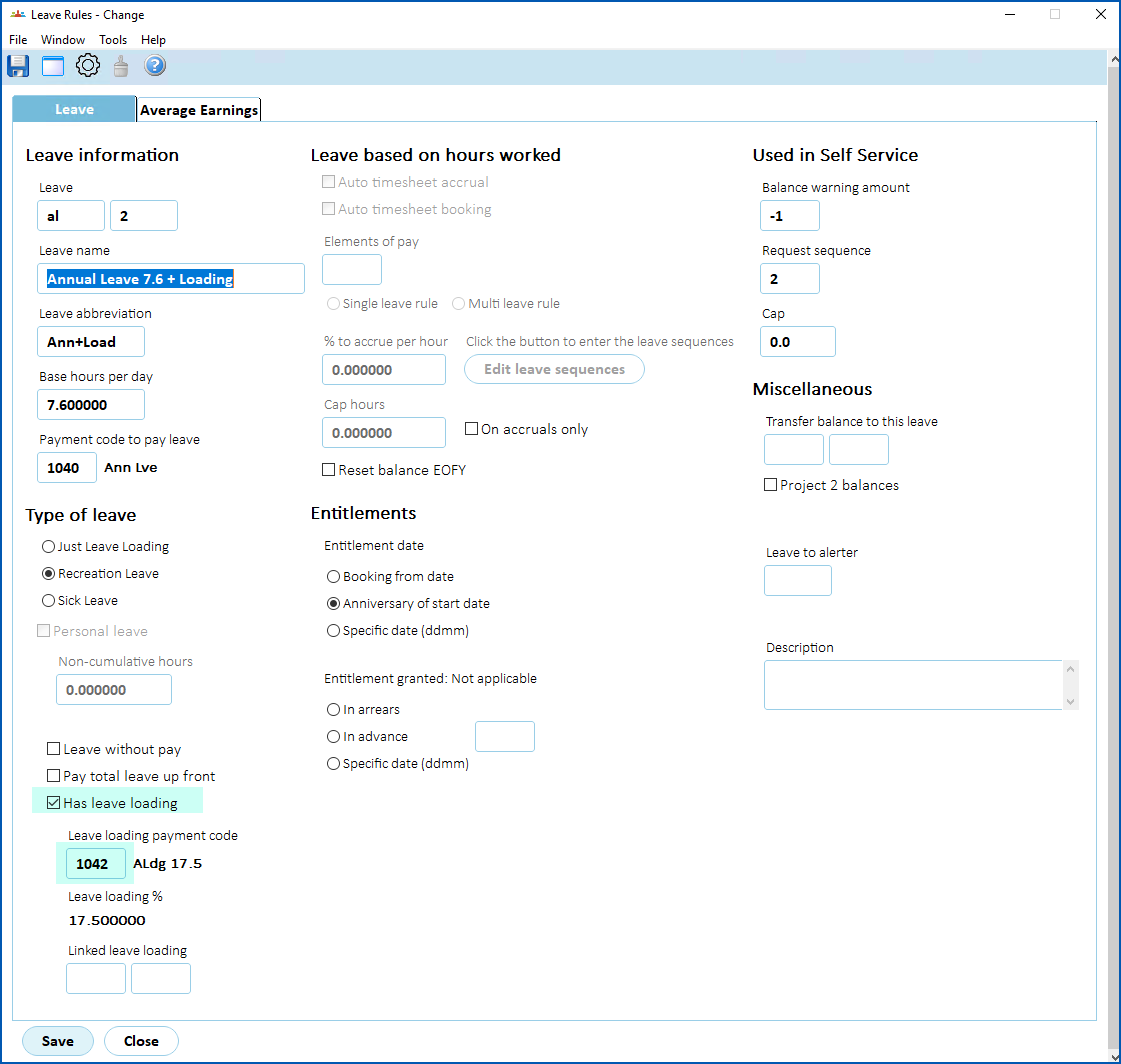
Here we show how to apply leave loading to a specific leave type via the leave rule.
To apply leave loading to a leave type:
1. Go to **Tasks** > **Leave** > **Leave Accruals and Rules** > **Leave Rules**.
2. At the **Leave Rules** summary screen, select the row containing the leave rule you want to change, and then click **Open**.
3. At the **Leave Rules** detail screen:
1. select **Has leave loading**
2. enter the **Leave loading payment code**
|  | The **Leave loading %** is set on the the leave loading payment code and is typically 17.5%. |
| --- | --- |
1. Click **Save**.
| Next topic
[Apply different accrual rules to leave loading](/articles/ehr-user-guide/apply-different-accrual-rules-to-leave-loading) |
| --- |
© 2023 Fusion5. All rights reserved.