---
title: "Apply different accrual rules to leave loading"
id: "apply-different-accrual-rules-to-leave-loading"
project: "EHR User Guide"
url: "https://help.cloud5.com.au/articles/ehr-user-guide/apply-different-accrual-rules-to-leave-loading"
updated: 2026-10-19T00:53:05Z
---
# Apply different accrual rules to leave loading
We use the following case study to demonstrate how to apply a different accrual rule to leave loading:
| **Case study: Apply a different accrual rule to leave loading**
At the Amazing ACME Company:
* Annual leave accrues monthly in arrears.
* Leave loading accrues 12 months in arrears.
* Leave loading is payable as the leave is taken.
* Any pro rata leave loading is not payable on resignation (so it must be repaid if it was paid with the leave).
* The leave loading actually accrues annually even though it's paid as if it's accrued monthly like the leave. |
| --- |
To apply a different accrual rule to leave loading:
* create a new rule for the leave loading
* link the new leave loading rule to the leave rule
## Create a new rule
To create a new rule for leave loading:
1. Go to **Tasks** > **Leave** > **Leave Accruals and Rules** > **Leave Rules**.
2. At the **Leave Rules** summary screen, click **N****ew**.
3. At the **Leave Rules** detail screen, set up the rule (similar to an annual leave rule) and make sure you select **Just Leave Loading**.
|  | For more information about completing rule details, see [leave rule fields](/articles/ehr-user-guide/leave-rule-fields). |
| --- | --- |
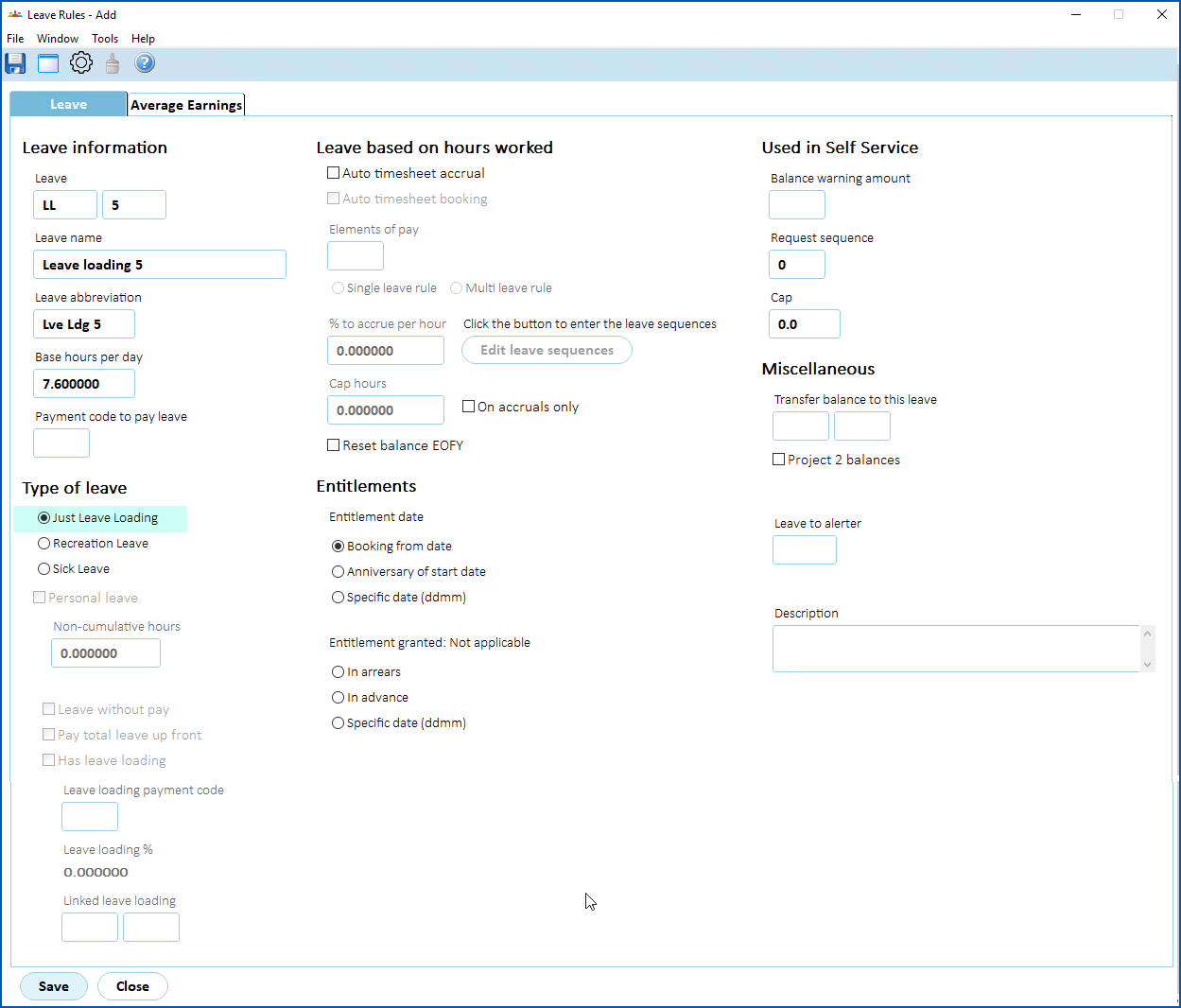
1. Click **Save**. EmpowerHR displays the **Leave Rules Sequence** screen.
2. Make your entries in the [leave rules sequence fields](/articles/ehr-user-guide/leave-rules-sequence-fields).
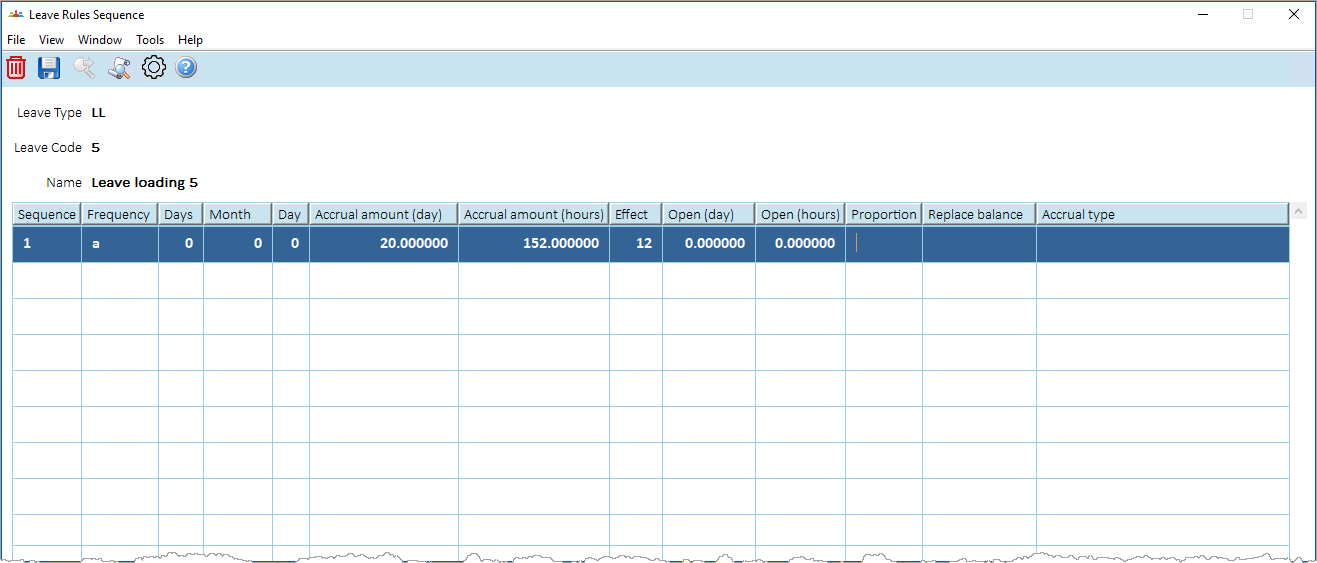
1. Click **Save**.
## Link the new rule
To link the new leave loading rule to the leave rule:
1. Go to **Tasks** > **Leave** > **Leave Accruals and Rules** > **Leave Rules**.
2. At the **Leave Rules** summary screen, select the row containing the leave rule you want to link to, and then click **Open**.
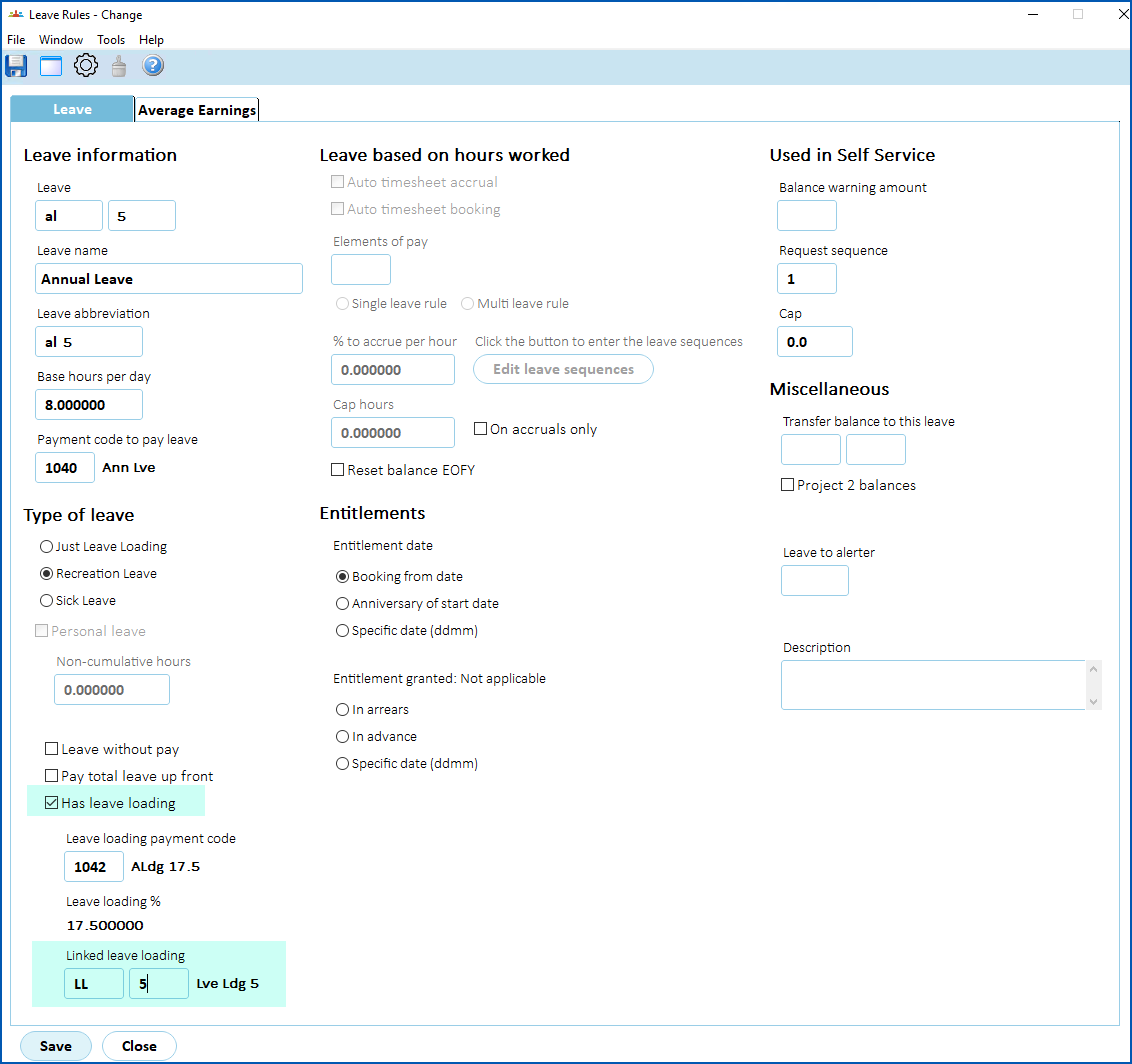
3. At the **Leave Rules** detail screen:
1. select **Has leave loading**
2. enter the newly created leave loading rule code in **Linked leave loading**
****
1. Click **Save**.
Once set up, the linked leave loading shows separately on the Leave Balance Enquiry screen. Any payment made as a result of a leave booking is offset against the accrual rule for the loading. It's possible the hours balance of loading differs from the hours balance of the associated leave.
|  | Both the leave loading rule and leave rule must be allocated to the employee. |
| --- | --- |
| Next topic
[Use linked payment codes for leave loading](/articles/ehr-user-guide/use-linked-payment-codes-for-leave-loading) |
| --- |
© 2023 Fusion5. All rights reserved.