---
title: "Annualised percentages admin"
id: "annualised-percentages-admin"
project: "EHR User Guide"
url: "https://help.cloud5.com.au/articles/ehr-user-guide/annualised-percentages-admin"
updated: 2026-10-19T00:53:35Z
---
# Annualised percentages admin
## Add an annualised percentage
To add an annualised percentage:
1. Go to **Relief and Payments** > **Annualisation Percentage Admin**.
2. The **Annualisation Percentage Admin** screen displays.
3. Click **Add**.
4. At the **Add** **Annualisation Percentages** screen, in:
1. **Work Weeks**, enter the weeks worked per year
2. **Register**, select the register you are applying the annualised percentage to
3. **Percentage**, enter the percentage amount
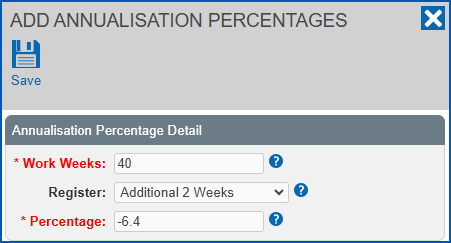
1. Click **Save**.
## Update an annualised percentage
To update an annualised percentage:
1. Go to **Relief and Payments** > **Annualisation Percentage Admin**.
2. The **Annualisation Percentage Admin** screen displays.
3. At the row containing the annualised percentage you want to update, click **Actions**, and then select **Edit** from the menu.
4. At the **Change** **Annualisation Percentage** screen, change the amount in the **Percentage** field.
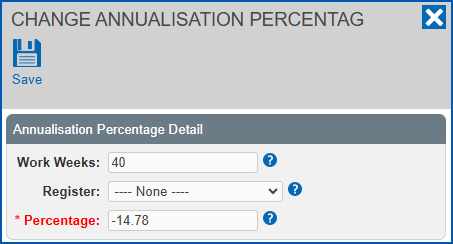
1. Click **Save**.
## Delete an annualised percentage
To delete an annualised percentage:
1. Go to **Relief and Payments** > **Annualisation Percentage Admin**.
2. The **Annualisation Percentage Admin** screen displays.
3. At the row containing the annualised percentage you want to delete, click **Actions** and then select **Delete** from the menu.
4. EmpowerHR checks to see if there are any active additional weeks register employees attached to the record. If there are:
* any active additional weeks register employees attached, EmpowerHR displays an error. You cannot delete the record. No further action is required.
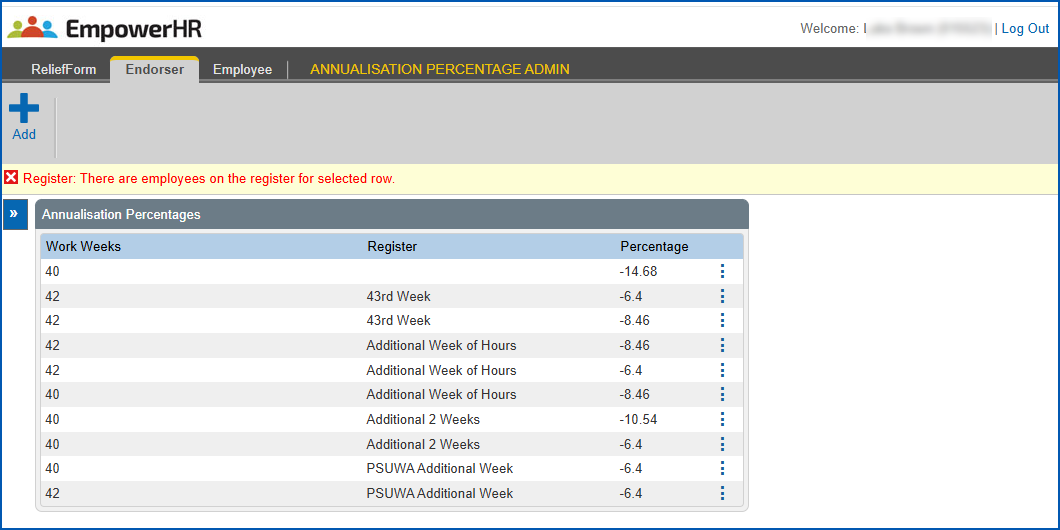
* no active additional weeks register employees attached, EmpowerHR displays the **Delete Annualisation Percentage** screen. Click **Delete**.
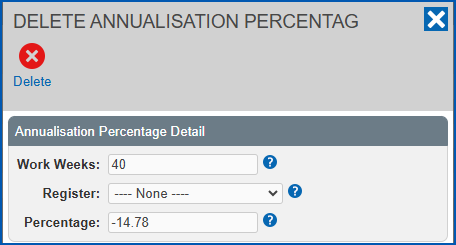
1. EmpowerHR deletes the record and removes it from the **Annualisation Percentage Admin** screen.
| Next topic
[Employee category rules admin](/articles/ehr-user-guide/employee-category-rules-admin) |
| --- |
© 2023 Fusion5. All rights reserved.