---
title: "Advanced query manager"
id: "advanced-query-manager"
project: "EHR User Guide"
url: "https://help.cloud5.com.au/articles/ehr-user-guide/advanced-query-manager"
updated: 2026-10-19T00:54:09Z
---
# Advanced query manager
While Query Manager's standard filters satisfy most day-to-day query requirements, there may be times when you need to supplement, or replace, standard filters with advanced filters.
Standard filters using system parameters are typically defined as positive filters, that is, the filter applies an inclusive condition. For example, where an Employee Code or Position Number is equal to a value you enter. So, the most common reason for using an advanced filter is to apply a negative condition.
To use an advanced filter:
1. At the **Filter** tab in Query Manager, click **Advanced Filter**.
2. EmpowerHR displays the **User Filter Definition** screen where you can define up to five advanced filters. (See the following examples of [filter options](/articles/ehr-user-guide/advanced-query-manager/a/h2__1544494082)).
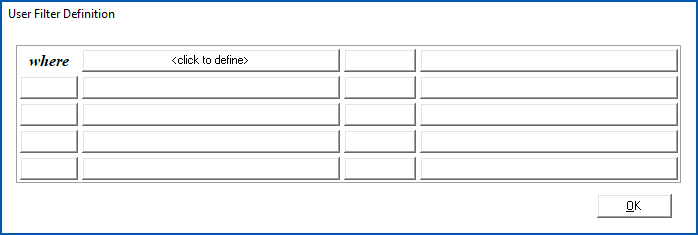
1. Because it's necessary to isolate the impact of advanced filters from the components of the SQL  ***where*** clause, EmpowerHR groups advanced filters in a pair of parentheses, and uses sub-groups for each ***or***condition.SQL = Structured Query Language is a programming language used to talk to databases. With SQL, you can store, manipulate, and retrieve data from relational databases.
|  | We recommend you avoid ***or*** conditions wherever possible. You should also view the SQL output to make sure the SQL query is formulated as expected. |
| --- | --- |
## Filter options
The list of available:
* **Operators** depends on the data type you select in **Operand 1**
* **Operand 2** options depend on your selected options in **Operand 1** and **Operator**
### Examples
Select **not applicable** in **Operand 1** and EmpowerHR restricts the **Operator** options to **exists** / **not exists**
****
* * *
Select a field with character (text) data in **Operand 1**, EmpowerHR offers a list of **Operator** options including **in** / **not in** and **like** / **not like**

* * *
Select a field with numeric data in **Operand 1**, EmpowerHR offers a list of **Operator** options including **in** / **not in** but eliminates the options **like** / **not like** as they only apply to character (text) data
****
* * *
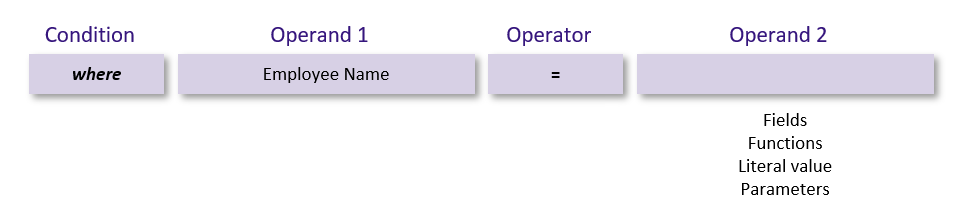
Select a field with character (text) data in **Operand 1**, select an **Operator** option, and EmpowerHR offers a list of **Operand 2** options - **Fields**, **Function**, **Literal value**and **Parameters** -****for use with character data types. See [use functions, literals & parameters](/articles/ehr-user-guide/use-functions-literals-parameters) for more information.
* * *
| Next topic
[Use functions, literals & parameters](/articles/ehr-user-guide/use-functions-literals-parameters) |
| --- |
© 2023 Fusion5. All rights reserved.