---
title: "Additional weeks reset"
id: "additional-weeks-reset"
project: "EHR User Guide"
url: "https://help.cloud5.com.au/articles/ehr-user-guide/additional-weeks-reset"
updated: 2026-10-19T00:53:31Z
---
# Additional weeks reset
Each year, for each Payment of Hours pay method, you need to reset the balance to make sure employees receive the full additional weeks payment again in the new year.
To reset the balance, create:
* a user report menu item
* an SQL User Defined Report to run an SQL script that updates the register
To reset additional weeks balances: 
1. Create a user report menu item (via **Administration**> **Add Menu Items** > **Empower-HR User Reports**). See [create user report menu items](/articles/ehr-user-guide/menus/a/h2_1570217708) for instructions.
[+] [Show example](javascript:void%280%29)
[-] [Hide example](javascript:void%280%29)
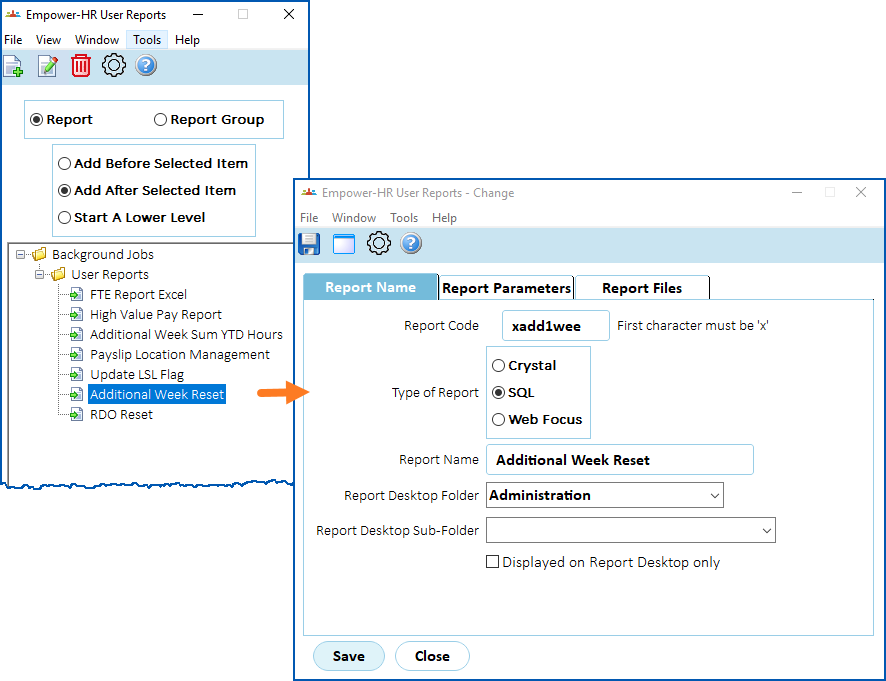
1. Create an SQL script with the same name as the report code (in the example in shown step 1, the report code is **xadd1wee** for Additional Week of Hours). Here's the SQL statement to include in the script.
Code
```
UPDATE hrtrp1wr SET hr_hour_paid = 0, hr_hour_work = 0;
```
Alternatively, if you want to create a single menu item and a single script (rather than a different menu item and script for each register), then include all SQL statements in the script. Use a separate line and **;** (semicolon) for each statement, like the following:
Code
```
Additional 2 Weeks - UPDATE hrtrp2wr SET hr_hour_paid = 0, hr_hour_work = 0;
43rd Week - UPDATE hrtrp43r SET hr_hour_paid = 0, hr_hour_work = 0;
PSUWA Additional Week - UPDATE hrtrppsr SET hr_hour_paid = 0, hr_hour_work = 0;
```
1. Save the SQL script to the Reports Server in the directory defined by the **RP\_SQL\_PATH**reports environment variable.
2. Schedule the user defined report to run as required via the **Background Jobs**> **User Reports** menu,
| Next topic
[Manage payment](/articles/ehr-user-guide/manage-payment) |
| --- |
© 2023 Fusion5. All rights reserved.