---
title: "Add selection criteria"
id: "add-selection-criteria"
project: "EHR User Guide"
url: "https://help.cloud5.com.au/articles/ehr-user-guide/add-selection-criteria"
updated: 2026-10-19T00:54:02Z
---
# Add selection criteria
You can assign specific skills and qualities to a position. Specifying criteria is useful for the recruitment process.
To add selection criteria:
1. At the **Create Positions** summary screen, select the position, and then click **Selection Criteria**.
2. EmpowerHR displays the **Selection Criteria** summary screen.
3. Click **New**.
4. At the **Selection Criteria** (add) details screen, select a **Category** from the dropdown list.
5. Review each item in the listed **Selection Criteria**, and select the checkbox displayed beside the items you want to add to the position.
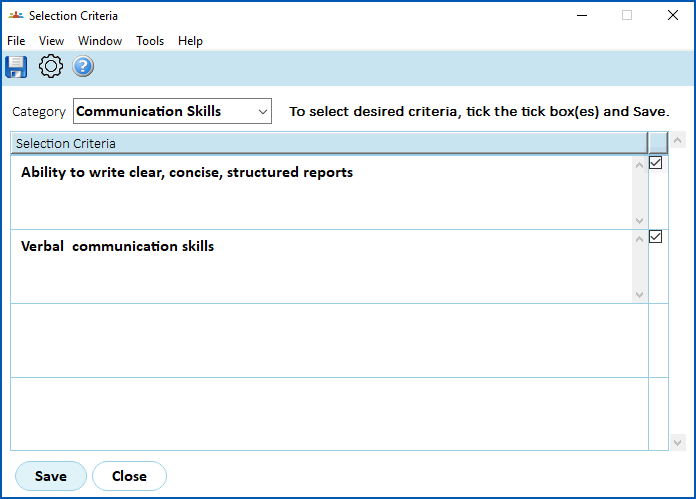
1. Click **Save**.
2. EmpowerHR displays the **Selection Criteria** summary screen, listing the criteria you selected.
3. Repeat this procedure, starting at step 3, until you have added all the relevant criteria to the position.
4. When you're finished, click **Close**.
| Next topic
[Add skill requirements](/articles/ehr-user-guide/add-skill-requirements) |
| --- |
© 2023 Fusion5. All rights reserved.