---
title: "Add screens to templates"
id: "add-screens-to-templates"
project: "EHR User Guide"
url: "https://help.cloud5.com.au/articles/ehr-user-guide/add-screens-to-templates"
updated: 2026-10-19T00:54:24Z
---
# Add screens to templates
There are a number of screens you need to add to templates in the desktop and self service.
## Add screens to templates in desktop
Here are the screens you need to add to templates in the desktop: 
* Control tables > Organisation > Organisation Sort Codes > Sort Codes 1
* Control tables > Organisation > Section Codes
* Control tables > Classifications > Classification Sort Code 2
* Control tables > Classifications > Classification Sort Code 3
* Control tables > Calendars > Term Dates
* Control tables > Relief and Payments - *all screens*
* Tasks > Payroll > Payroll Processing > Processing Cut Off
* Background Jobs > Relief and Payments > Additional Weeks Payment
For instructions on how to add the screens to templates in the desktop, see [update an account template](/articles/ehr-user-guide/create-and-update-account-templates/a/UpAccTem).
## Add screens to templates in self service
Here are the screens to add to templates in self service: 
* Requests > Relief and Payments
* Relief and Payments *- all screens*
For instructions on how to add the screens to templates in self service, see [update a self service account template](/articles/project-ehr-user-guide/create-and-update-self-service-account-templates/a/UpSSAccTem).
## Can I access relief and payments from my mobile?
Yes, Employee Self Service (ESS) users can also access relief and payments from their mobile devices.
To access relief and payments from a mobile device:
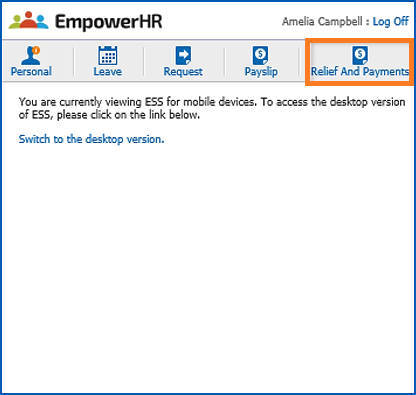
1. Open EmpowerHR on the device, and then click **Relief And Payments.**
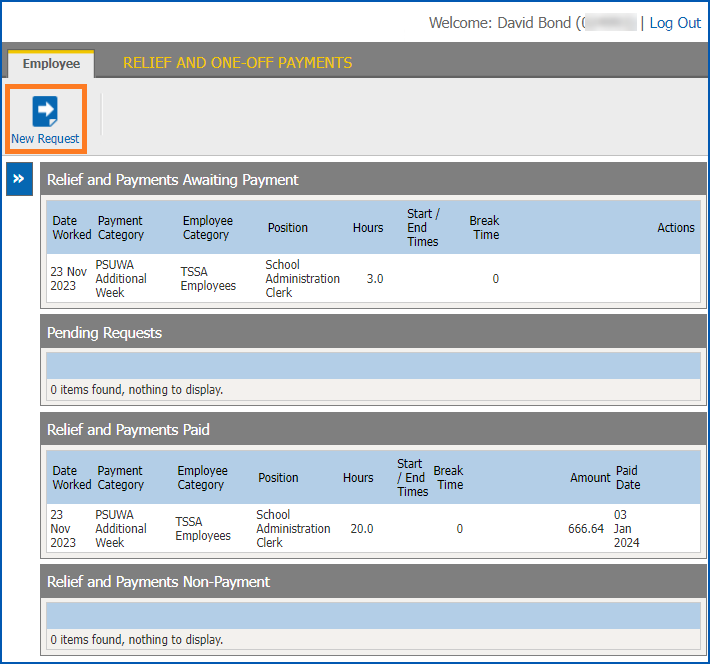
1. The **Relief and One-off Payments**catalogue displays.
2. Click **New Request**.
1. Complete the request - see [create and submit a request](/articles/ehr-user-guide/create-and-submit-a-request) for instructions.
| Next topic
[Set up sort codes](/articles/ehr-user-guide/set-up-sort-codes) |
| --- |
© 2023 Fusion5. All rights reserved.