---
title: "Add position's leave rules"
id: "add-position-s-leave-rules"
project: "EHR User Guide"
url: "https://help.cloud5.com.au/articles/ehr-user-guide/add-position-s-leave-rules"
updated: 2026-10-19T00:54:02Z
---
# Add position's leave rules
EmpowerHR's position leave rules feature lets you allocate accruing normal leave rules to a particular position.
To add accruing normal leave rules to a position:
1. At the **Create Positions** summary screen, select the position, and then click **Position's Leave Rules**.
2. EmpowerHR displays the **Position's Leave Rules** ****summary screen.
3. Click **New**.
4. EmpowerHR displays the **Position's Leave Rules** **- Add**details screen.
5. In **Leave Type**, click **Window**, find and double-click a code to add it to the field. EmpowerHR populates the **Leave Code** field based on the leave type code you selected.
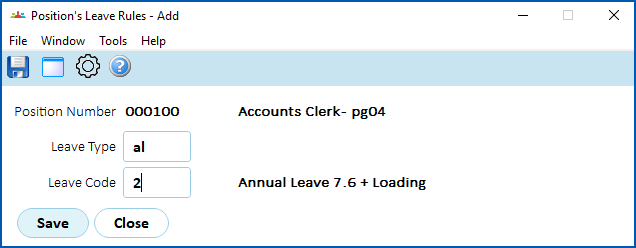
1. Click **Save**.
2. EmpowerHR displays the **Position's Leave Rules** ****summary screen, listing the leave rule you allocated.
3. Repeat this procedure, starting at step 3, until you have allocated all the relevant normal accruing leave rules to the position.
4. When you're finished, click **Close**.
| Next topic
[Add position's allowances](/articles/ehr-user-guide/add-position-s-allowances) |
| --- |
© 2023 Fusion5. All rights reserved.