---
title: "Add position information"
id: "add-position-information"
project: "EHR User Guide"
url: "https://help.cloud5.com.au/articles/ehr-user-guide/add-position-information"
updated: 2026-10-19T00:54:02Z
---
# Add position information
To create a position and add position information:
1. Go to **Tasks** > **Establishment** > **Positions** > **Create Positions**.
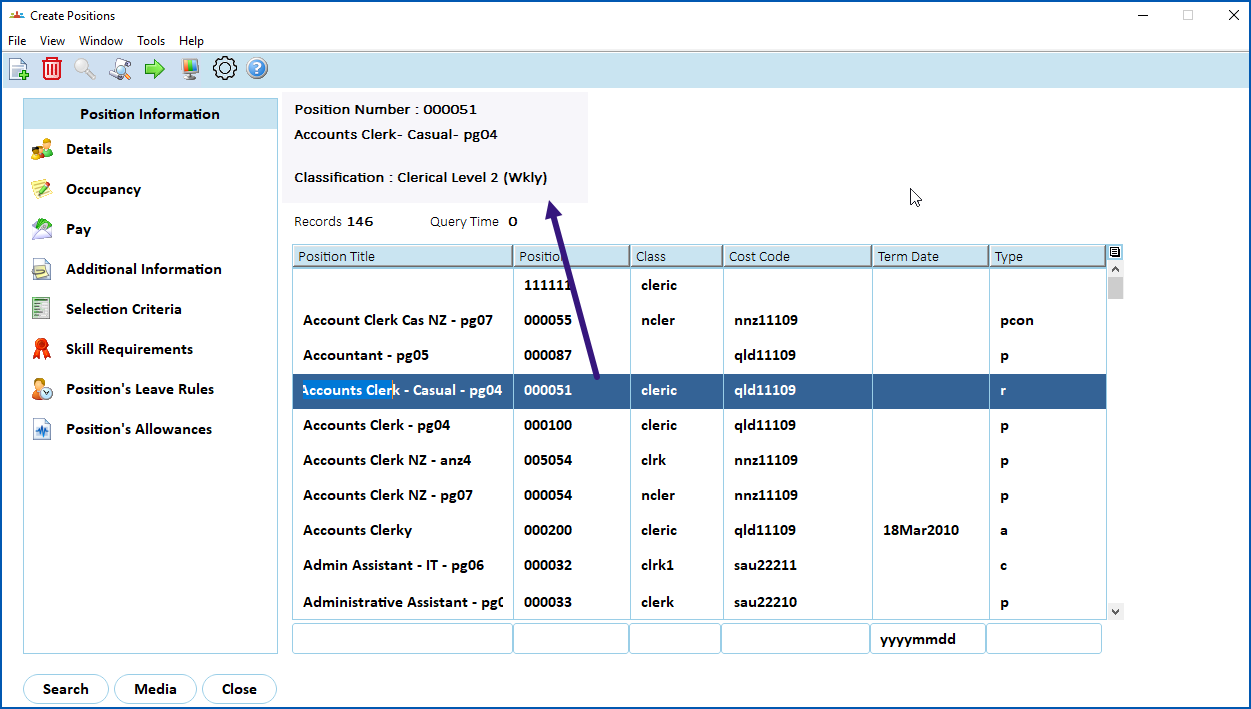
2. At the **Create Positions** summary screen, click **Search** to see a list of all existing positions.
|  | Depending on the volume of records, searching for all positions may take some time. Try narrowing the search by searching for a specific position number, where possible. |
| --- | --- |
1. When you select a record in the list, at the top of the screen, EmpowerHR displays the position number, together with the description and classification valid at today's date.
1. Check the list and, if the position:
1. already exists, see [update a position](/articles/ehr-user-guide/update-a-position) for instructions on making changes. No further action required.
2. doesn't exist, go to step 5.
2. Click **New**.
3. EmpowerHR displays the **Create Positions - Add** (initiation) screen.
4. Depending on your organisation's policy, EmpowerHR automatically generates the position number, or requires you to enter the position number. If EmpowerHR is:
1. *not* set to generate a position number, enter a unique position number (up to 10 characters), and then press **Tab**. Go to step 8.
2. set to generate a position number, press **Tab**, and the next available position number displays. Go to step 8.
|  | See [automatic generation of position numbers](/articles/ehr-user-guide/what-you-need-to-set-up-positions-management/a/h3__800849997) for more information. |
| --- | --- |
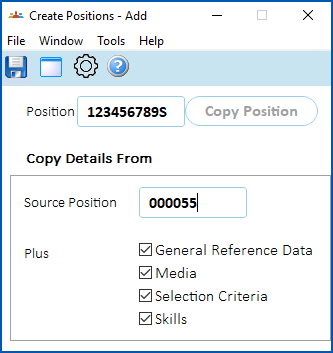
1. The **Copy Position** button becomes available. To:
1. create a position from scratch, click **Save**, *or*
2. copy an existing position, click **Copy Position**, select/enter the **Source Position**, and then select the **Plus** options you want. ****Click **Save**.
1. EmpowerHR displays the **Position Details** screen.
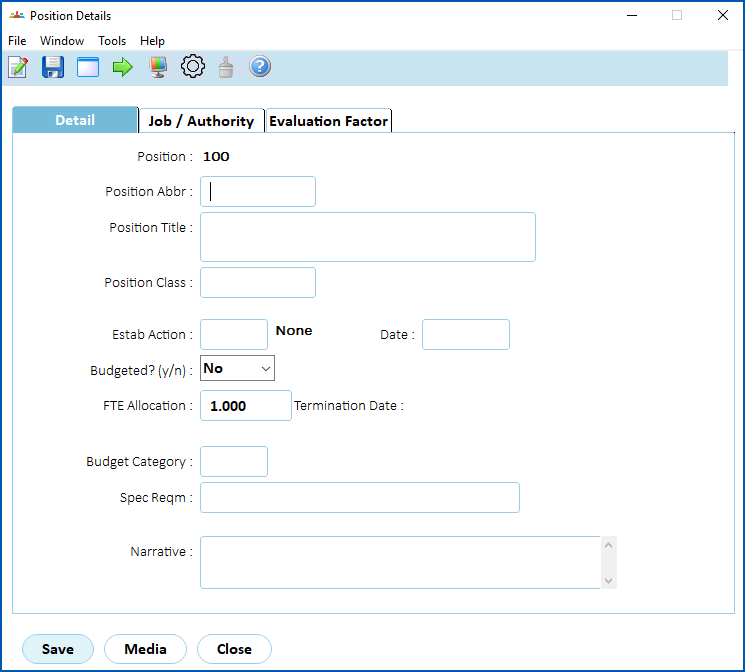
1. Use the following instructions to complete the tabs on the **Positions detail** screen, and then the **Position -** **Details 2** (occupancy) and **Position -** **Pay** screens.
## Add detail
1. At the **Detail** tab, complete any [detail fields](/articles/ehr-user-guide/detail-fields) your organisation requires.
2. When you've finished adding detail, click the **Job/Authority** tab.
## Add job/authority information
1. At the **Job/Authority** ****tab, complete any [job/authority fields](/articles/ehr-user-guide/job-authority-fields) your organisation requires.
2. When you've finished adding job/authority information, click the **Evaluation Factor**tab.
## Add evaluation factor information
1. At the **Evaluation Factor** ****tab, complete any [job/authority fields](/articles/ehr-user-guide/job-authority-fields) your organisation requires.
2. When you've finished adding evaluation factor information, click **Save**. EmpowerHR displays the **Position - Details 2** **** (occupancy) screen. See the following procedure for what to do next.
## Add details 2 (occupancy) information
1. At the **Position -** **Details 2** (occupancy) screen, complete any [details 2 (occupancy) fields](/articles/ehr-user-guide/details-2-occupancy-fields) your organisation requires.
2. When you've finished adding occupancy information, click **Save**. EmpowerHR displays the **Position - Pay** screen.
## Add pay information
1. At the **Position - Pay**screen, complete any [pay fields](/articles/ehr-user-guide/pay-fields) your organisation requires.
2. When you've finished adding position pay information, click **Save**.
3. EmpowerHR displays the **Create Positions** summary screen, listing the position you created.
## Add other information to the position
For what to do next when creating a position, see:
* [Add position additional information](/articles/ehr-user-guide/add-position-additional-information)
* [Add selection criteria](/articles/ehr-user-guide/add-selection-criteria)
* [Add skills requirements](/articles/ehr-user-guide/add-skill-requirements)
* [Add position's leave rules](/articles/ehr-user-guide/add-position-s-leave-rules)
* [Add position's allowances](/articles/ehr-user-guide/add-position-s-allowances)
* [Add job descriptions for self service organisation chart](/articles/ehr-user-guide/add-job-descriptions-for-organisation-chart)
| Next topic
[Detail fields](/articles/ehr-user-guide/detail-fields) |
| --- |
© 2023 Fusion5. All rights reserved.