---
title: "Add position additional information"
id: "add-position-additional-information"
project: "EHR User Guide"
url: "https://help.cloud5.com.au/articles/ehr-user-guide/add-position-additional-information"
updated: 2026-10-19T00:54:02Z
---
# Add position additional information
EmpowerHR offers additional information screens to add user-specific information or data that isn't typically recorded elsewhere in the system.
Your organisation determines if any additional data screens need to be completed when creating a new position.
To add position additional information:
1. At the **Create Positions** summary screen, select the position, and then click **Additional Information**.
2. EmpowerHR displays the **Additional Information** summary screen.
3. Click **New**.
4. At the **Additional Information - Add** details screen, press **Tab**.
5. At **Screen Type**, click **Window**, find and double-click the type code to add it to the field.
6. Press **Tab**.
7. EmpowerHR displays fields based on the screen type you selected.
8. In the **Sequence** field, enter **0** as this is the first time the information is used for the position.
9. Complete any other required fields. In the following example, we are adding the keys to be issued for the position.
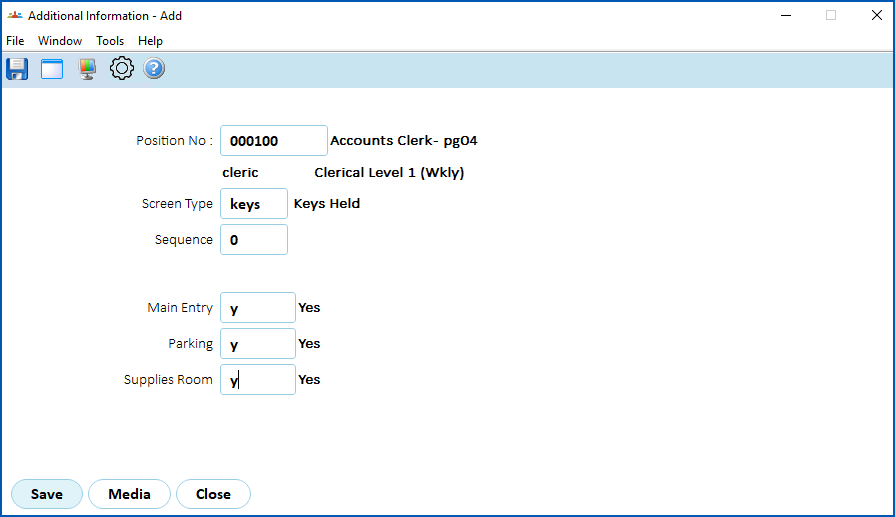
1. Click **Save**.
2. EmpowerHR displays the **Additional Information** summary screen, listing the additional information you created.
| Next topic
[Add selection criteria](/articles/ehr-user-guide/add-selection-criteria) |
| --- |
© 2023 Fusion5. All rights reserved.