---
title: "Add personal employee information"
id: "add-personal-employee-information"
project: "EHR User Guide"
url: "https://help.cloud5.com.au/articles/ehr-user-guide/add-personal-employee-information"
updated: 2026-10-19T00:52:46Z
---
# Add personal employee information
To add an employee's personal employee information: 
1. Go to **Tasks** > **Employees** > **Employee Information** > **Employee Information**.
2. At the **Employee Information** **** summary screen, click **Find Now** to list all existing employees.
3. Click **New**.
4. At the **Employee Information** **** detail screen, enter the employee's **Surname**, **Given Names**, and **Date of Birth**.
5. If your organisation has:
1. previously employed the person, the **Employee Information** summary screen displays. Select and double-click the employee. EmpowerHR adds their employee code to the **Employee Code** field on **Employee Information** detail screen. Go to step 7.
2. not previously employed the person, go to step 6.
6. At the **Employee Code** field:
1. if your organisation uses EmpowerHR to automatically generate the employee code, press **Tab** and the field displays the new code
2. otherwise, enter the employee code
7. At the **Start Date** field, enter the employee's commencement date.
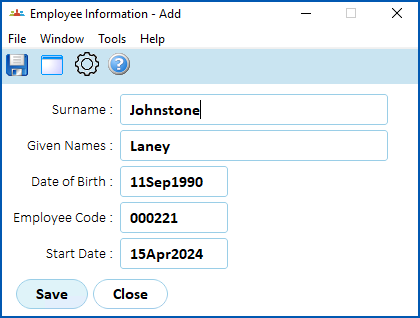
1. Click **Save**.
2. EmpowerHR creates the employee record and displays the **Personal & Address Information** screen, at the **Personal** tab.
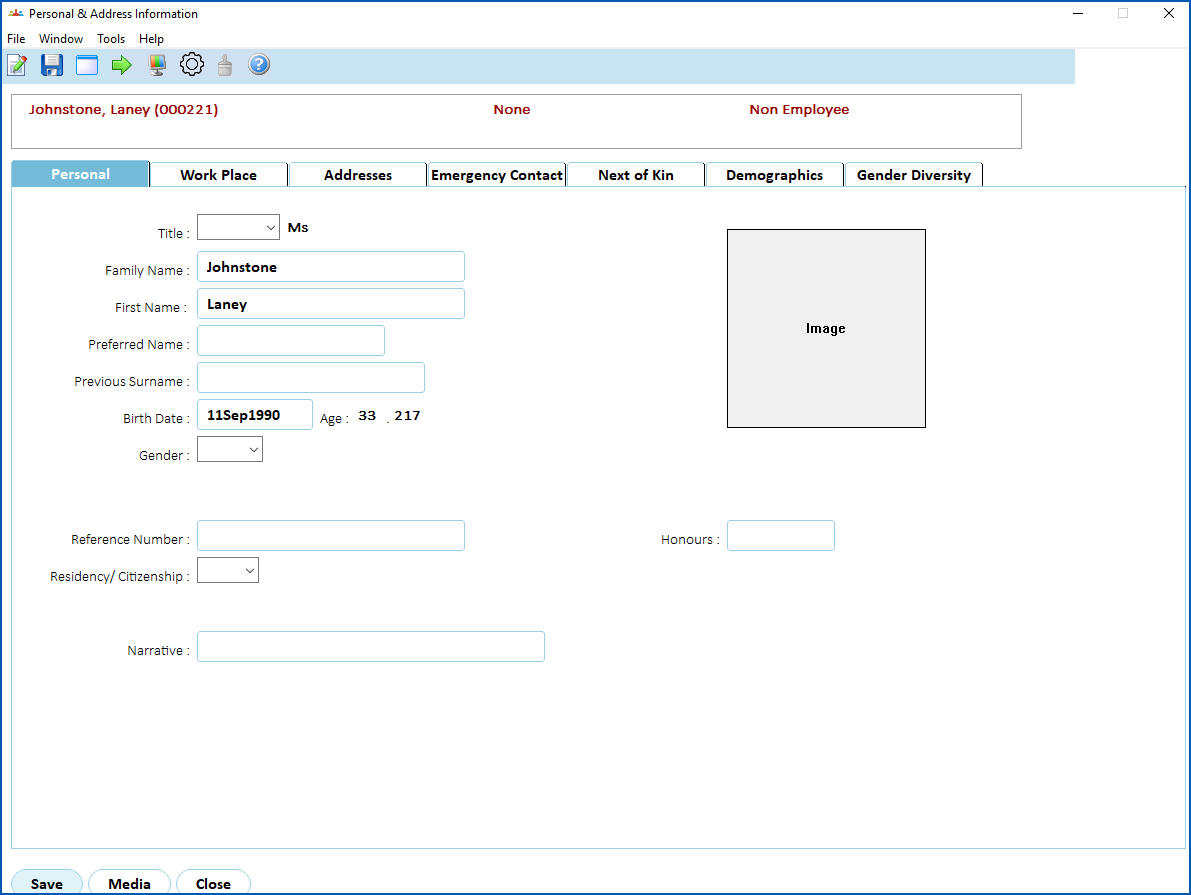
1. Use the following instructions to complete each tab.
## Add personal details
1. At the **Personal** tab, complete any [personal detail fields](/articles/ehr-user-guide/personal-details-fields) your organisation requires.
2. When you've finished the personal details, click the **Work Place** tab.
## Add workplace details
1. At the **Work Place**tab, complete any [workplace detail fields](/articles/ehr-user-guide/workplace-detail-fields) your organisation requires.
2. When you've finished the workplace details, click the **Addresses** tab.
## Add address details
1. At the **Addresses**tab, complete any [address detail fields](/articles/ehr-user-guide/address-detail-fields) your organisation requires.
2. When you've finished the address details, click the **Emergency Contact**tab.
## Add emergency contact details
1. At the **Emergency Contact**tab, complete any [emergency contact fields](/articles/ehr-user-guide/emergency-contact-fields) your organisation requires.
2. When you've finished the emergency contact details, click the **Next of Kin**tab.
## Add next of kin details
1. At the **Next of Kin**tab, complete any next of kin fields your organisation requires.
2. When you've finished the next of kin details, click the **D** **emographics**tab.
## Add demographics details
1. At the **Demographics******tab, complete any fields your organisation requires. At each field, you can click **Window** to display a list of codes to choose from, find and double-click a code to add it to the field.
|  | If EmpowerHR's demographics feature has been customised for your organisation, you may find different fields on the **Demographics** tab. See [employee demographics information (enhanced)](/articles/ehr-user-guide/employee-demographics-information-enhanced) for more information. |
| --- | --- |
1. When you've finished the demographics details, if your organisation:
1. records gender diversity data, click the **Gender Diversity**tab. See [add and update gender diversity information](/articles/ehr-user-guide/add-and-update-gender-diversity-information) for what to do next.
2. does not use this feature and you have finished adding personal information to all of the tabs, click **S****ave**. The **Add Position Key** screen displays. See [add employee position information](/articles/ehr-user-guide/add-employee-position-information) for what to do next.
| Next topic
[Personal details fields](/articles/ehr-user-guide/personal-details-fields) |
| --- |
© 2023 Fusion5. All rights reserved.