---
title: "Add people to workflow roles"
id: "add-people-to-workflow-roles"
project: "EHR User Guide"
url: "https://help.cloud5.com.au/articles/ehr-user-guide/add-people-to-workflow-roles"
updated: 2026-10-19T00:53:15Z
---
# Add people to workflow roles
Once you’ve set up workflow roles, you can add people to those roles. There are two ways to do this:
* assign a position to the workflow role code and, after running a background job, EmpowerHR finds the people currently holding that position and adds them for you
* manually add an individual employee to a workflow role code
## Assign multiple people to workflow role codes
To add multiple people to workflow role codes:
1. Go to Administration > Workflow > Role Codes.
2. At the Role Codes summary screen, find the role, select it, and then click **Next Level**.
3. At the Position/Roles summary screen, click a blank row, and then click **Window** to view a list of positions.
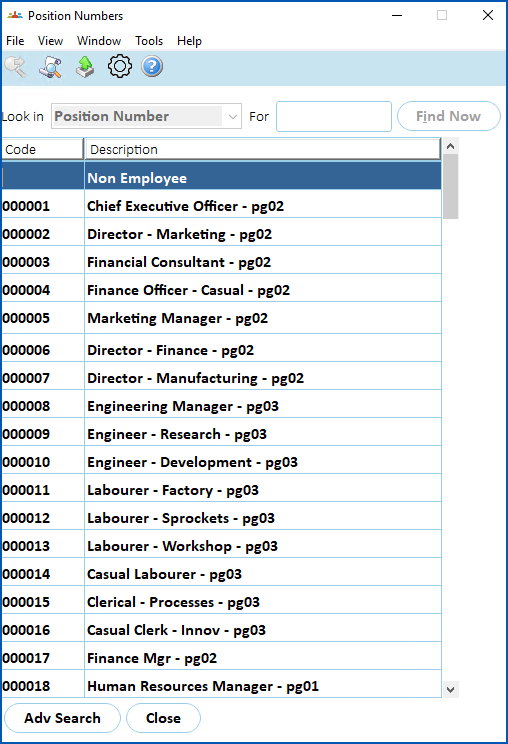
1. Find and double-click a position to add it to the Position / Roles summary screen.
2. Click **Save**.
3. Repeat this procedure, starting at step 2, until you’ve added all the required people.
4. Run the following background job to complete the process:
* **Background Jobs** > **Daily Processing** > **Auto Emp/Role Creation**
|  | We recommend you schedule the **Auto Emp/Role Creation** job to run daily. |
| --- | --- |
## Manually add an individual to a workflow role code
To manually add an individual employee to a workflow role code: 
1. Go to Administration > Workflow > Employee / Position Roles.
2. At the Employee / Position Roles summary screen, click **Find Now** to see a list of existing codes.
3. Click **New**.
4. At the Employee / Position Roles detail screen, complete the following fields:
1. **Role Code** - enter the role code if you know it, or click **Window**, find and double-click the code to add it to the field
2. **Employee Code** - enter the person's employee code if you know it, or click **Window**, find and double-click the code to add it to the field
3. **Position Number** - leave this field blank
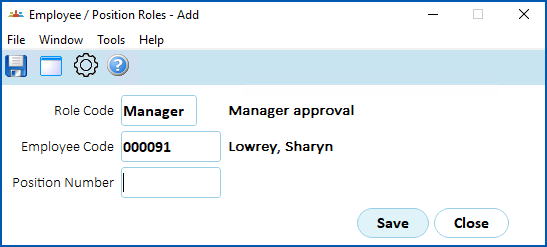
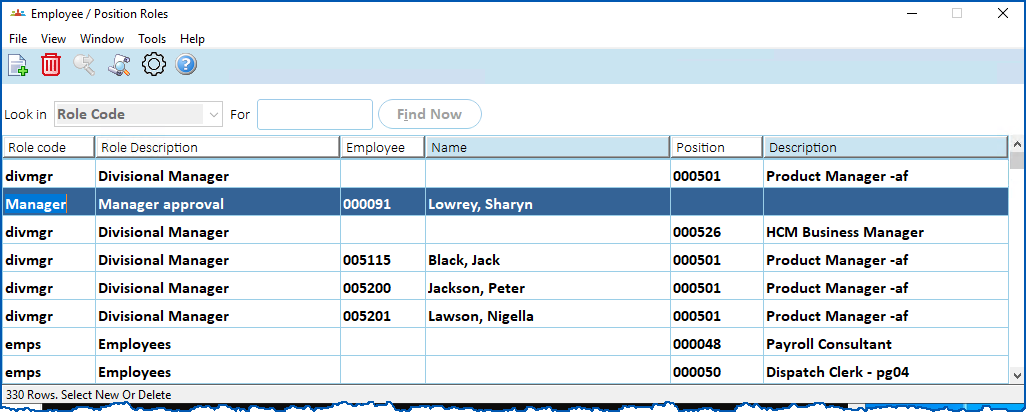
1. Click **Save**. The individual is added to the list in the **Employee Position / Roles** summary screen.
| Next topic
[Define workflow tasks](/articles/ehr-user-guide/define-workflow-tasks) |
| --- |
© 2023 Fusion5. All rights reserved.