---
title: "Add new employment regular allowances and transactions"
id: "add-new-employment-regular-allowances-and-transactions"
project: "EHR User Guide"
url: "https://help.cloud5.com.au/articles/ehr-user-guide/add-new-employment-regular-allowances-and-transactions"
updated: 2026-10-19T00:53:13Z
---
# Add new employment regular allowances and transactions
When you create a new employment for an employee, think about the employee's existing regular transactions and regular allowances.
## How do regular allowances and transactions apply to a new employment?
EmpowerHR links:
* transactions to the employee rather than their employment
* allowances to employment
Here's an example of regular transaction and allowance details for our employee, Draco Malfoy...
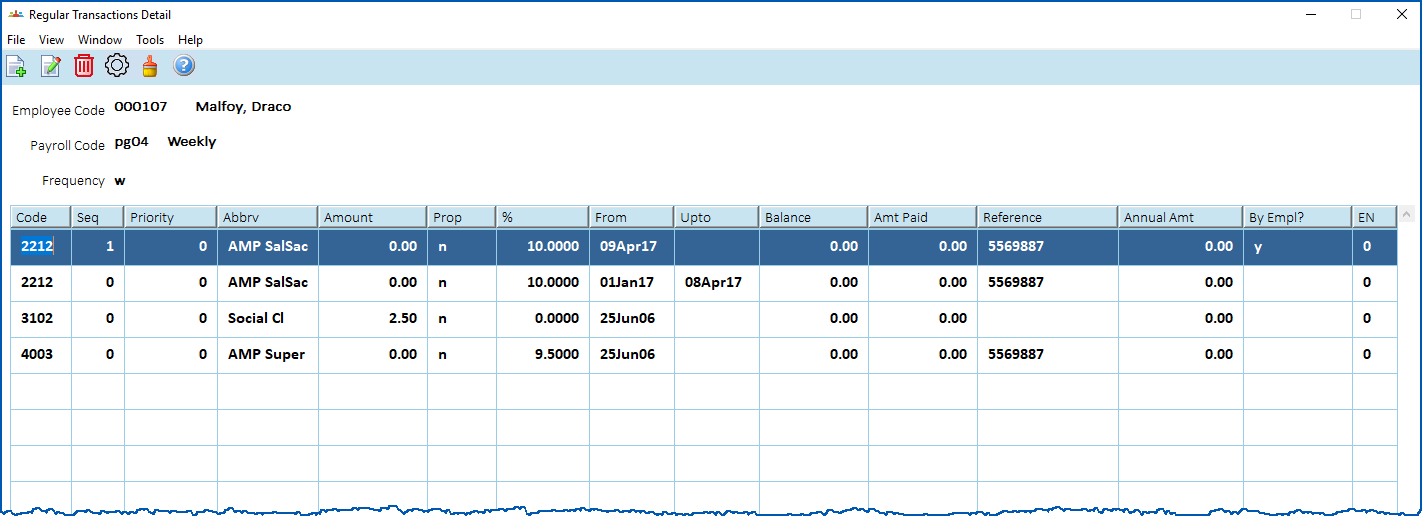
| regular transactions (example) | Draco has the following regular transactions:
- an open AMP company super contribution
- 10% super salary sacrifice deduction
- social club deduction
 |
| --- | --- |
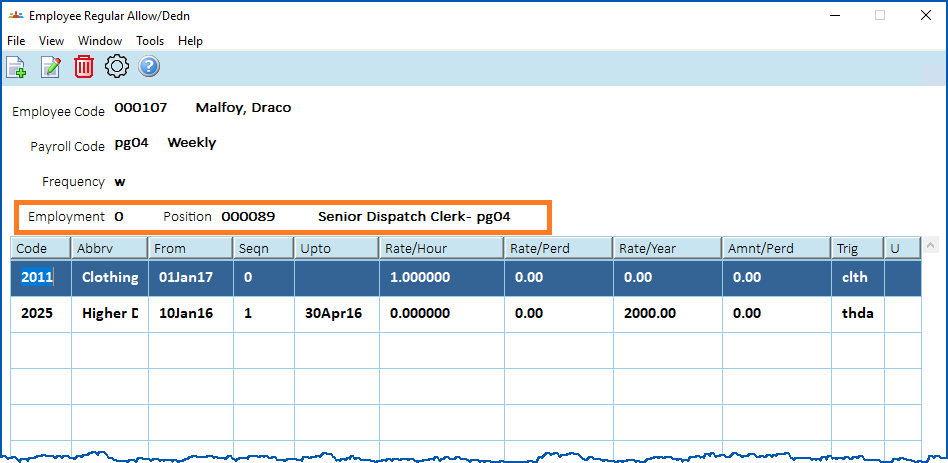
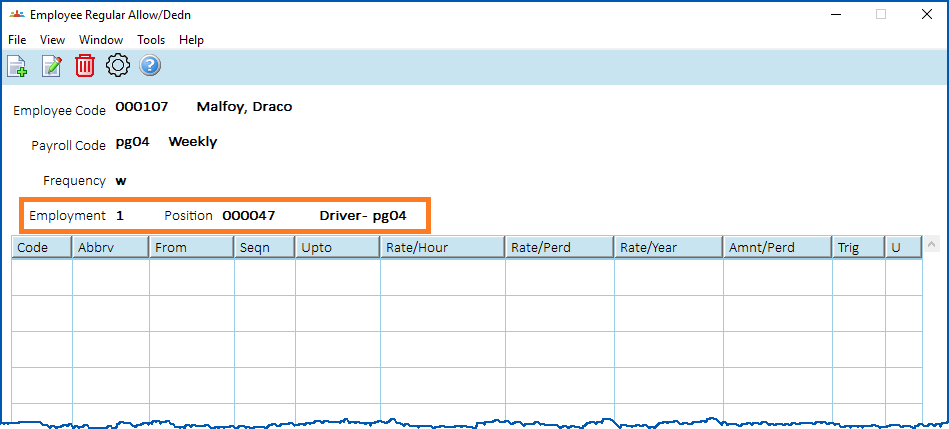
| regular allowances (example) | Draco's employment as Senior Dispatch Clerk (EN 0) has the following regular allowance:
His new employment as Driver (EN 1) has no regular allowances:
 |
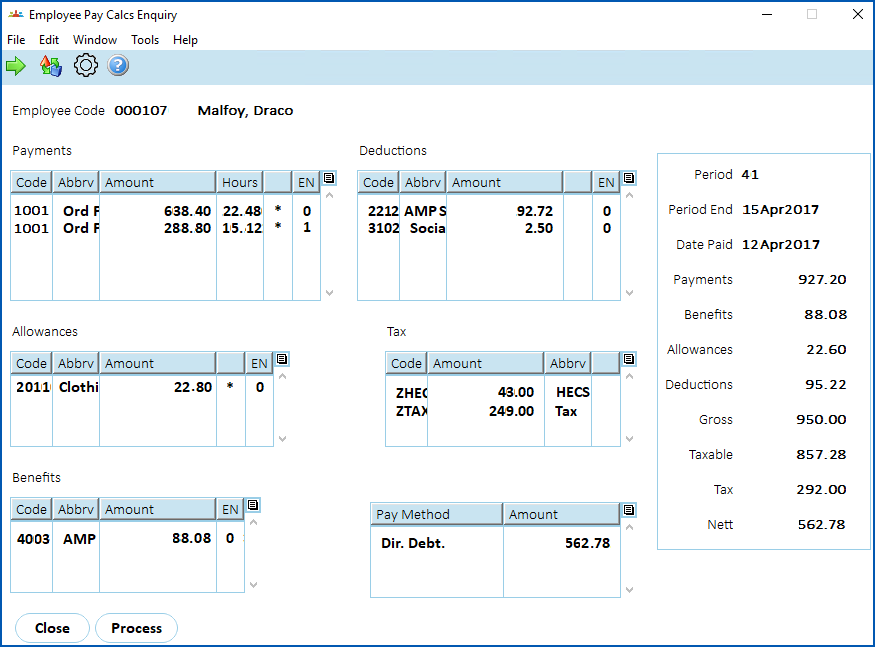
| pay calculation (example) | A pay calculation shows the following outcomes.
Regular transactions apply to all employments, so the:
- superannuation is 9.5% of (638.40 + 288.80) = 88.08
- salary sacrifice is 10% of (638.40 + 288.80) = 92.72
Regular allowances apply to the employment, so the:
- clothing allowance of $1 per hour only applies to Employment 0 (EN 0) which amounts to 22.80 x 1 = 22.80
|  | This example is based on an hours/minutes payroll. |
| --- | --- |
 |
## Add a regular allowance
If you need to add a regular allowance to an employee's new employment: 
1. Go to **Tasks** > **Employees** > **Employee Information** > **Employee Information**.
2. At the **Employee Information**summary screen, find the employee, and then select the new employment record.
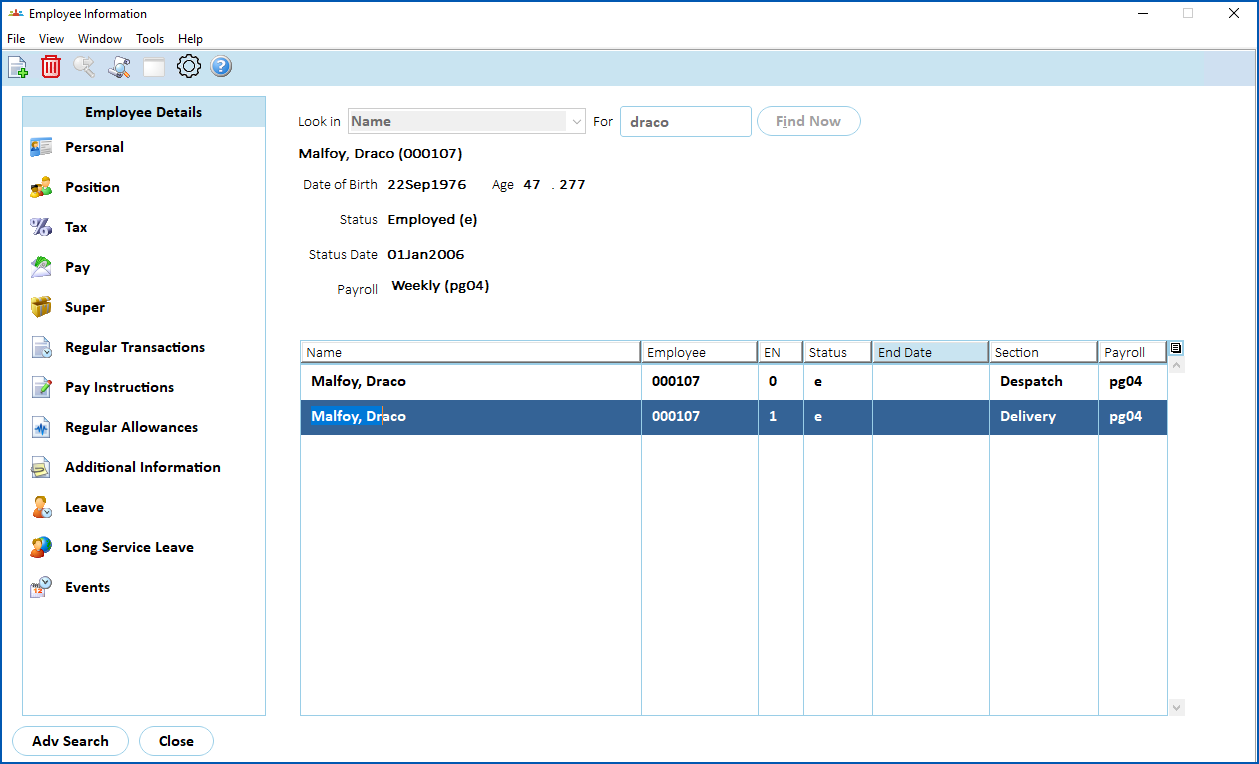
1. Click **Regular Allowances**.
2. At the **Employee Regular Allow/Dedn** summary screen, click **New**.
3. The **Employee Regular Allow/Dedn - Add** screen displays.
4. Complete the fields. See [regular allowance/deduction fields](/articles/ehr-user-guide/regular-allowance-deduction-fields) if you need help completing the fields.
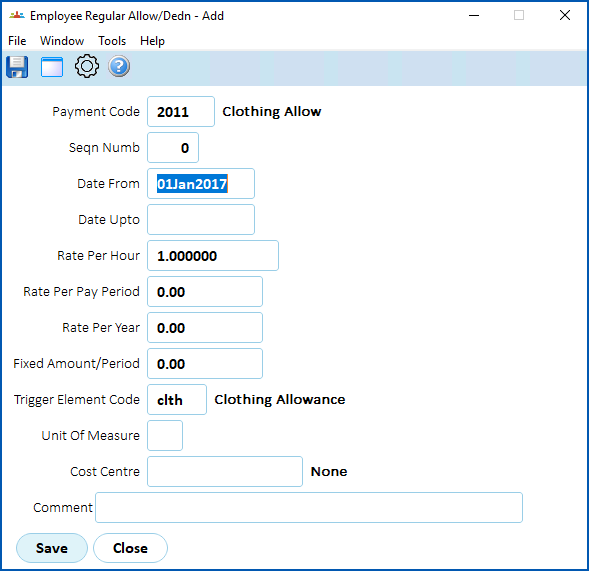
1. Click **Save**.
## Add a regular transaction
EmpowerHR automatically applies regular transactions (deductions, benefits, etc) to the employee, so you don't need to do anything if you want to pay the regular transactions based on all employment.
If, however, you want to link the existing transactions to only a particular employment, you must close them, and then add new transactions by employment.
### Close (or delete) an existing regular transaction
|  | If you don't need to maintain the regular transaction history, you can delete the transaction record instead of closing it. |
| --- | --- |
To close or delete an existing regular transaction: 
1. Go to **Tasks** > **Employees** > **Employee Information** > **Employee Information**.
2. At the **Employee Information**summary screen, find the employee.
3. Click **Regular Transactions**.
4. At the **Regular Transactions Detail** summary screen, select the transaction you want to close/delete.
5. To:
1. close the transaction, click **Open**. The **Regular Transactions Detail - Change** screen displays. Go to step 6.
2. delete the transaction, click **Delete**. The **Regular Transactions Details (delete)** screen displays. Click **Save**. When EmpowerHR asks if you are sure, click **OK**. The record is deleted and no further action is required.
6. At the **Regular Transactions Detail - Change** screen, at the **Date Upto** field, click **Window** to display a list of pay period end dates to choose from, find and double-click a date to add it to the field.
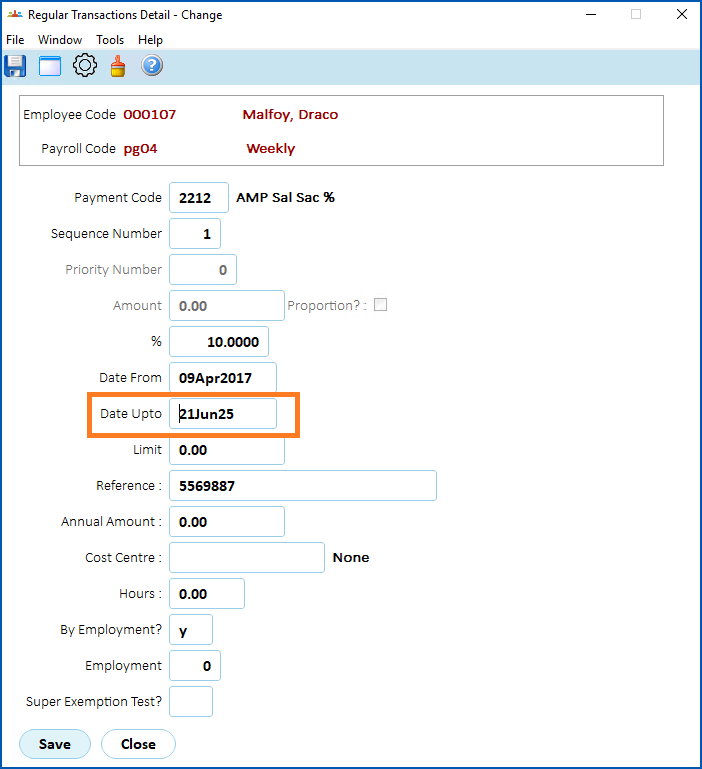
1. Click **Save**. At the **Regular Transactions Detail** summary screen, the **Upto** column now shows the date you selected for the transaction to end.
### Add a regular transaction
To add a regular transaction: 
1. Go to **Tasks** > **Employees** > **Employee Information** > **Employee Information**.
2. At the **Employee Information**summary screen, find the employee.
3. Click **Regular Transactions**.
4. At the **Regular Transactions Detail** summary screen, click **New**.
5. The **Regular Transactions Detail - Add** screen displays.
6. Complete the fields, making sure the transaction applies only to a specific employment by entering:
1. **y** in the **By Employment** field
2. the employment number in the **Employment** field
See [regular allowance/deduction fields](/articles/ehr-user-guide/regular-allowance-deduction-fields) if you need help completing any of the fields.
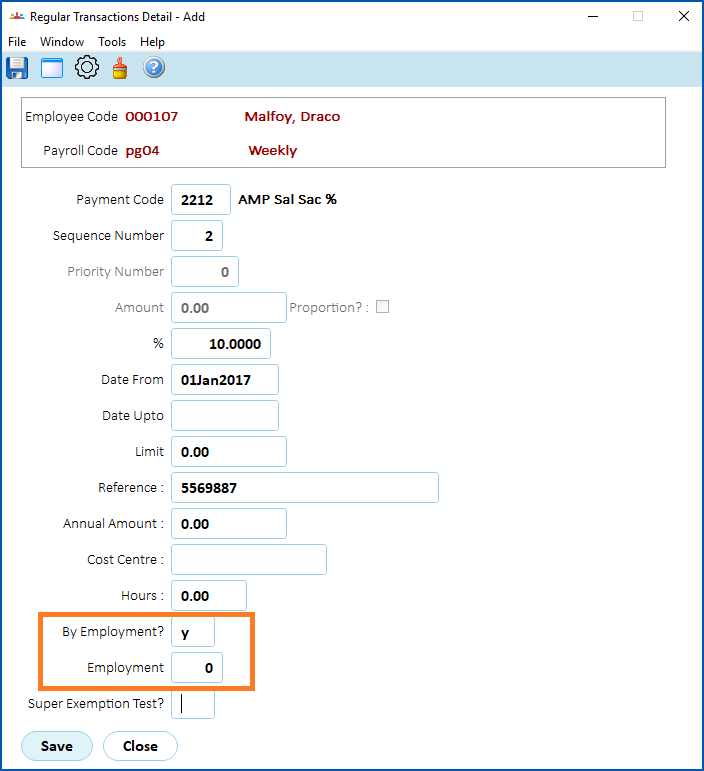
1. Click **Save**.
| Next topic
[Add leave allocations and bookings to new employment](/articles/ehr-user-guide/add-leave-allocations-and-bookings-to-new-employment) |
| --- |
© 2023 Fusion5. All rights reserved.