---
title: "Add job descriptions for organisation chart"
id: "add-job-descriptions-for-organisation-chart"
project: "EHR User Guide"
url: "https://help.cloud5.com.au/articles/ehr-user-guide/add-job-descriptions-for-organisation-chart"
updated: 2026-10-19T00:54:02Z
---
# Add job descriptions for organisation chart
You attach job descriptions to positions via the EmpowerHR desktop.
This results in a link to the position description appearing in the Organisation Chart in self service next time the system automatically rebuilds the chart (usually the following morning). Alternatively, you can sign into self service and do an organisation rebuild if you want the link to appear immediately.
## Attach a job description to a position
Before you can attach a job description to a position, first make sure the installation option called **store position documents in the database (pdoc)** is set to **y** (yes). (See [a](/articles/ehr-user-guide/what-you-need-to-set-up-positions-management/a/h3_660584442)[llow attachment of job descriptions to positions](/articles/ehr-user-guide/what-you-need-to-set-up-positions-management/a/h3_660584442) for how to set this option).
To attach a job description to a position:
1. Go to **Tasks** > **Establishment** > **Positions** > **Create Positions**.
2. At the **Create Positions** summary screen, find and select the position you want, and then click **Next Level**.
3. EmpowerHR displays the **Position Details** screen.
4. Click **Media**.
5. EmpowerHR displays the **Media** summary screen.
6. Click **New**.
7. EmpowerHR displays the **Media - Add** details screen.
8. At:
1. **Media Type**,****select **word** from the dropdown list
2. **Media Description**, enter **job description** (this is *not* case-sensitive)
3. **Media Input**,****click **Window**, find and select the job description file, and then click **Open** to add the file location (pathname) to the field
9. Click **Save**.
10. EmpowerHR displays the **Media** summary screen, listing the job description you added.
11. Click **Close**.
12. Use the following instructions to include the job description link in the organisation chart in self service, or else wait for EmpowerHR's automatic rebuild (usually the next morning).
## Rebuild organisation chart in self service
To immediately rebuild the organisation chart so job description links are included:
1. Go to **Administration** > **System**.
2. Click **Rebuild Organisation Chart**.
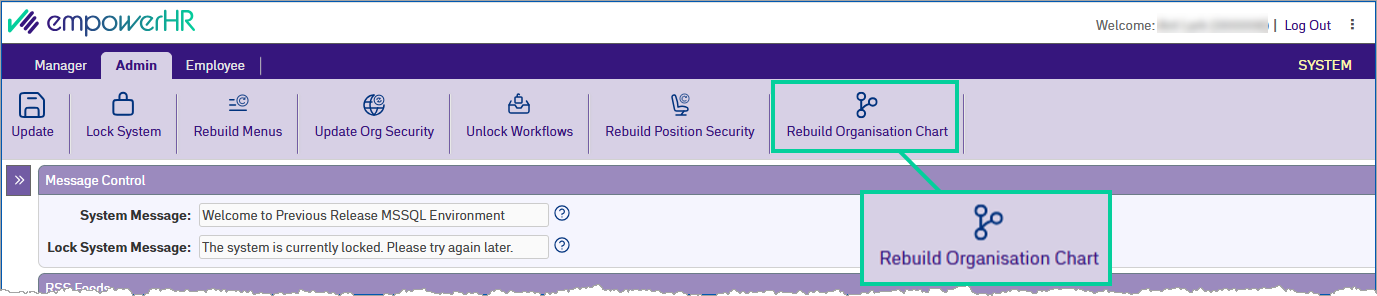
1. Click **Update**.
|  | If you cannot see **Link to position description** in the Organisation Chart, check [screen painting](/articles/ehr-user-guide/self-service-screen-painting) to make sure the field is set to **Display**. |
| --- | --- |
| Next topic
[Update a position](/articles/ehr-user-guide/update-a-position) |
| --- |
© 2023 Fusion5. All rights reserved.