---
title: "Add events"
id: "add-events"
project: "EHR User Guide"
url: "https://help.cloud5.com.au/articles/ehr-user-guide/add-events"
updated: 2026-10-19T00:52:44Z
---
# Add events
EmpowerHR uses events (diary notes) to record your organisation's significant occurrences, or to notify someone of an upcoming occurrence. The system regularly generates these reminders as email notifications (or by report). If your organisation uses events on date fields such as contract expiry date, EmpowerHR automatically adds the events to the employee record. 
You can also manually add an event, as we show you in the following procedure.
[+] [Show example](javascript:void%280%29)
[-] [Hide example](javascript:void%280%29)
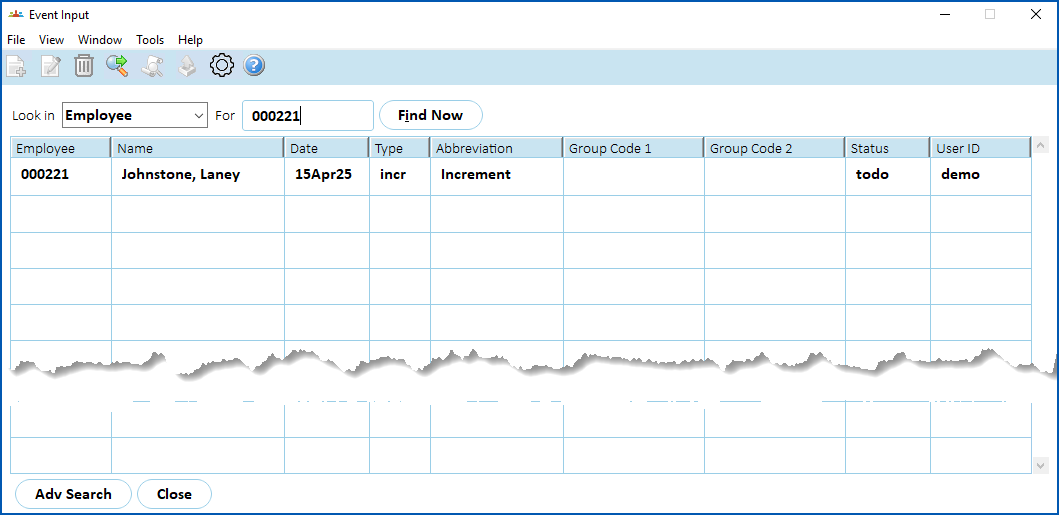
Here's an example of the **Event Input**summary screen. If your organisation uses events on date fields (for example, next increment date), EmpowerHR lists them here on the summary screen.
## Manually add an event
To manually add an event to the employee record:
1. At the **Event Input** ****summary screen, click **New**.
2. At the **Event Input** **(add)**screen, complete the[event fields](/articles/ehr-user-guide/event-fields).
3. Click **Save**.
4. If you have more events to add, repeat this procedure.
[+] [Show example](javascript:void%280%29)
[-] [Hide example](javascript:void%280%29)
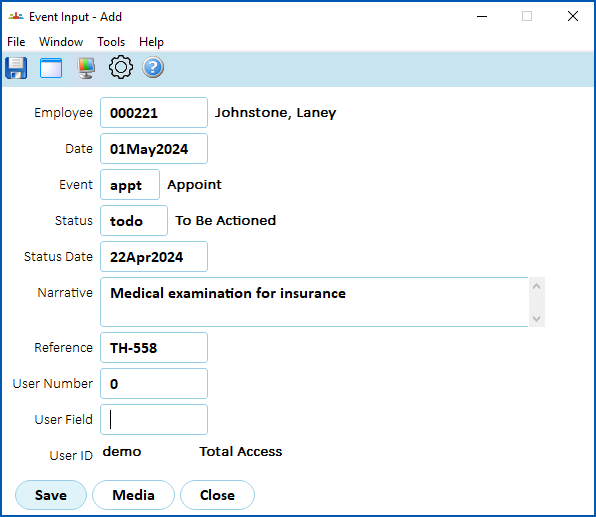
Here's an example of an event for an employee.
When you finish adding all required events, at the **Event Input**summary screen, click **Close**.
|  | **Congratulations!**You've completed the process for adding an employee to EmpowerHR. |
| --- | --- |
| Next topic
[Event fields](/articles/ehr-user-guide/event-fields) |
| --- |
© 2023 Fusion5. All rights reserved.