---
title: "Add employee super fund details"
id: "add-employee-super-fund-details"
project: "EHR User Guide"
url: "https://help.cloud5.com.au/articles/ehr-user-guide/add-employee-super-fund-details"
updated: 2026-10-19T00:52:45Z
---
# Add employee super fund details
EmpowerHR uses the details you enter in the **Super Fund Details** screen for superannuation reporting.
|  | Using the **Super Fund Details** screen is not compulsory. Whether you use this feature depends on how your organisation manages superannuation. |
| --- | --- |
If you:
* are *not* using this feature, at the **Super Fund Details** summary screen, click **Close** to skip this step in the process. The **Regular Transactions** screen displays. See [add employee regular transactions](/articles/ehr-user-guide/add-employee-regular-transactions) for what to do next.
* *are* using this feature, see the following instructions for adding the employee's super fund information.
## Super Fund Self-Service for New Employees
New employees can enter their own super fund details through Self Service during onboarding. Their requests are sent to Payroll via the alerter for review and approval.
For more information, see **[Super Fund Self-Service for New Employees](/smart/project-ehr-user-guide/super-fund-details-via-self-service-workflow)**
## Add super fund details
To add super fund details:
1. At the **Super Fund Details**summary screen, click **New**. The **Super Fund Details (add)** screen displays.
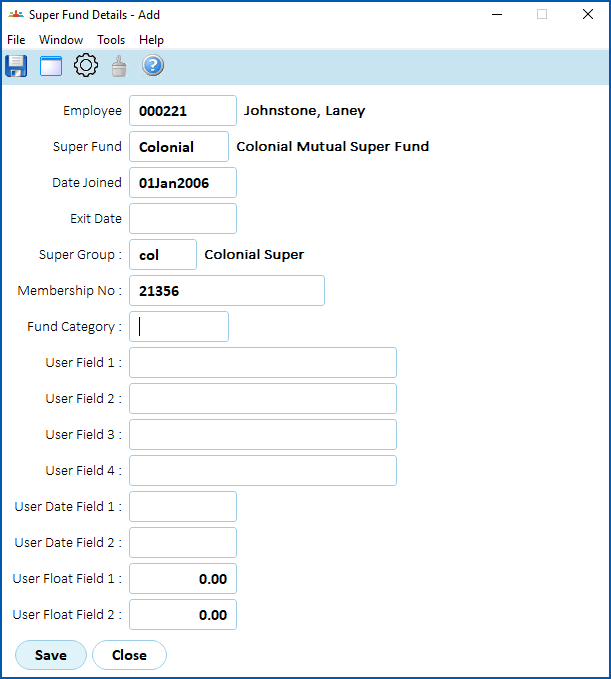
2. Complete the [super fund detail fields](/articles/ehr-user-guide/super-fund-detail-fields) as required by your organisation.
[+] [Show example](javascript:void%280%29)
[-] [Hide example](javascript:void%280%29)
Here's an example of employee super fund details.
1. Click **Save**.
|  | EmpowerHR responds and displays screens based on how installation options are set up in your organisation. |
| --- | --- |
1. The **Super Regular Transactions** summary screen displays.
2. Click **Close**. The **Super Fund Details** summary screen displays.
3. Click **Close**. EmpowerHR displays the **Regular Transaction Details** summary screen. See [add employee regular transactions](/articles/ehr-user-guide/add-employee-regular-transactions) for what to do next.
## Add a record to super fund details history
To add a record to the employee's super fund details history:
1. At the **Super Fund Details** summary screen, click **Next**.
2. At the **Employee Super Fund History** screen, click **New**. The **Employee Super Fund History** **(add)** screen displays.
3. Complete the [employee super fund history fields](/articles/ehr-user-guide/employee-super-fund-history-fields) (in the top section of the screen) as required by your organisation.
4. Click **Search**. EmpowerHR populates the payment code section of the screen. Make any changes, if required.
5. Click **Save**.
| Next topic
[Super fund detail fields](/articles/ehr-user-guide/super-fund-detail-fields) |
| --- |
© 2023 Fusion5. All rights reserved.