---
title: "Add employee regular allowances and deductions"
id: "add-employee-regular-allowances-and-deductions"
project: "EHR User Guide"
url: "https://help.cloud5.com.au/articles/ehr-user-guide/add-employee-regular-allowances-and-deductions"
updated: 2026-10-19T00:52:45Z
---
# Add employee regular allowances and deductions
Here is where you record the employee's regular allowance and deduction details. 
[Show example](javascript:void%280%29)
[-] [Hide example](javascript:void%280%29)
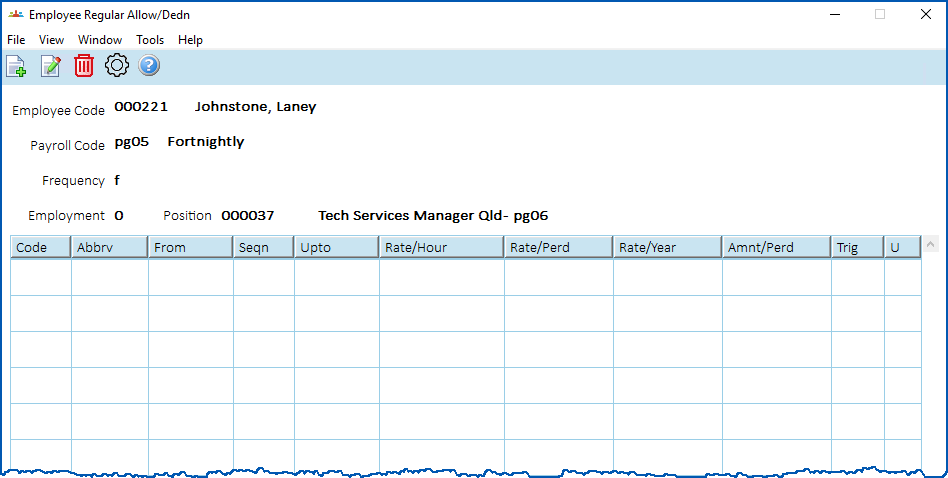
Here's an example of the **Employee Regular Allow/Dedn**summary screen.
|  | **What's the difference between employee regular transactions and employee regular allowances and deductions?**
- Employee regular transactions are paid whenever the employee is paid.
- With employee regular allowances and deductions, EmpowerHR's trigger pay elements function controls whether the allowance is paid or not.
|
| --- | --- |
## Add regular allowance and deduction details
To add employee allowance and deduction details:
1. At the **Employee Regular Allow/Dedn** ****summary screen, click **New**.
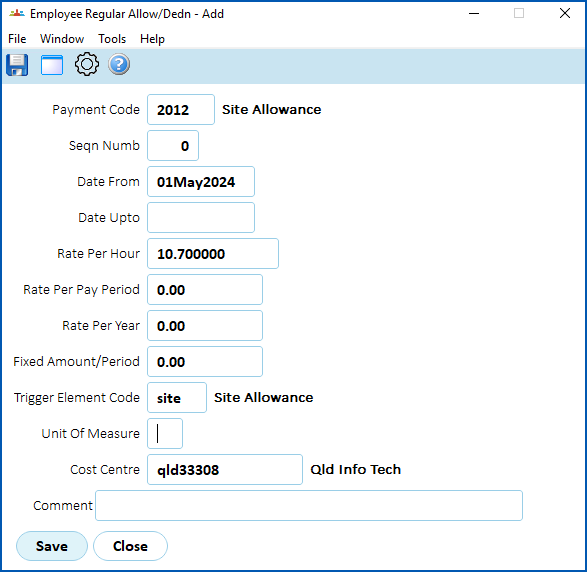
2. At the **Employee Regular Allow/Dedn (add)** ****screen, complete the [regular allowance/deduction fields](/articles/ehr-user-guide/regular-allowance-deduction-fields).
3. Click **Save**.
4. If you have more allowances/deductions to add, repeat this procedure.
[+] [Show example](javascript:void%280%29)
[-] [Hide example](javascript:void%280%29)
Here's an example of a regular allowance for an employee.
When you finish adding regular allowance and deduction details for the employee, at the **Employee Regular Allow/Dedn** summary screen, click **Close**.
The **Additional** **Employee Data** ****summary screen displays. See [add additional employee data](/articles/ehr-user-guide/add-employee-additional-data) for what to do next.
| Next topic
[Regular allowance/deduction fields](/articles/ehr-user-guide/regular-allowance-deduction-fields) |
| --- |
© 2023 Fusion5. All rights reserved.