---
title: "Add employee position information"
id: "add-employee-position-information"
project: "EHR User Guide"
url: "https://help.cloud5.com.au/articles/ehr-user-guide/add-employee-position-information"
updated: 2026-10-19T00:52:45Z
---
# Add employee position information
An employee can commence in one of several ways, as a:
* new starter
* recommencement (when re-employing a terminated employee)
* transfer
Your organisation may have its own conventions for employee positions, for example, movement codes, etc.
## Add a position key 
To add a position key:
1. At the **Add Position Key**screen, select a code from the **Movement Code** dropdown list.
2. Press **Tab**. The **New Movement/Change Date**defaults to the employee start date.
3. Leave the **Old Position Number** field blank.
4. Click **OK**. The **Employee Position Information** screen displays.
## Add employee position information 
To add employee position information:
1. At the **Employee Position Information**screen, in the **Position** field, click **Window** to display a list of codes to choose from, find and double-click a code to add it to the field.
2. EmpowerHR displays the default details associated with the position.
3. Make any changes you need to the remaining fields. See [employee position fields explained](/articles/ehr-user-guide/employee-position-fields-explained) for help.
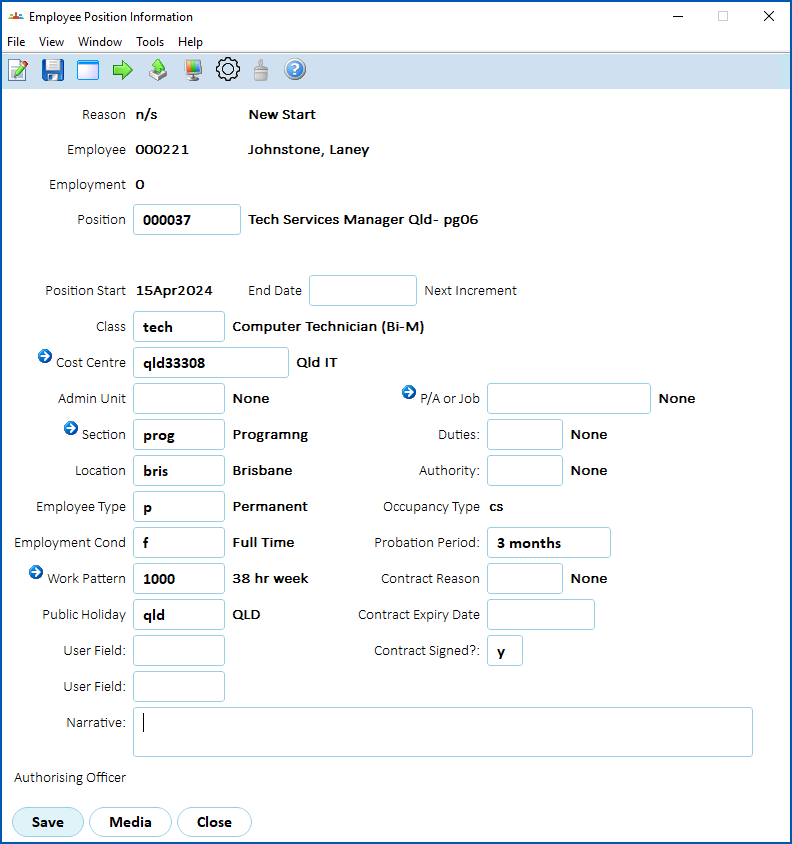
1. Click **Save**. The **Tax Information** - **Payroll** tab displays. See [add employee tax detail](/articles/ehr-user-guide/add-employee-tax-details)s for what to do next.
| Next topic
[Employee position fields explained](/articles/ehr-user-guide/employee-position-fields-explained) |
| --- |
© 2023 Fusion5. All rights reserved.