---
title: "Add employee long service leave"
id: "add-employee-long-service-leave"
project: "EHR User Guide"
url: "https://help.cloud5.com.au/articles/ehr-user-guide/add-employee-long-service-leave"
updated: 2026-10-19T00:53:40Z
---
# Add employee long service leave
A new employee will not have any leave types attached as yet. 
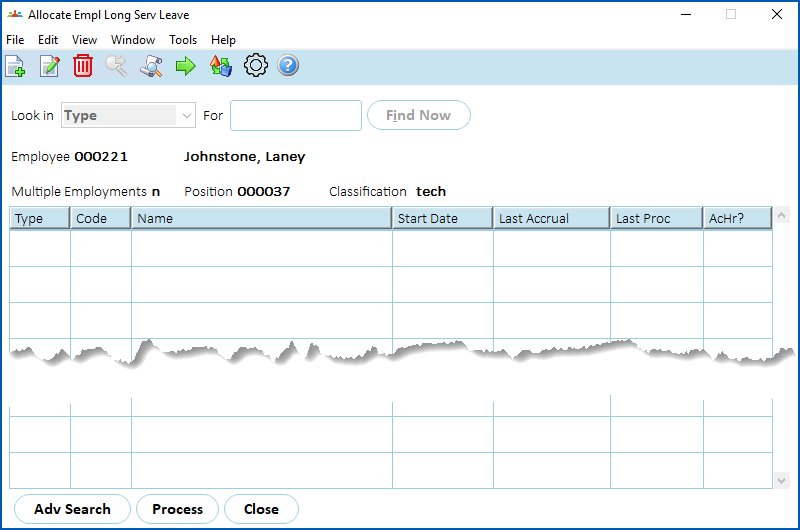
EmpowerHR directs you to the **Allocate Empl Long Serv Leave** screen.
|  | See [allocate leave to an employee](/articles/ehr-user-guide/leave-allocate-leave-to-an-employee) for instructions about other leave types. |
| --- | --- |
[+] [Show example](javascript:void%280%29)
[-] [Hide example](javascript:void%280%29)
Here's an example of the **Allocate Empl Long Serv Leave** summary screen.
## Add LSL
To add LSL details to the employee record:
1. At the **Allocate Empl Long Serv Leave** summary screen, click **New**.
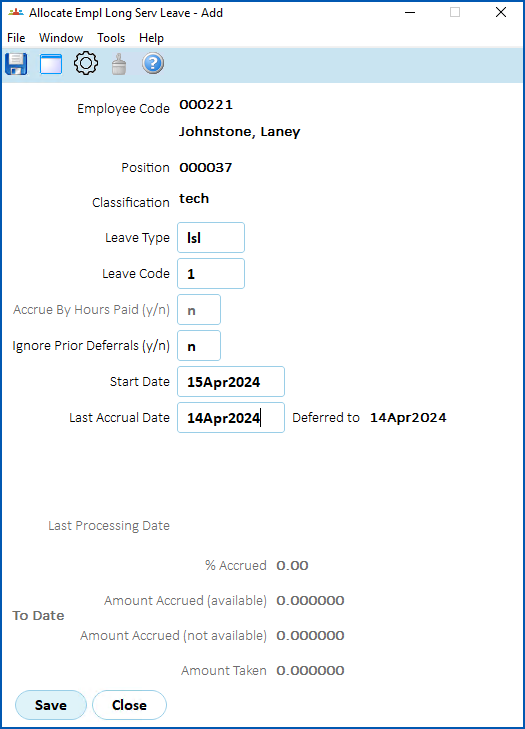
2. At the **Allocate Empl Long Serv Leave** **(add)** screen, complete the leave fields. See [allocate employee leave fields](/articles/ehr-user-guide/allocate-employee-leave-fields) for instructions.
3. Click **Save**.
[+] [Show example](javascript:void%280%29)
[-] [Hide example](javascript:void%280%29)
Here's an example of LSL details for an employee.
When you finish adding LSL leave details for the employee, at the **Allocate Empl Long Serv Leave** summary screen, click **Close**.
The **Event Input** summary screen displays. See [add events](/articles/ehr-user-guide/add-events) for what to do next.
| Next topic
[Add events](/articles/ehr-user-guide/add-events) |
| --- |
© 2023 Fusion5. All rights reserved.