---
title: "Add employee additional data"
id: "add-employee-additional-data"
project: "EHR User Guide"
url: "https://help.cloud5.com.au/articles/ehr-user-guide/add-employee-additional-data"
updated: 2026-10-19T00:52:45Z
---
# Add employee additional data
Here we use an example to show how to record employee additional data. Your organisation's procedures will tell you what additional data to add. 
[+] [Show example](javascript:void%280%29)
[-] [Hide example](javascript:void%280%29)
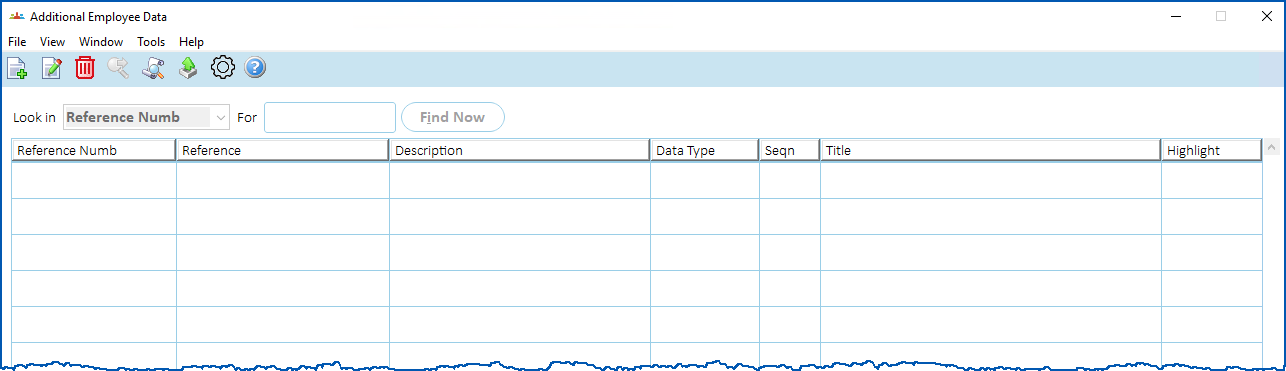
Here's an example of the **Additional Employee Data**summary screen.
## Add additional data
To add employee additional data:
1. At the **Additional Employee Data**summary screen, click **New**.
2. At the **Additional Employee Data** **(add)**screen, in the **Screen Type** field, click **Window** to display a list of screen type codes to choose from, find and double-click a code to add it to the field. EmpowerHR displays additional data fields based on the screen type you selected.
3. Complete the additional data fields.
4. Click **Save**.
5. If you have more employee additional data to add, repeat this procedure.
[+] [Show example](javascript:void%280%29)
[-] [Hide example](javascript:void%280%29)
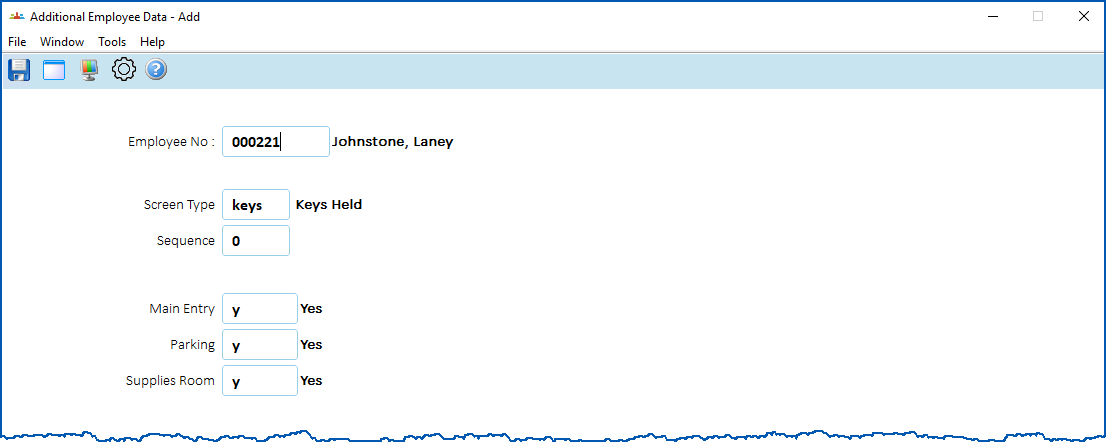
Here's an example of additional employee data.
When you finish adding all required additional data, at the **Additional Employee Data******summary screen, click **Close**.
The **Allocate** **Employee Leave**summary screen displays. See [add employee long service leave](/articles/ehr-user-guide/add-employee-long-service-leave) for what to do next.
| Next topic
[Add employee long service leave](/articles/ehr-user-guide/add-employee-long-service-leave) |
| --- |
© 2023 Fusion5. All rights reserved.