---
title: "Add and update gender diversity information"
id: "add-and-update-gender-diversity-information"
project: "EHR User Guide"
url: "https://help.cloud5.com.au/articles/ehr-user-guide/add-and-update-gender-diversity-information"
updated: 2026-10-19T00:54:17Z
---
# Add and update gender diversity information
## Can I add or update employee gender diversity information?
* If you need to add or make changes to an individual employee's gender diversity information, you can do this via the employee's record in the desktop.
* As an employee, you can add or change your own gender diversity information via the **Gender Diversity**tab in ESS .ESS = Employee Self Service
|  | The field names and behaviours described in the following instructions may vary as they are determined by how your organisation has set up the gender diversity feature. |
| --- | --- |
## Add or update an employee's gender diversity information in desktop
To add or update an employee's gender diversity information in the desktop:
1. Go to Tasks > Employees > Employee Information > Employee Information.
2. At the **Employee Information** summary screen, find the employee record, select it, and then click **Personal**.
3. On the **Personal** tab, select an option from the **Gender** dropdown list. Depending on your selection, the **Additional Info Emp Description** field may display. If this field displays, enter a description to provide context or more details about the option you selected.
4. Go to the **Gender Diversity**tab, and then click **Open**.
5. On the **Gender Diversity** tab, complete or change the fields by selecting an option from each dropdown list. Depending on your selection in some fields, an **Additional info...** field may display. If this field displays, enter a description to provide context or more details about the option you selected.
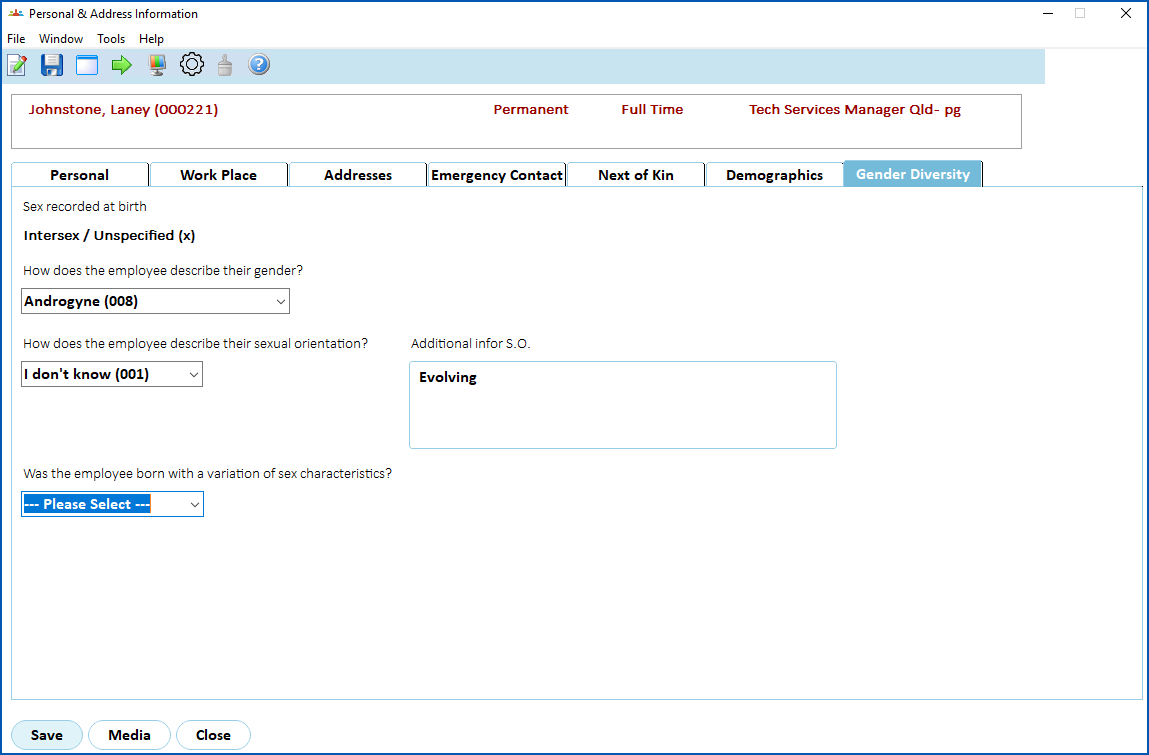
1. Click **Save**.
## Add or update your own gender diversity information in ESS
To add or update your own gender diversity information in ESS:
1. Click **Personal Details**.
2. At the **Personal Details** screen, on the **General** tab, select an option from the **Gender**dropdown list. Depending on your selection, the **Comment**field may display. If this field displays, enter a description to provide context or more details about the option you selected.
3. Go to the**Gender Diversity**tab.
4. On the **Gender Diversity** tab, complete or change the fields by selecting an option from each dropdown list. Depending on your selection in some fields, an additional field may display. If this field displays, enter a description to provide context or more details about the option you selected.
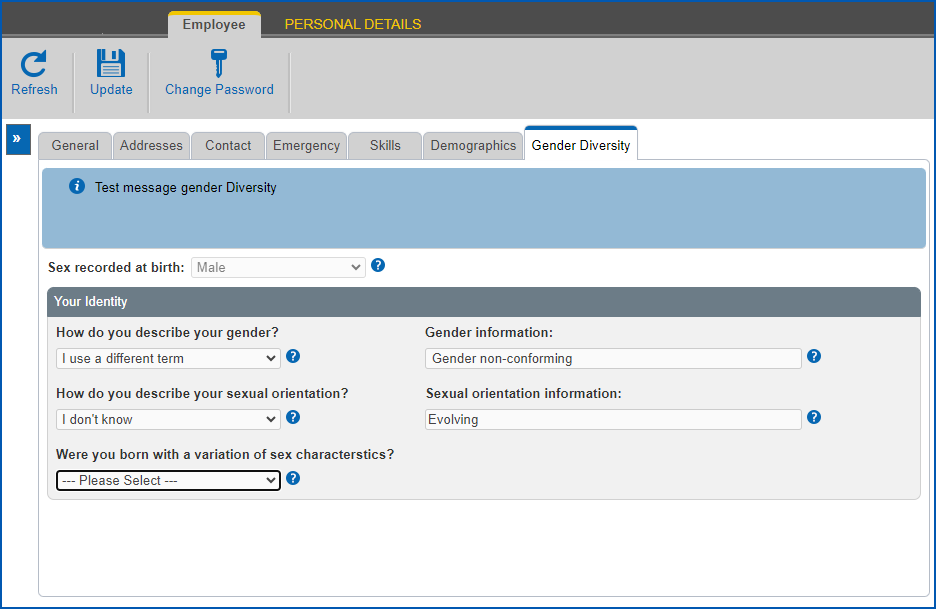
1. Click **Save**.
| Next topic
[Add a non-employee](/articles/ehr-user-guide/add-a-non-employee) |
| --- |
© 2023 Fusion5. All rights reserved.