---
title: "Add and update demographics information"
id: "add-and-update-demographics-information"
project: "EHR User Guide"
url: "https://help.cloud5.com.au/articles/ehr-user-guide/add-and-update-demographics-information"
updated: 2026-10-19T00:52:44Z
---
# Add and update demographics information
## Can I add or update employee demographics information?
* If you need to add or make changes to an individual employee's demographics information, you can do this via the employee's record in the desktop.
* As an employee, you can add or change your own demographics information via the **Demographics** tab in ESS .ESS = Employee Self Service
## Add or update an employee's demographics information in desktop 
To add or update employee demographics information in the desktop:
1. Go to Tasks > Employees > Employee Information > Employee Information.
2. At the **Employee Information** summary screen, find the employee record, select it, and then click **Personal**.
3. At **Personal & Address Information**, go to the **Demographics** tab, and then click **Open**.
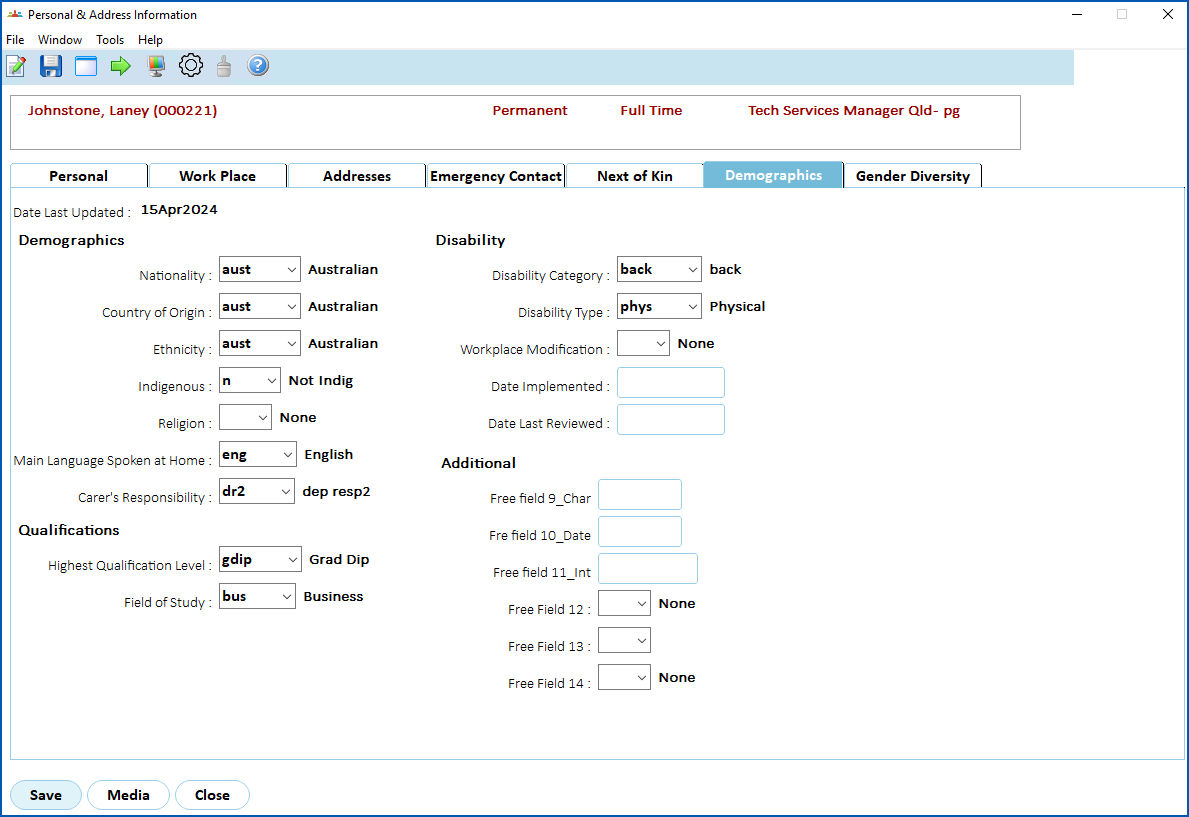
1. Complete or change the fields by making a selection from each field's dropdown list. You'll find most fields are self-explanatory, however, see [demographics fields explained](/articles/ehr-user-guide/demographics-field-explained) if you need more information.
2. Click **Save**.
## Add or update your own demographics information in ESS 
To add or update your own employee demographics information in ESS:
1. Click **Personal Details**.
2. At the **Personal Details** screen, go to the**Demographics**tab.
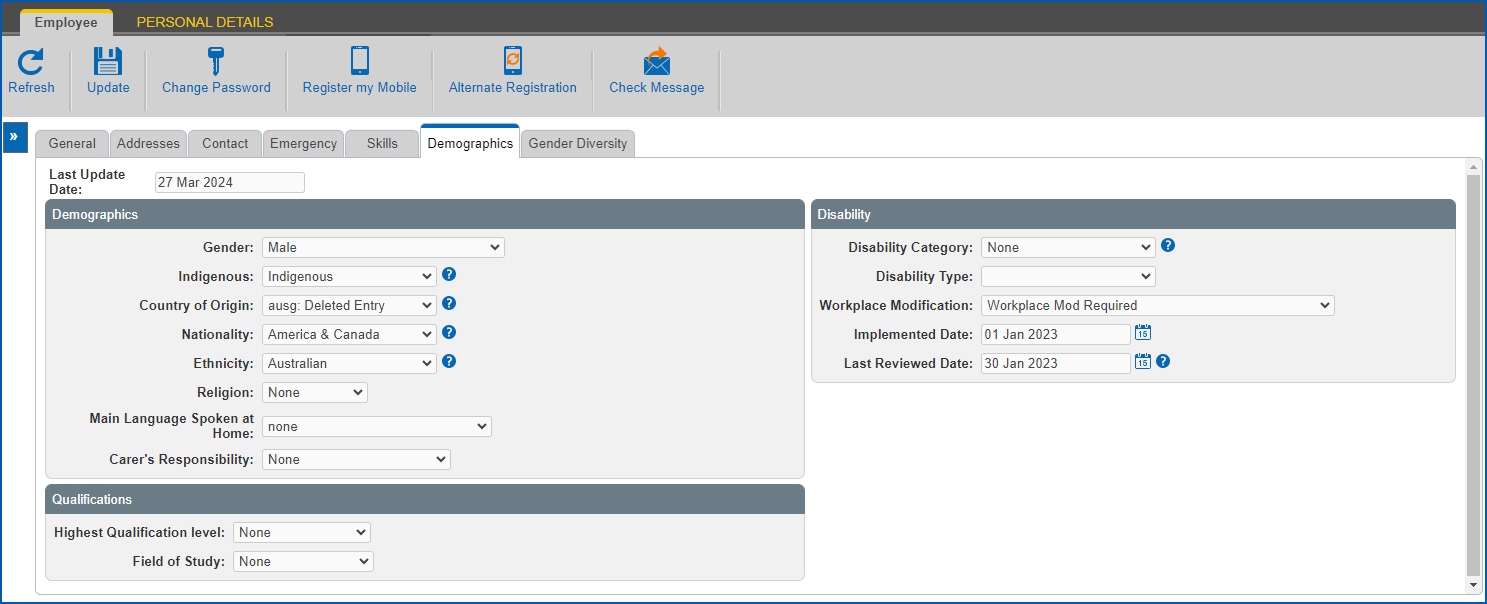
1. Complete or change the fields by making a selection from each field's dropdown list. You'll find most fields are self-explanatory, however, see [demographics fields explained](/articles/ehr-user-guide/demographics-field-explained) for more information.
2. Click **Save**.
| Next topic
[Demographics fields explained](/articles/ehr-user-guide/demographics-field-explained) |
| --- |
© 2023 Fusion5. All rights reserved.