---
title: "Add a non-employee"
id: "add-a-non-employee"
project: "EHR User Guide"
url: "https://help.cloud5.com.au/articles/ehr-user-guide/add-a-non-employee"
updated: 2026-10-19T00:52:44Z
---
# Add a non\-employee
You can use EmpowerHR to record non-employees. A non-employee is someone who is:
* paid on an ad hoc basis, but isn't a casual employee
* a contractor paid by an external agency
* a volunteer worker
* from another company who attends inhouse training in your organisation
This feature lets you record minimal details without having to set up the person as a normal employee.
## Add a paid non-employee 
Paid non-employees are individuals who receive pay on an ad hoc basis (not casuals). In EmpowerHR, they:
* are attached to a payroll and can be paid by direct debit
* are allocated within the organisational structure
* do not have an employment history kept in the system
Their pay can be initiated through pay data entry.
By default, EmpowerHR sets the paid non-employee's status to **spla** (paid non employee (adhoc pay)).
To add a paid non-employee:
1. Go to **Tasks** > **Non Employees** > **Non Employee**.
2. At the **Non Employee** summary screen, click **Find Now** to list all existing paid non-employees.
3. Click **New**.
4. At the **Non Employee** ****detail screen, make your selections and entries in the [non-employee detail fields](/articles/ehr-user-guide/non-employee-detail-fields).
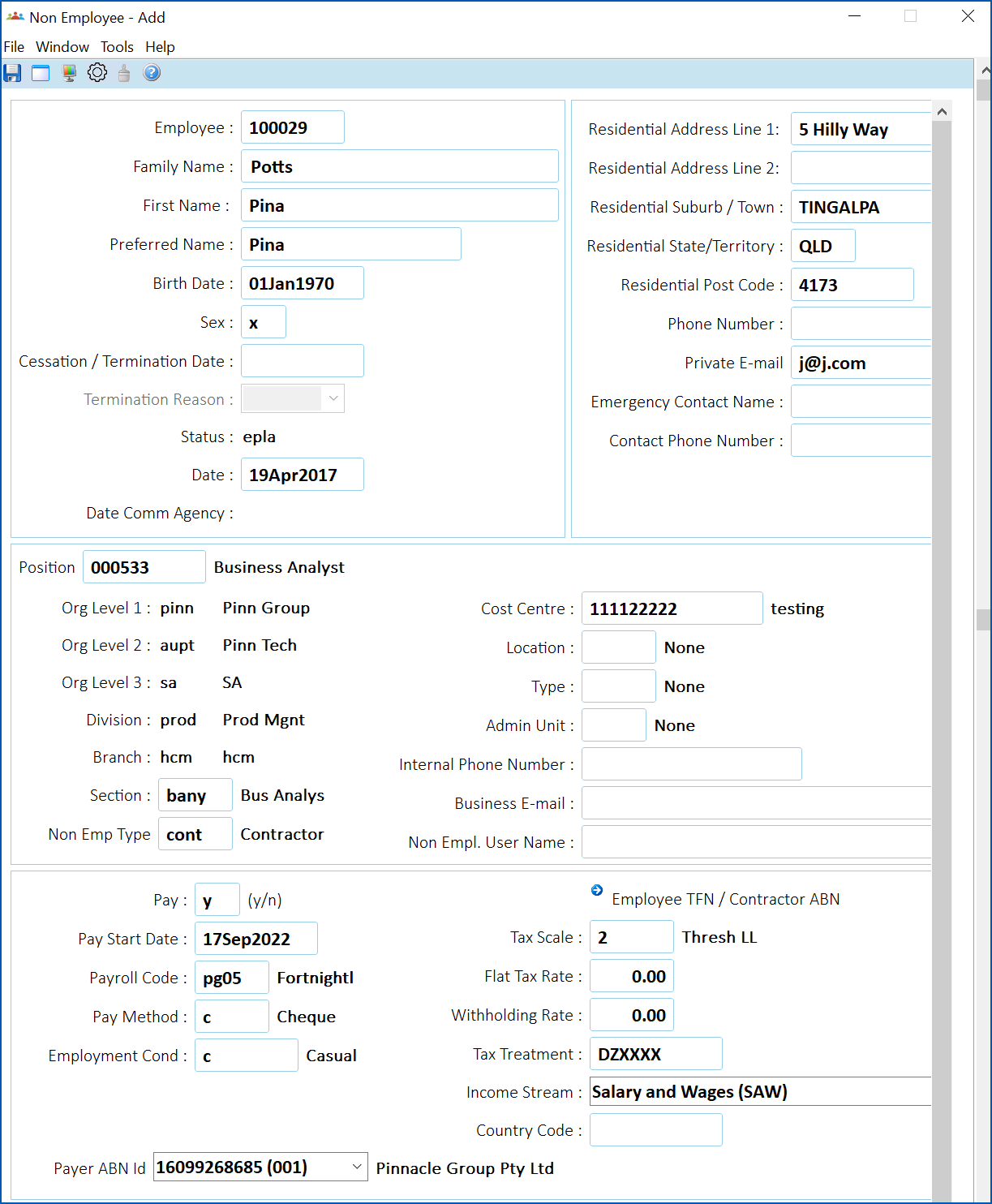
1. Click **Save**.
## Add an unpaid non-employee 
Unpaid non-employees are individuals who do not receive pay. One example of an unpaid non-employee is a volunteer worker.
By default, EmpowerHR sets the unpaid non-employee's status to **xcon**(contract).
To add an unpaid non-employee:
1. Go to **Tasks** > **Non Employees** > **Non Employee Unpai** **d**.
2. At the **Non Employee Unpaid** summary screen, click **Find Now** to list all existing unpaid non-employees.
3. Click **New**.
4. At the **Non Employee Unpaid** ****detail screen, make your selections and entries in the [non-employee detail fields](/articles/ehr-user-guide/non-employee-detail-fields).
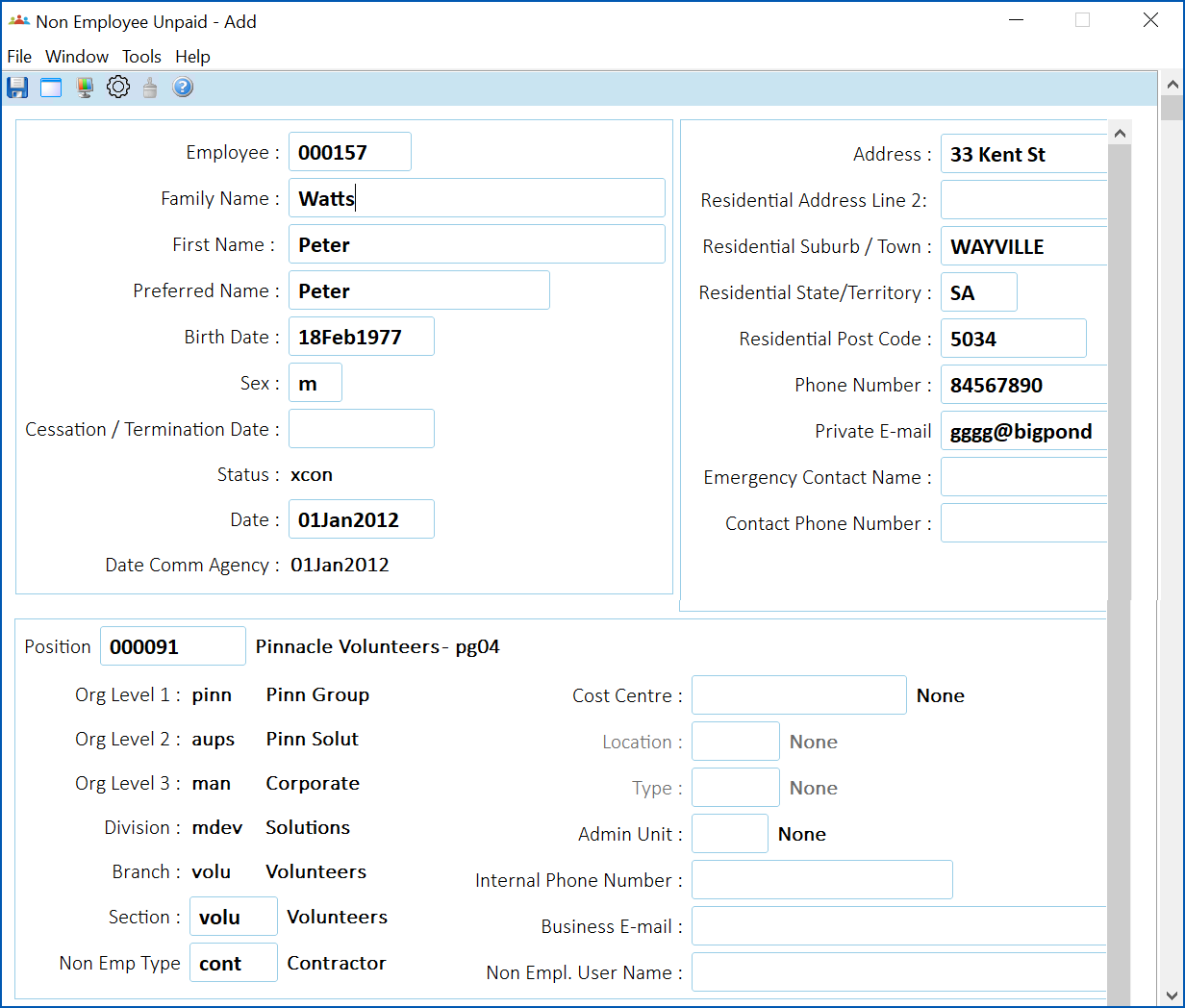
1. Click **Save**.
## Add an external trainee non-employee 
External trainees are individuals from other establishments who attend inhouse training in your organisation. Adding external trainees (non-employees) to EmpowerHR allows you to record their attendance on courses, and capture personal information to use for mailing, etc.
By default, EmpowerHR sets the external trainee's status to **xter**(external).
To add an external trainee (non-employee):
1. Go to **Tasks** > **Non Employee** **s** > **External Trainees**.
2. At the **External Trainees** summary screen, click **Find Now** to list all existing external trainees.
3. Click **New**.
4. At the **External Trainees** ****detail screen, make your selections and entries in the [non-employee detail](/articles/ehr-user-guide/non-employee-detail-fields) [fields](/articles/ehr-user-guide/non-employee-detail-fields).
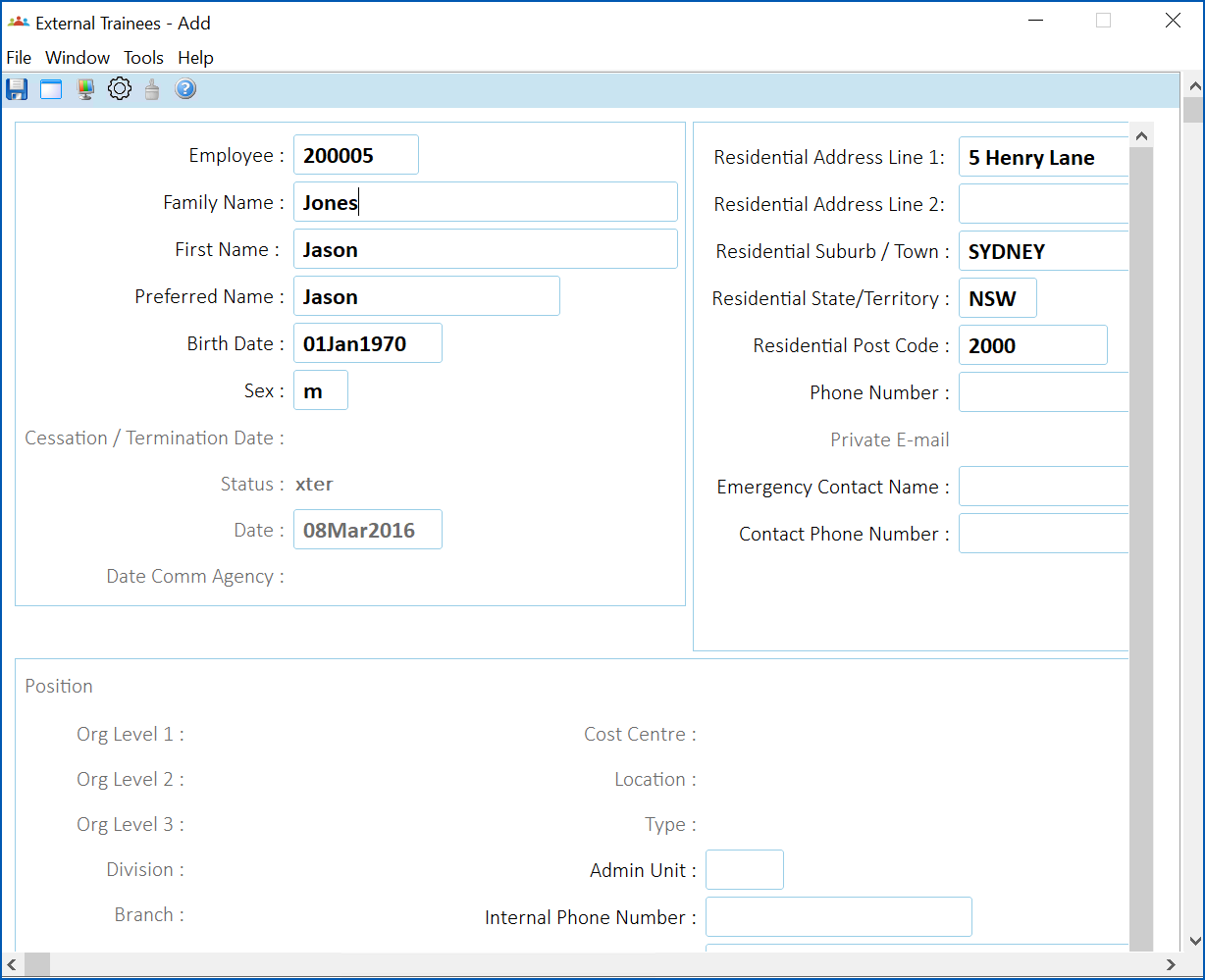
1. Click **Save**.
| Next topic
[Non-employee detail fields](/articles/ehr-user-guide/non-employee-detail-fields) |
| --- |
© 2023 Fusion5. All rights reserved.