---
title: "Action a claim for payment (casual relief work)"
id: "action-a-claim-for-payment-casual-relief-work"
project: "EHR User Guide"
url: "https://help.cloud5.com.au/articles/ehr-user-guide/action-a-claim-for-payment-casual-relief-work"
updated: 2026-10-19T00:53:00Z
---
# Action a claim for payment \(casual relief work\)
At the end of a vacancy period, the casual who completed the assignment checks and then submits a Claim for Casual Relief Work so they can be paid for the hours worked.
A Claim for Casual Relief Work alert appears in your Actions To Do box ready for you to action.
|  | The casual can submit a claim without a cost centre code. Depending on the field error severity settings in your school, you may be required to enter a cost centre code before you can accept the claim.
The approval manager **must** enter a cost centre code if the field error severity is set to **Error** for the following fields:
- Must be authorised to use
- Must be covered by a funding credit
For more information, see [set up cost centre selection and display](/articles/ehr-user-guide/set-up-cost-centre-selection-and-display) |
| --- | --- |
To action a claim for payment:
1. At the **Actions To Do** box, click the **Claim for Casual Relief Work** alert.
2. EmpowerHR displays the **Casual Relief Claims Actions To Do** list.
3. To view and check the claim details, at the claim row, click **Actions** and then select **Edit**from the menu..
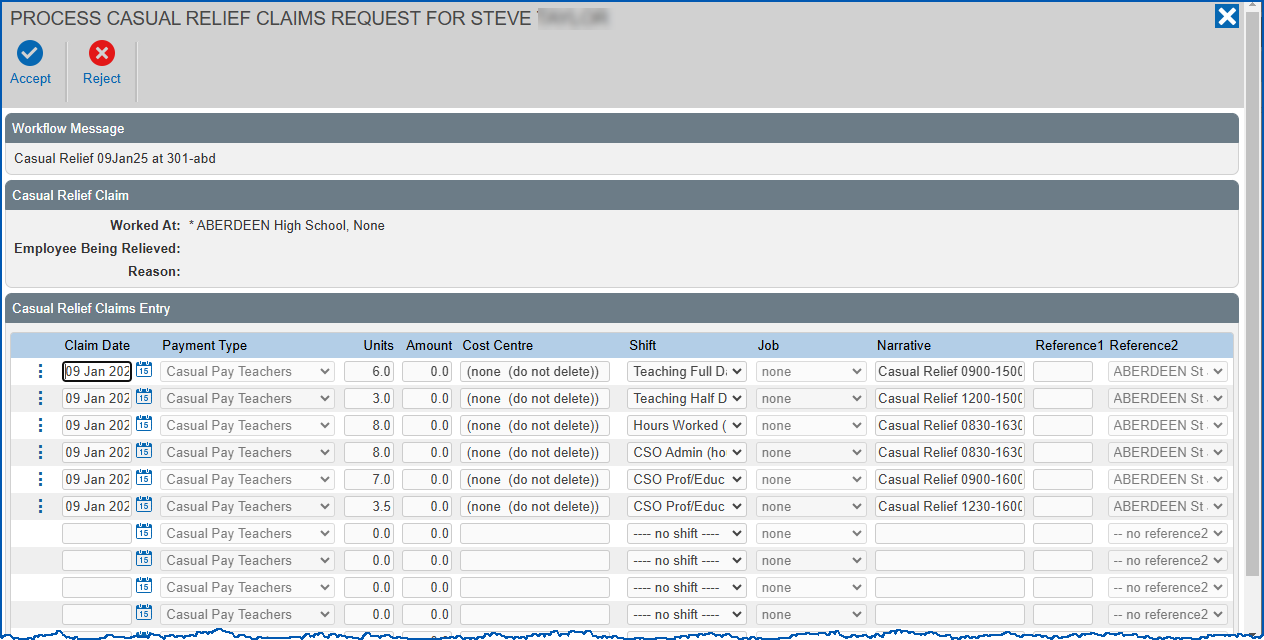
1. In **Cost Centre**, select the cost centre code from the dropdown list.
2. In **Reference1**, if the field is blank, enter the employee code of the employee who was relieved by the casual.
|  | If EmpowerHR automatically created the vacancy from a leave request, the relieved employee's employee code displays in the **Reference1** field by default. |
| --- | --- |
1. Take one of the following actions:
1. Click **Reject**. The claim is rejected and no payment is made.
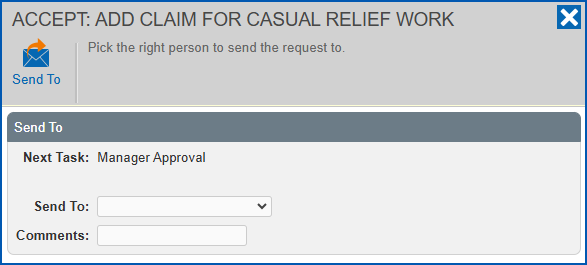
2. Click **Accept**. Depending on the number of approval tasks in the workflow, EmpowerHR may direct you to submit the claim to the next approver in the approval sequence by displaying the **Accept: Add Claim for Casual Relief Work** screen. Select the next approval manager from the **Send To** dropdown list, add **Comments**if you wish, and then click **Send To** to submit the claim for approval.
| Next topic
[Review funding for casual relief](/articles/ehr-user-guide/review-funding-for-casual-relief) |
| --- |
© 2023 Fusion5. All rights reserved.