---
title: "Accessing additional reference screens"
id: "accessing-additional-reference-screens"
project: "EHR User Guide"
url: "https://help.cloud5.com.au/articles/ehr-user-guide/accessing-additional-reference-screens"
updated: 2026-10-19T00:54:27Z
---
# Accessing additional reference screens
How to access an additional reference screen depends on whether or not you flagged the screen to appear as a User Defined Menu when you first created it.
See [create additional reference screens](/articles/ehr-user-guide/create-additional-reference-screens) for instructions about flagging the screen's location.
## How to access reference screens that are *not* on user defined menus
A screen that is *not* flagged to appear on a user defined menu appears in the following locations:
* **Task** > **Employees** > **Employee Information** > **Additional Employee Data**
[+] [Show example: screen not on user menu](javascript:void%280%29)
[-] [Hide example: screen not on user menu](javascript:void%280%29)
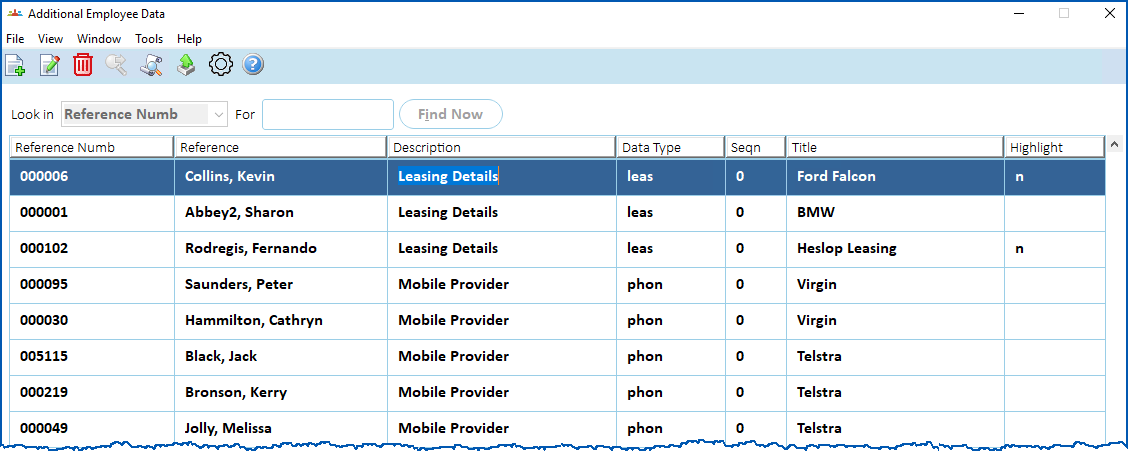
Here's an example of car leasing details attached to the employee record. They are also attached to other relevant records. 
* **Tasks** > **Payroll** > **Payroll Control**> **Additional Payroll Data**
* **Tasks**>**Establishment**>**Jobs**>**Jobs Reference Data**
* **Tasks > Establishment > Positions > Positions Reference** **Data**
* **Administration**>**Agency Management** >**** **Additional Agency Data**
|  | To access these screens, you must have security access (permissions) set on your [account template](/articles/ehr-user-guide/profiles-and-accounts). |
| --- | --- |
## How to access reference screens that *are* on user defined menus
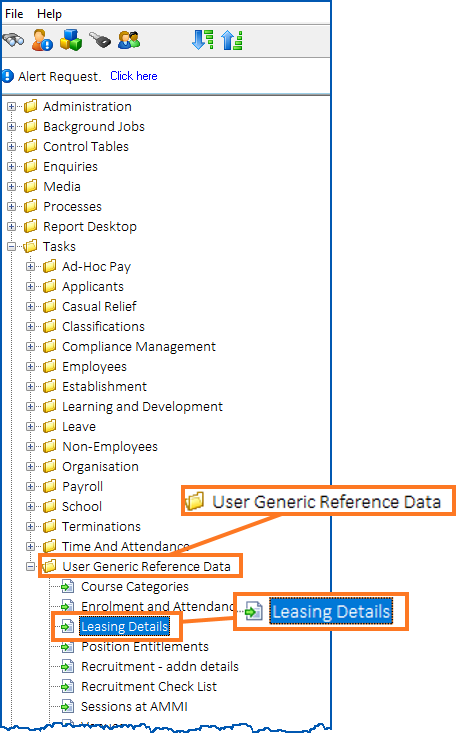
A screen that *is*flagged to appear on a user defined menu appears in the following location. The menu name assigned to it when it was created will be displayed.
**Tasks** > **User Generic Reference Data >** (menu name)
[+] [Show example: screen on user menu](javascript:void%280%29)
[-] [Hide example: screen on user menu](javascript:void%280%29)
In this example, the menu name assigned to the reference screen created is **Leasing Details**.
## How to record data in a reference screen
In the following example, we show how to record car leasing data against an employee. Data entry is the same whether the reference screen you need to access is via a user defined menu or via other additional data menus.
To record data in an additional reference screen:
1. Go to the location of the reference screen.
2. Click **Find Now** to display a list of existing records.
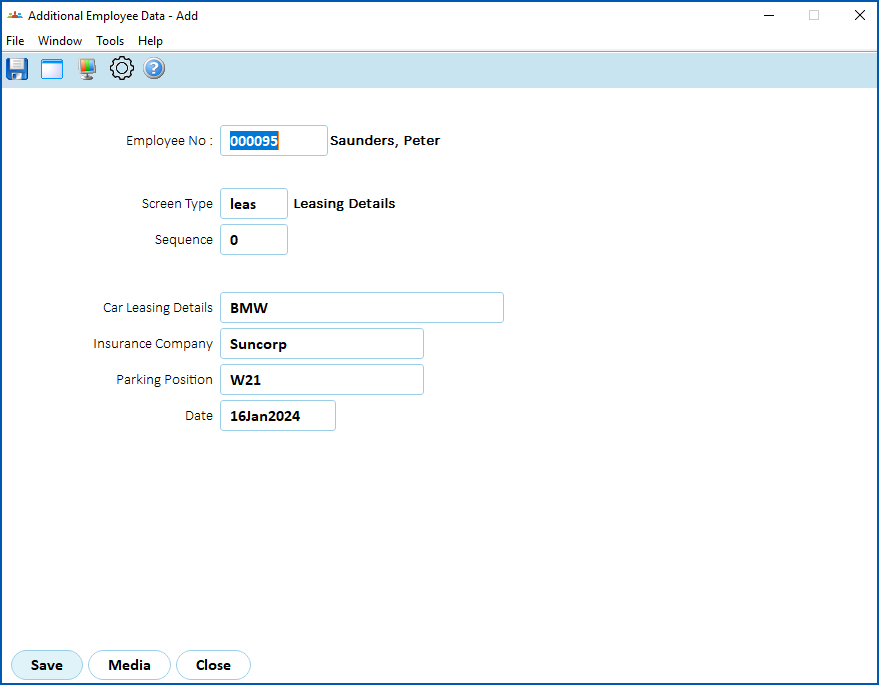
3. Click **New**. The data entry fields displayed depend on the design of the additional reference screen. In the following example, in the:
1. **Employee No** field, enter the employee number, and then press **Tab**
2. **Screen Type** field, click **Window**, find and double-click a code to add to the **Screen Type** (reference screen) field. Press **Tab**.
4. The fields for the reference screen (Screen Type) you selected are displayed. In the following example, the fields are for entering data about car leasing.
5. Complete the fields, and then click **Save**.
| Next topic
[Business processes](/articles/ehr-user-guide/business-processes) |
| --- |
© 2023 Fusion5. All rights reserved.