---
title: "Accept or decline a casual relief assignment"
id: "accept-or-decline-a-casual-relief-assignment"
project: "EHR User Guide"
url: "https://help.cloud5.com.au/articles/ehr-user-guide/accept-or-decline-a-casual-relief-assignment"
updated: 2026-10-19T00:53:01Z
---
# Accept or decline a casual relief assignment
In ESS, you can view the assignments you are offered and respond (accept or decline).
To accept or decline a casual relief assignment:
1. Go to **Casual Relief** > **Assignments**.
2. EmpowerHR displays the **Assignments** ****screen.
3. The **Status** field shows whether a vacancy has already been filled or is still vacant.
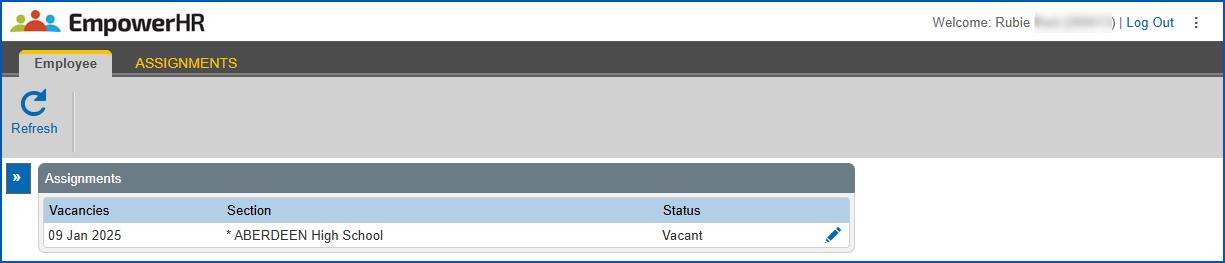
1. At the row showing the vacancy (assignment) you want to respond to, click **Change**.
2. EmpowerHR displays the **Update Assignments**screen.
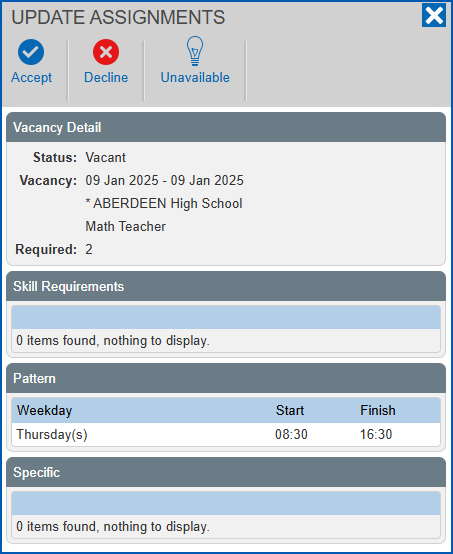
1. Click one of the following to respond to the offer:
1. **Accept** to accept the offer (alternatively, you can contact the school directly about the offer)
2. **Decline** to turn down the offer
3. **Unavailable**to show you are unavailable at the time of the assignment and unable to accept the offer
2. EmpowerHR changes the vacancy status on the **Assignments** screen.
| Next topic
[Submit a claim for payment (casual relief work)](/articles/ehr-user-guide/submit-a-claim-for-payment-casual-relief-work) |
| --- |
© 2023 Fusion5. All rights reserved.