---
title: "Abolish a position"
id: "abolish-a-position"
project: "EHR User Guide"
url: "https://help.cloud5.com.au/articles/ehr-user-guide/abolish-a-position"
updated: 2026-10-19T00:54:04Z
---
# Abolish a position
EmpowerHR allows the abolition of a position to be recorded, as a natural (possible) progression of the status of a position.
Once a position is abolished, it cannot be used again. If you determine the position may still be required in future, instead of abolishing it you can transfer (relocate) it to a Redundancy section or flag it as not available for use.
Unlike other date-effective position changes, abolishing a position does not abolish its occupants. Instead, EmpowerHR records a **redp** (redeployment) movement on all affected employees. You cannot delete the movement in the Position Query screen that displays when abolishing the position. So it's important to transfer the employees from the position before you abolish the position if they are not to become redeployees in EmpowerHR.
|  | We recommend you set set the [field severity level](/articles/ehr-user-guide/what-you-need-to-set-up-positions-management/a/h2_1313235373) so EmpowerHR displays a warning/error when anyone tries to abolish a position that has subordinate positions reporting to it. |
| --- | --- |
##
|  | EmpowerHR does not allow you to change a position where a change has already been made for the same date. |
| --- | --- |
To abolish a position (or make a position redundant):
1. Go to **Tasks** > **Establishment** > **Positions** > **Redundant/Abolished Position**.
2. At the **Redundant/Abolished Position** ****summary screen, enter the position number, or click **Window**, find and double-click the position number to add it to the field.
3. Press **Tab**. EmpowerHR lists the position history.
4. Click **New**.
5. EmpowerHR displays the **Redundant/Abolished Position** **- Add** screen, with the **Establish Actn** field showing the code, **redu**(redundant).
6. In **Effective Date**, enter the date the change will take effect, and then press **Tab**.
7. EmpowerHR populates the fields with existing position information.
8. If required, change the **Abbreviation** and **Title** fields. EmpowerHR records the changes in the establishment history and also updates all relevant screens with the changes.
9. Tab to the **Establish Actn** field, enter **abol** if abolishing the position, or **redu** if making the position redundant.
10. Make any other entries, as required by your organisation.
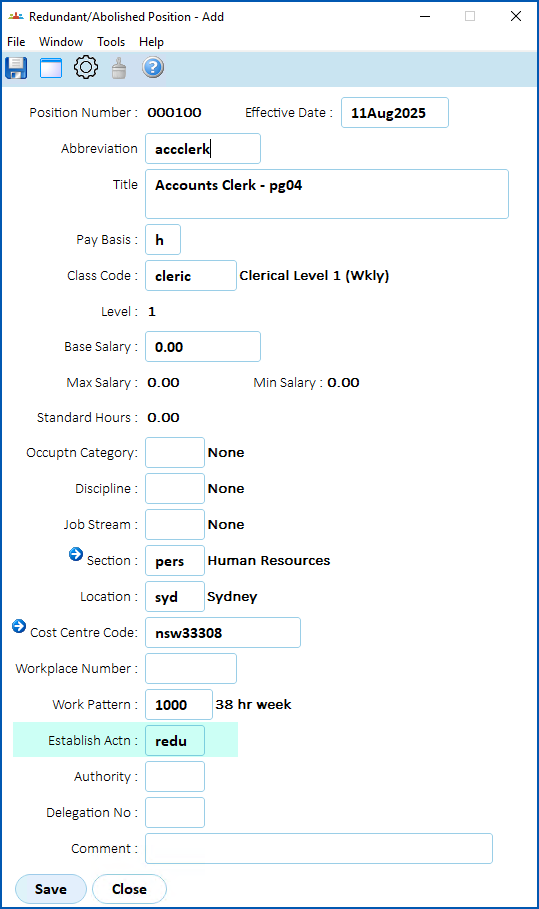
1. Click **Save**.
2. If the position is:
1. not substantively occupied, go to step 14.
2. substantively occupied at (or after) the **Effective Date**, EmpowerHR displays the **Position Query** screen, listing all the occupants (employees). Go to step 13.
|  | The **redu**transaction rules default some of the employee data, which is why we recommend you *don't* close the **Position Query** screen without first checking the proposed employee changes (see step 13).
If you do close the **Position Query** screen, EmpowerHR automatically applies the position changes to the employees at the effective date. |
| --- | --- |
1. At the **Position Query** screen, select an employee, and then click **Open**.
|  | If the installation setting called **allow empl position change** is set to:
- yes, then EmpowerHR displays the employee's Position Movement Information screen.
- no, then EmpowerHR displays the employee's Remuneration Change/History screen, bypassing the Position Movement Information screen.
|
| --- | --- |
1. At the **Position Movement Information** screen and/or **Remuneration Change/History** screen, check the details, make any required changes, and then click **Save**.
2. EmpowerHR displays the **Position Query** screen. Repeat this procedure, starting at step 13, until you have checked (and, where required, changed) any other employee records.
|  | Employees show as attached to the position but EmpowerHR flags them as redeployees (**redp**). You need to assign these employees to new positions. |
| --- | --- |
1. When you're finished, close the **Position Query** screen.
2. At the **Redundant/Abolished Position** **** screen, click **Close**.
| Next topic
[Abolish positions in bulk](/articles/ehr-user-guide/abolish-positions-in-bulk) |
| --- |
© 2023 Fusion5. All rights reserved.